
Guide
How to Choose the Right Hardware
Choosing the right hardware is crucial to building a reliable and high-performance PC. This guide walks you through every decision, from component selection to power supply, ensuring you avoid costly errors.
Updated 2026-07-05
Understanding Your Hardware Needs
Building or upgrading a PC starts with a clear understanding of your performance needs and budget. The right hardware ensures your system handles your workload, whether for gaming, content creation, or productivity. Matching components that complement each other is key to a well-balanced, future-proof build.
Begin by defining your primary use cases. Gamers will prioritize a powerful GPU and fast RAM, while professionals may require more CPU cores or storage speed. Assessing your needs helps you avoid overspending on unnecessary features or bottlenecking performance-critical parts.
Consider your upgrade path as well. Choosing a motherboard and power supply that support future components can save money and hassle down the line. Compatibility is critical, so always cross-check supported standards like PCIe, RAM type, and form factor.
Finally, think about power requirements and thermal management. Underestimating your system’s wattage can lead to instability. Our PSU Calculator takes the guesswork out of power supply selection, recommending only top-tier models for your setup.
Key Factors in Hardware Selection
Each component in your PC build plays a unique role. Start with the CPU, as it dictates your system’s overall speed and multitasking abilities. When choosing a CPU, balance core count and clock speed against your software demands. For gaming, a high clock speed is vital, while for video editing or 3D rendering, more cores are preferable.
The GPU is the heart of gaming and creative workstations. Consider VRAM capacity, architecture, and compatibility with your monitor’s resolution and refresh rate. Do not pair a high-end GPU with a weak CPU, as this can create performance bottlenecks.
RAM affects multitasking and application responsiveness. Aim for at least 16GB for mainstream builds, 32GB or more for professional applications. Check compatibility with your motherboard’s supported memory speeds and types.
Storage choices impact load times and reliability. SSDs are standard for operating systems and applications, while HDDs offer cost-effective bulk storage. M.2 NVMe drives provide the fastest speeds but require motherboard support.
Motherboard selection ties everything together. Evaluate socket type, chipset features, expansion slots, and rear I/O. A quality motherboard supports future upgrades and stable operation.
Do not overlook the power supply unit (PSU). It is the foundation of system stability. An underpowered or low-quality PSU risks damaging components. Use our PSU Calculator to determine the exact wattage you need, factoring in every component and planned upgrades.
Finally, consider cooling and case compatibility. Adequate airflow and quality coolers prevent thermal throttling. Ensure your case fits your chosen parts and supports your preferred cooling solution.
Step-by-step
Define Your Usage and Budget
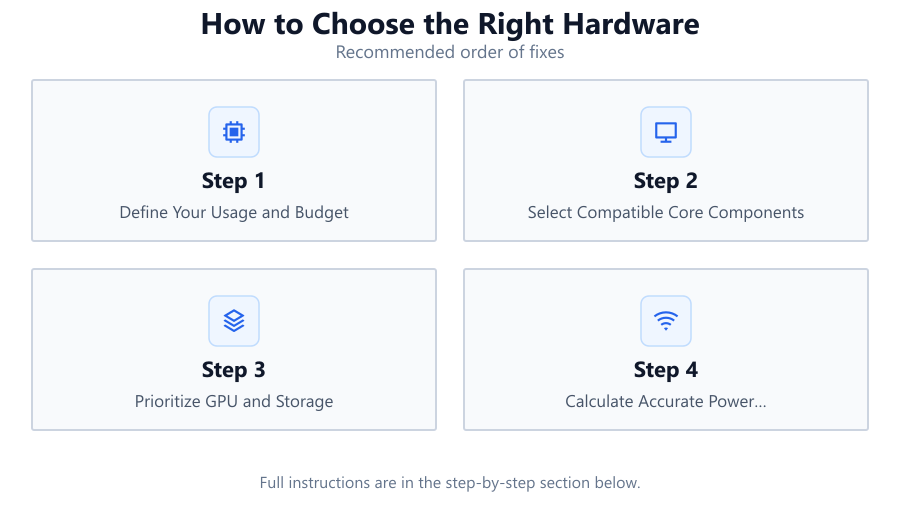
List your main uses: gaming, content creation, streaming, or productivity. Set a realistic budget covering all components, peripherals, and software. This focus prevents overspending on features you do not need.
Select Compatible Core Components
Choose a CPU, motherboard, and RAM that match in socket type, chipset, and supported standards. Verify compatibility to avoid costly returns or build delays.
Prioritize GPU and Storage
Decide on a graphics card based on your workload and display setup. For storage, combine SSDs for speed with HDDs for capacity. Check for motherboard support for NVMe or SATA connections.
Calculate Accurate Power Requirements
Use the PSU Calculator to estimate your total system wattage. Add extra headroom for future upgrades and ensure your selected PSU meets efficiency and reliability standards.
Check Case and Cooling Compatibility
Ensure your case fits your motherboard form factor and GPU length. Plan for sufficient airflow and cooling, especially for high-performance builds.
Comparison
| Component | Entry-Level | High-End |
|---|---|---|
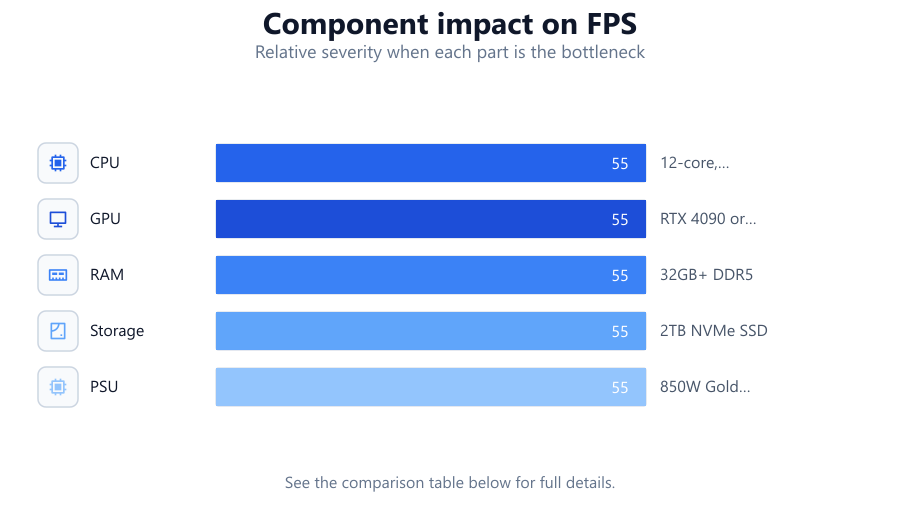
| CPU | 4-core, 3.5GHz | 12-core, 5.0GHz |
| GPU | Integrated or GTX 1650 | RTX 4090 or RX 7900 XTX |
| RAM | 8GB DDR4 | 32GB+ DDR5 |
| Storage | 500GB SATA SSD | 2TB NVMe SSD |
| PSU | 450W Bronze | 850W Gold or Platinum |
Common mistakes
Mistake
Ignoring Power Supply Quality
Fix: Always use a reputable PSU brand and verify wattage with the PSU Calculator. Do not cut costs on this critical component.
Mistake
Mismatched Components
Fix: Double-check CPU, motherboard, and RAM compatibility. Use manufacturer tools or system configurators for confirmation.
Mistake
Underestimating Cooling Needs
Fix: Plan for adequate airflow and choose a cooler rated for your CPU’s thermal output. Ensure your case supports your chosen cooling setup.
Mistake
Overlooking Future Upgrade Paths
Fix: Choose a motherboard and PSU that support future hardware. This avoids expensive replacements as your needs grow.
Troubleshooting
PC does not power on
Likely cause: Insufficient or faulty PSU, incorrect connections
What to do: Recheck all power cables. Use PSU Calculator to confirm correct wattage. Replace PSU if necessary.
System crashes under load
Likely cause: Power supply is overloaded or overheating
What to do: Upgrade to a higher wattage PSU recommended by the PSU Calculator. Improve case airflow and cooling.
No display output or boot errors
Likely cause: Incompatible or improperly seated hardware
What to do: Verify component compatibility. Reseat RAM, GPU, and double-check motherboard connections.
Recommendations
- Define your performance needs before shopping for hardware.
- Always verify component compatibility using manufacturer resources.
- Use the PSU Calculator to ensure you select a reliable, sufficient power supply.
- Plan for future upgrades by choosing scalable components.
- Invest in quality cooling and a well-ventilated case.
Frequently asked questions
How do I know if my hardware is compatible?
Check socket types, RAM standards, and form factors. Use manufacturer tools or online compatibility checkers to confirm before buying.
Is a bigger power supply always better?
Not always. Use the PSU Calculator to determine your exact needs. Oversized PSUs can be less efficient at low loads.
How much RAM do I need for gaming or productivity?
For gaming, 16GB is recommended. For professional tasks like video editing, 32GB or more may be beneficial.
Why is power supply quality so important?
A high-quality PSU protects your components from power surges and ensures stable operation. It reduces the risk of hardware failure.