
Guide
Optimization Guide
Unlock the full potential of Stable Diffusion by mastering optimization. This guide explains everything you need to know to generate AI art efficiently and reliably.
Updated 2026-07-05
Understanding Stable Diffusion Optimization
Stable Diffusion's ability to generate high-quality images hinges on the hardware you use and how you configure your workflow. Whether you are a hobbyist or a professional, optimizing your setup can dramatically affect output quality, speed, and consistency. This optimization guide walks you through every step needed to get the best results from your system.
The most critical factor in optimizing Stable Diffusion is your GPU. VRAM, CUDA core count, and memory bandwidth all influence how large or complex your generations can be. Using the Stable Diffusion GPU Calculator, you can estimate the minimum VRAM required for different models, image sizes, and batch settings. This insight helps prevent crashes, slowdowns, and out-of-memory errors before they happen.
Beyond hardware, software configuration also plays a vital role. The choice of model, image resolution, and batch size all impact performance. By understanding these elements, you can tailor your workflow to your hardware, ensuring smooth and efficient image generation.
Advanced Techniques for Maximum Efficiency
Once you have a grasp of the basics, you can further optimize your Stable Diffusion workflow with advanced strategies. Mixed precision training, model pruning, and efficient memory management are just a few methods that can push your hardware to its limits without sacrificing stability.
Mixed precision reduces VRAM usage by combining 16-bit and 32-bit operations, allowing larger images or bigger batches on the same GPU. Model pruning removes unnecessary weights from models, making them lighter and faster to run. Both techniques can be combined with the insights gained from the Stable Diffusion GPU Calculator for best results.
Batch size and image resolution are the two most significant variables you can adjust. Increasing either will raise VRAM requirements, but the relationship is not linear. Use the calculator to experiment with settings and find the optimal balance between quality and speed for your specific hardware.
Step-by-step
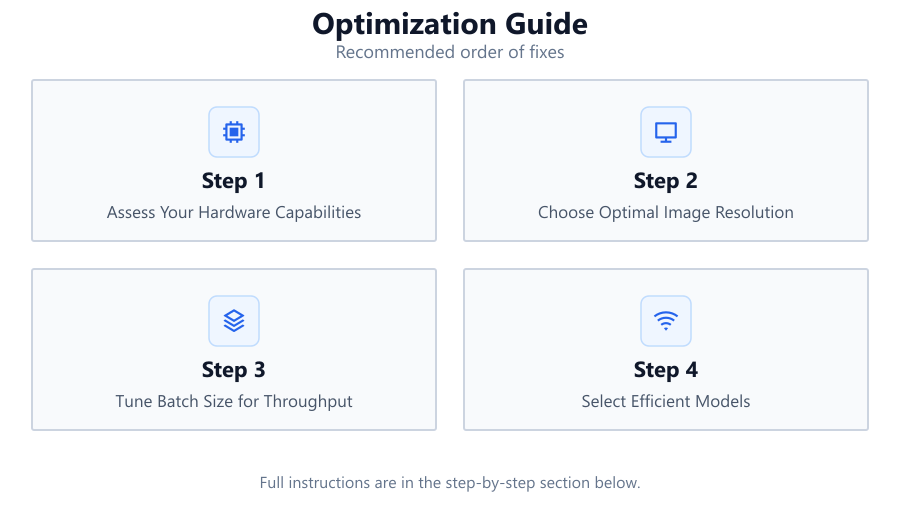
Assess Your Hardware Capabilities
Begin by identifying your GPU model, VRAM amount, and other system specs. Use the Stable Diffusion GPU Calculator to input these details and get a baseline for what is possible on your setup.
Choose Optimal Image Resolution
Start with moderate resolutions (e.g., 512x512) to ensure stability. Gradually increase the resolution while monitoring VRAM usage and generation times. The right balance maximizes quality without overloading your GPU.
Tune Batch Size for Throughput
Larger batch sizes can speed up workflows but require additional VRAM. Use the calculator to estimate safe batch sizes that your GPU can handle without errors or slowdowns.
Select Efficient Models
Some Stable Diffusion models are more resource-intensive than others. Experiment with different models and use the GPU Calculator to check their VRAM requirements before committing to a workflow.
Implement Advanced Optimization Techniques
Explore mixed precision, model pruning, and memory-efficient settings in your software. These can further reduce resource demands and improve generation speed, especially on mid-range GPUs.
Comparison
| GPU Model | Recommended Max Image Size | Typical Batch Size |
|---|---|---|
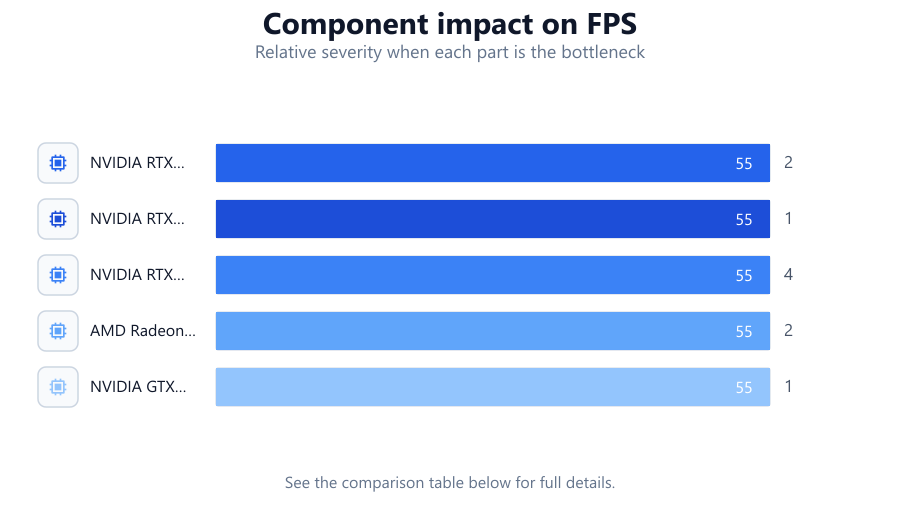
| NVIDIA RTX 3060 12GB | 768x768 | 2 |
| NVIDIA RTX 3070 8GB | 640x640 | 1 |
| NVIDIA RTX 4090 24GB | 1024x1024 | 4 |
| AMD Radeon RX 6800 16GB | 896x896 | 2 |
| NVIDIA GTX 1660 6GB | 512x512 | 1 |
Common mistakes
Mistake
Ignoring VRAM requirements when increasing resolution or batch size
Fix: Always use the Stable Diffusion GPU Calculator to check VRAM needs before changing settings.
Mistake
Overloading the GPU with multiple processes
Fix: Run only one Stable Diffusion instance at a time and close unnecessary applications.
Mistake
Using outdated drivers or incompatible software versions
Fix: Keep your GPU drivers and AI frameworks up to date for best compatibility and performance.
Mistake
Not monitoring system temperatures during generation
Fix: Use monitoring tools to ensure your GPU stays cool and avoid thermal throttling.
Troubleshooting
Stable Diffusion crashes or closes unexpectedly
Likely cause: VRAM usage exceeds available GPU memory
What to do: Lower image resolution or batch size using the calculator to find safe limits.
Image generation is extremely slow
Likely cause: GPU is under heavy load or system resources are limited
What to do: Close other GPU-intensive applications and reduce batch size or resolution.
Output images have visible artifacts or incomplete rendering
Likely cause: GPU instability or insufficient VRAM for selected settings
What to do: Reduce settings or try a different, less demanding model.
Software does not recognize the GPU
Likely cause: Outdated or missing drivers
What to do: Update to the latest GPU drivers and restart your system.
Recommendations
- Run the Stable Diffusion GPU Calculator before every major workflow change.
- Aim for a GPU with at least 8GB VRAM for consistent results at moderate resolutions.
- Monitor your GPU's temperature and memory usage during long sessions.
- Experiment with mixed precision and efficient models for better performance on limited hardware.
- Keep your AI frameworks and drivers current for maximum compatibility.
Frequently asked questions
How do I know if my GPU is suitable for Stable Diffusion?
Check your GPU model and VRAM. Use the Stable Diffusion GPU Calculator to see if your hardware can support your desired image sizes and batch settings.
What is the optimal batch size for my GPU?
Optimal batch size depends on VRAM and image resolution. Use the calculator to test different values and choose the highest batch size that does not cause errors.
Does image resolution impact generation speed?
Yes. Higher resolutions require more VRAM and processing power, which can slow down generation or cause errors if your GPU cannot handle the load.
What can I do if my GPU runs out of memory?
Lower the image resolution or batch size, or switch to a more efficient model. The Stable Diffusion GPU Calculator can help you identify safe settings.
Can I optimize Stable Diffusion on older GPUs?
Yes. Use efficient models, lower resolutions, and smaller batch sizes. Mixed precision can also help reduce VRAM usage on supported cards.