SD 1.5, 512x512, batch size 1
- Model baseline
- 4GB
- Scaling
- (512/512)^2 × 1 = 1
- Overhead
- 2GB
- VRAM required
- 4GB × 1 + 2GB = 6GB
- Suitable GPUs
- GTX 1660 Super (6GB), RTX 2060 (6GB)

FREE STABLE DIFFUSION GPU CALCULATOR
Curious if your GPU can handle Stable Diffusion image generation? This calculator instantly estimates the minimum VRAM you need for different models, image sizes, and batch settings. Find out the optimal graphics card for your AI art workflows before you hit that 'generate' button.
Configure settings, then calculate
The Stable Diffusion VRAM calculator determines the minimum graphics card memory (VRAM) required to reliably generate images with Stable Diffusion, including SD 1.5, SDXL, and newer models like Stable Diffusion Flux.
It factors in the specific model you choose, your target image resolution, and the batch size you want to use for simultaneous generation. By accounting for these variables, the tool helps you avoid out-of-memory errors and ensures smoother, more efficient AI image creation.
Unlike generic GPU advice, this calculator provides tailored recommendations based on real-world Stable Diffusion workloads. Whether you’re running local inference on a gaming PC or building a dedicated AI workstation, knowing your VRAM requirements up front allows you to select the right hardware and optimize your workflow.
Using the Stable Diffusion VRAM calculator is straightforward:
The calculator will also recommend popular GPUs that meet or exceed your requirements, such as the NVIDIA RTX 3060 (12GB), RTX 4070 (12GB), and others. Refer to the examples below for typical hardware pairings.
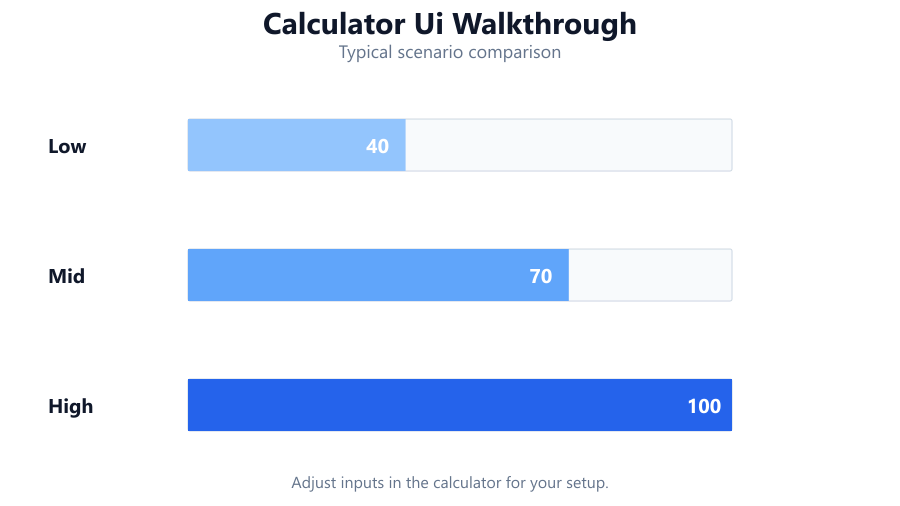
The VRAM estimate is derived from a formula reflecting actual Stable Diffusion workloads, including model parameters, tensor sizes, and runtime overhead. Here’s how it works:
The formula:
VRAM Required = (Model Baseline) × (Resolution Width ÷ 512) × (Resolution Height ÷ 512) × Batch Size + 2GB
Expressed differently:
VRAM = (Model Baseline in GB) × (Your Resolution / 512)^2 × Batch Size + 2GB
For example, generating 768x768 images (which is 2.25 times the area of 512x512) with SDXL and a batch size of 2:
VRAM = 6GB × (768/512)^2 × 2 + 2GB = 6GB × 2.25 × 2 + 2GB = 27GB + 2GB = 29GB
Note: This is a high estimate designed to ensure stability. In practice, some optimizations (like memory-efficient attention or half-precision) may reduce actual usage, but the formula errs on the side of caution for reliability.
When you run the calculator, you’ll see the estimated VRAM required, rounded up to the nearest whole gigabyte. The tool also lists several GPUs that meet or exceed this requirement, helping you match your workload to available hardware.
If your GPU’s VRAM is below the estimate, you’re likely to encounter CUDA out-of-memory errors or slowdowns due to paging to system RAM. Meeting or exceeding the requirement ensures smoother image generation and enables higher batch sizes or resolutions.
The calculator also flags when your selected settings push requirements beyond mainstream consumer GPUs, suggesting workstation or data center cards (like the RTX 4090, RTX 6000 Ada, or A100).
Keep in mind that VRAM is only one part of Stable Diffusion performance. GPU core count, memory bandwidth, and CPU support (such as a Ryzen 7 7800X3D or Intel Core i7-13700K) all play a role in overall throughput, but insufficient VRAM is the most common bottleneck.
Here are several realistic scenarios showing how the calculator works:
These scenarios illustrate why consumer GPUs can struggle with high-res or large batch generation, and why this calculator is a critical planning tool for AI artists and developers.
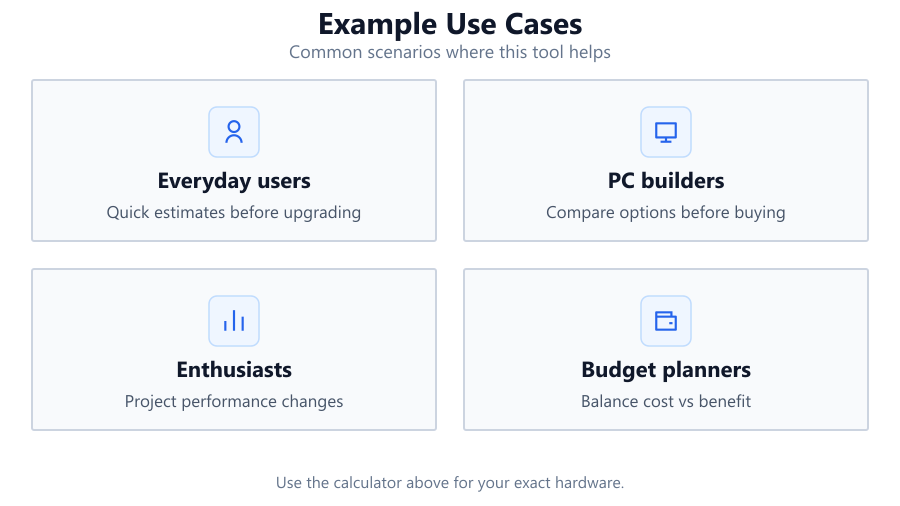
The calculator is useful for a range of real-world scenarios:
The Stable Diffusion VRAM calculator is an essential resource for anyone working with AI image generation. By providing accurate, scenario-specific VRAM recommendations, it helps you avoid frustrating memory errors and ensures your hardware investment aligns with your creative goals.
Remember that the calculator’s logic is based on typical, stable configurations and deliberately overestimates to ensure safety across a range of software environments. Actual usage may be slightly lower with aggressive optimizations, but targeting the calculator’s output guarantees a smoother experience.
Whether you’re a hobbyist experimenting on a gaming laptop or a professional building a high-throughput AI pipeline, using this calculator before you buy or upgrade hardware will save time, money, and frustration.
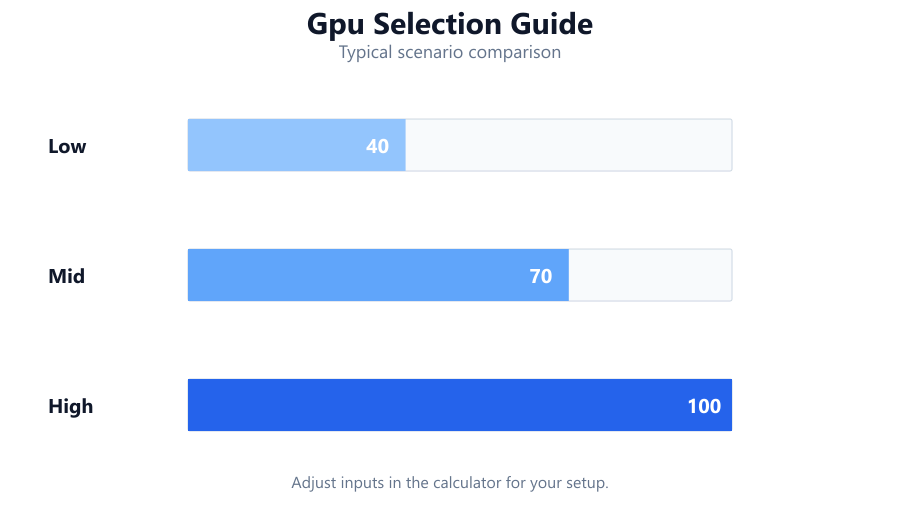
VRAM (Video RAM) is the dedicated memory on your graphics card used to store image data, model weights, and intermediate tensors during AI computation. Stable Diffusion models are memory-intensive, so having enough VRAM is critical to avoid out-of-memory errors and to process high-resolution or batch image generation efficiently. Insufficient VRAM will cause your job to fail or significantly slow down as the system attempts to use much slower system RAM.
For SD 1.5 at 512x512 resolution and batch size 1, you need at least 6GB VRAM. For SDXL at the same settings, 8GB is a safe minimum. If you increase resolution or batch size, required VRAM increases rapidly. For example, SDXL at 768x768, batch size 2, can require 29GB or more. Always use the calculator to check your specific use case.
Not directly. VRAM determines whether a given workload will fit in memory, but generation speed is more closely tied to GPU core count, memory bandwidth, and clock speeds. However, insufficient VRAM can force the system to fall back to system RAM or fail outright, which is much slower. Adequate VRAM ensures you don’t bottleneck your GPU’s performance.
Yes, but you must respect the VRAM limits of your laptop GPU. Many gaming laptops with 6GB or 8GB VRAM (such as RTX 3060 or 4060 laptops) can run SD 1.5 and SDXL at standard resolutions and small batch sizes. For higher resolutions or larger batches, desktop or workstation GPUs with more VRAM are recommended.
You’ll typically encounter CUDA out-of-memory errors and the process will halt or crash. In best-case scenarios, the system may attempt to swap tensors to system RAM, but this process is extremely slow and often unstable. It’s always best to stay within your GPU’s VRAM limits for reliable operation.
The calculator is intentionally conservative. It estimates VRAM needs based on worst-case, unoptimized scenarios, including runtime overhead. In practice, with optimizations like memory-efficient attention or half-precision, you may use less VRAM. However, targeting the calculator’s output ensures you avoid unpredictable errors across different setups and software stacks.
Absolutely. Batch size has a linear impact on VRAM requirements. Halving your batch size will halve the amount of memory consumed by data tensors, at the cost of slower overall throughput. For users with limited VRAM, reducing batch size is the most effective way to avoid memory errors.
Custom models or checkpoints that differ significantly in parameter count from the base SD 1.5, SDXL, or Flux may require more (or occasionally less) VRAM. The calculator’s baselines are for standard weights. For unusually large or pruned models, adjust expectations accordingly, but most community checkpoints fit within the standard categories.
By default, Stable Diffusion jobs run on a single GPU. Multi-GPU support is limited to specific, advanced setups (such as model parallelism or distributed inference), which are not common in consumer workflows. For most users, assign separate jobs to each GPU rather than expecting automatic load balancing.
Yes. Use memory optimizations like xformers, enable half-precision (FP16), and monitor for unnecessary background GPU processes. Lowering batch size and resolution also helps. Some WebUIs and toolkits offer 'low VRAM' modes that trade speed for lower memory usage, with little impact on final image quality.
System RAM does not directly substitute for VRAM. However, having adequate system RAM (at least 16GB, preferably 32GB for heavy workloads) ensures the rest of your system and AI frameworks run smoothly. If the GPU runs out of VRAM, the process will usually crash regardless of system RAM capacity.
Yes, but support is less mature compared to NVIDIA’s CUDA stack. Some frameworks support ROCm for AMD GPUs, but you’ll need to check compatibility with your specific card and driver. VRAM requirements are the same, but performance and reliability may vary.
You can check your GPU’s VRAM using tools like GPU-Z (Windows), NVIDIA-SMI (command line for NVIDIA cards), or macOS’s About This Mac > Graphics. Most graphics driver control panels also display VRAM size. Always verify your card’s specs, as advertised VRAM can differ from actual available memory depending on hardware and driver overhead.
The calculator assumes standard model weights, no aggressive memory optimizations, and that the entire process is confined to a single GPU. Real-world memory usage can be lower with advanced settings, but the tool is designed to be conservative for stability. Data center or highly customized environments may require further tuning.
While VRAM is the limiting factor for image size and batch, CPU choice affects data preprocessing and overall throughput. For best results, pair your GPU with a modern multi-core CPU such as Ryzen 7 7800X3D or Intel Core i7-13700K, and ensure your system has enough RAM and fast storage.
As models become larger and more capable (such as the jump from SD 1.5 to SDXL or Flux), VRAM requirements generally increase, especially for higher resolutions or batch sizes. Always check model release notes, and use this calculator to anticipate future hardware needs.
It’s not recommended. Running close to or at your VRAM limit increases the risk of instability and out-of-memory errors, especially if other processes or background tasks compete for memory. For reliable operation, aim for at least 1GB headroom above your calculated minimum.
Yes. GPU compute performance (core count, tensor cores), memory bandwidth, driver support, and cooling all play a role. System RAM, CPU, and storage speed also impact loading times and overall responsiveness. But VRAM remains the primary gating factor for image size and batch processing.
Free tools to analyze, compare, and optimize your PC gaming performance
Check if your PC meets the requirements for these popular games
Benchmark data from PassMark and publisher specs. Calculators run locally in your browser — we never upload your hardware info.