
Guide
Common Buying Mistakes
Avoid the most common buying mistakes when choosing a UPS for your PC. Get actionable tips to find the right backup power using our UPS Calculator.
Updated 2026-07-05
Overview: Why UPS Buying Mistakes Happen
Uninterruptible Power Supplies (UPS) are essential for protecting your PC and data during power outages, yet many buyers make costly mistakes when choosing one. These errors can lead to wasted money, inadequate protection, or even hardware damage. The market is filled with options, technical jargon, and confusing specifications, making it easy to overlook crucial details.
A common buying mistake is underestimating your system's actual power draw or failing to account for all the devices you want to protect. Many users skip runtime calculations or ignore the efficiency ratings of their UPS, leading to disappointment when their equipment shuts down prematurely. Others are swayed by marketing claims without verifying if the UPS meets their needs.
Understanding these pitfalls can save you time, money, and frustration. Our UPS Calculator is designed to simplify the process by analyzing your PC's requirements and recommending a tailored solution. In this guide, we will break down the most frequent mistakes, explain how to avoid them, and show you how to use the UPS Calculator to make a confident purchase.
Deep Dive: Avoiding Common UPS Selection Errors
Selecting the right UPS requires more than just picking the highest wattage or the cheapest option. It's a strategic decision that directly impacts system safety, uptime, and your overall computing experience. Many buyers focus only on price or brand, ignoring critical factors like total load, runtime requirements, surge protection, and battery health.
For example, purchasing a UPS with insufficient output capacity can lead to frequent overload alarms and abrupt shutdowns. Overestimating your needs, on the other hand, results in unnecessary spending and a bulky unit that takes up space. Some buyers neglect to consider the number or type of outlets needed for all devices, leading to awkward setups or unprotected equipment.
Properly sizing your UPS involves measuring your total power draw, factoring in monitors, peripherals, and networking gear. Runtime expectations should match your workflow: do you need just enough time to save work and shut down, or do you want to keep working through a longer outage? The UPS Calculator helps you make these decisions by processing your exact requirements and suggesting the most suitable models.
Another overlooked detail is maintenance and battery replacement. Some buyers fail to check if the UPS allows easy battery swaps or if replacement batteries are readily available. Choosing a model with poor support can turn a simple fix into an expensive hassle. By learning from these common buying mistakes, you can ensure your investment delivers reliable protection and peace of mind.
Step-by-step
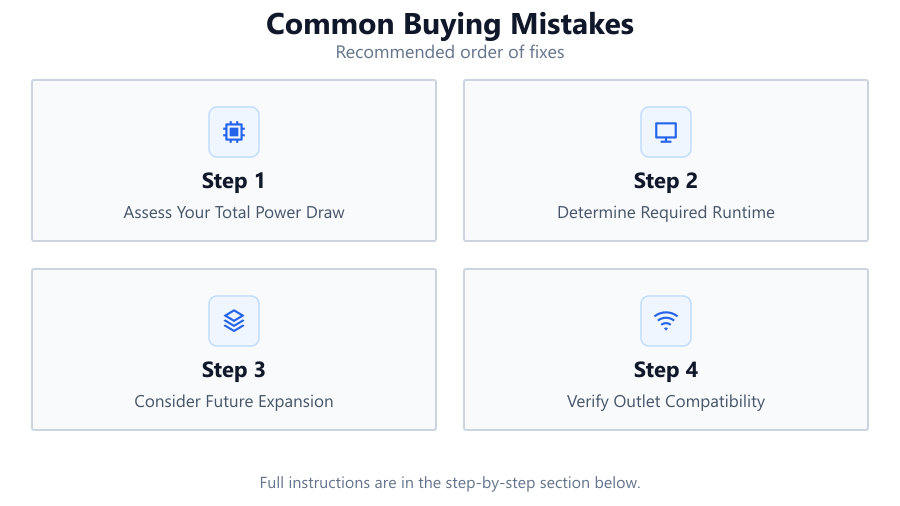
Assess Your Total Power Draw
Calculate the wattage of your PC, monitors, and all connected devices. Use the UPS Calculator to input these values for an accurate estimate.
Determine Required Runtime
Decide how long you need your system to stay on during an outage. Whether it's 5 minutes to save work or 30 minutes to continue gaming, runtime impacts UPS size.
Consider Future Expansion
Plan for upgrades or additional devices. Adding more hardware later can overload an undersized UPS, so factor in some headroom.
Verify Outlet Compatibility
Check the number and type of outlets on the UPS. Make sure it supports all your devices without the need for adapters or power strips.
Evaluate Battery Replacement and Support
Look for models with user-replaceable batteries and accessible support. This minimizes downtime and extends the life of your UPS.
Comparison
| Mistake | Consequence | How to Avoid |
|---|---|---|
| Underestimating Power Needs | System shuts down too soon or UPS overloads | Calculate total wattage with the UPS Calculator |
| Ignoring Runtime Requirements | Insufficient time to save work or shut down | Set realistic runtime goals in the UPS Calculator |
| Forgetting Peripherals | Unprotected devices or tripped breakers | List all connected devices before buying |
| Neglecting Battery Replacement | Expensive repairs or reduced protection | Choose models with easy battery swaps |
Common mistakes
Mistake
Choosing a UPS based solely on price
Fix: Balance cost with features, capacity, and support. Use the UPS Calculator to find the best value for your needs.
Mistake
Overlooking total power requirements
Fix: Add up the wattage for your PC, monitors, and peripherals. Input all values into the UPS Calculator for accuracy.
Mistake
Ignoring the need for future upgrades
Fix: Buy a UPS with extra capacity to accommodate new devices or upgrades, preventing overloads.
Troubleshooting
UPS beeps continuously or shuts off unexpectedly
Likely cause: The connected load exceeds the UPS capacity
What to do: Reduce the number of devices or upgrade to a higher-capacity UPS using the UPS Calculator.
Shorter runtime than expected during outages
Likely cause: Battery is degraded or the UPS is undersized
What to do: Replace the battery or select a UPS with longer runtime using the UPS Calculator.
Some devices do not receive backup power
Likely cause: Not all outlets on the UPS provide battery backup
What to do: Connect critical devices to battery-backed outlets and check the UPS manual for outlet types.
Recommendations
- Always use the UPS Calculator before purchasing to match your specific power needs.
- Choose a reputable UPS brand with strong customer support and accessible battery replacements.
- Regularly test your UPS to ensure it functions correctly and replace batteries as needed.
- Factor in all connected devices and allow for future system expansions.
- Prioritize models with clear status indicators and easy-to-use management software.
Frequently asked questions
How do I determine the correct UPS size for my PC?
Calculate the total wattage of your PC and all connected devices, then use the UPS Calculator to find the right UPS size for your needs.
Is runtime or wattage more important when buying a UPS?
Both are important. Wattage ensures your devices can run, while runtime determines how long they stay powered during an outage. The UPS Calculator helps balance both factors.
Can I use one UPS for my entire workstation setup?
Yes, as long as the UPS capacity covers your total load. Input all device wattages into the UPS Calculator to confirm compatibility.
How often should UPS batteries be replaced?
Most UPS batteries last 3 to 5 years. Monitor battery health and replace as needed to maintain protection.