
Guide
Optimization Guide
Struggling to pick the right UPS for your PC setup? This optimization guide shows you how to use the UPS Calculator to get perfect sizing, maximize runtime, and protect your devices.
Updated 2026-07-05
Understanding UPS Optimization
An uninterruptible power supply (UPS) is essential for safeguarding your PC and peripherals against power outages, surges, and voltage fluctuations. However, simply buying the most powerful UPS is not always the smartest solution. Proper optimization ensures you get the ideal balance of backup time, cost, and energy efficiency.
A well-optimized UPS setup protects your data from loss, prevents hardware damage, and minimizes downtime. The goal is to match your system's actual power requirements with a UPS that delivers reliable performance, not to overspend on unnecessary capacity or settle for insufficient protection.
Using the UPS Calculator helps you quickly identify the best UPS size for your setup. By entering your PC's power draw, desired backup runtime, and any extra devices, you get a recommendation tailored to your needs. This approach avoids common sizing mistakes and ensures optimal results.
Many users underestimate the importance of runtime and load optimization. This guide explains each step, so you can confidently use the UPS Calculator and make informed decisions about your backup power solution.
Mastering UPS Sizing and Runtime Efficiency
UPS optimization is more than just matching numbers. Every component you connect, including monitors, external drives, or network equipment, affects the total load and the required runtime. Overloading a UPS shortens its battery life and may cause unexpected shutdowns, while oversizing wastes energy and money.
The UPS Calculator simplifies this process by analyzing your total wattage and desired backup time. It factors in efficiency losses and battery degradation, providing results you can trust. For example, if you are a gamer running a high-end GPU, your power draw spikes under load, so it is critical to input realistic values. The calculator's recommendations account for these variations, so you do not have to guess.
Another key aspect of optimization is considering future upgrades. If you plan to add hardware, choose a UPS with a margin above your current needs. This ensures continued protection and avoids costly replacements. Proper optimization also involves regular testing and maintenance, both of which extend the lifespan of your UPS and your equipment.
By following this guide and using the UPS Calculator, you can achieve the best balance between protection, performance, and value.
Step-by-step
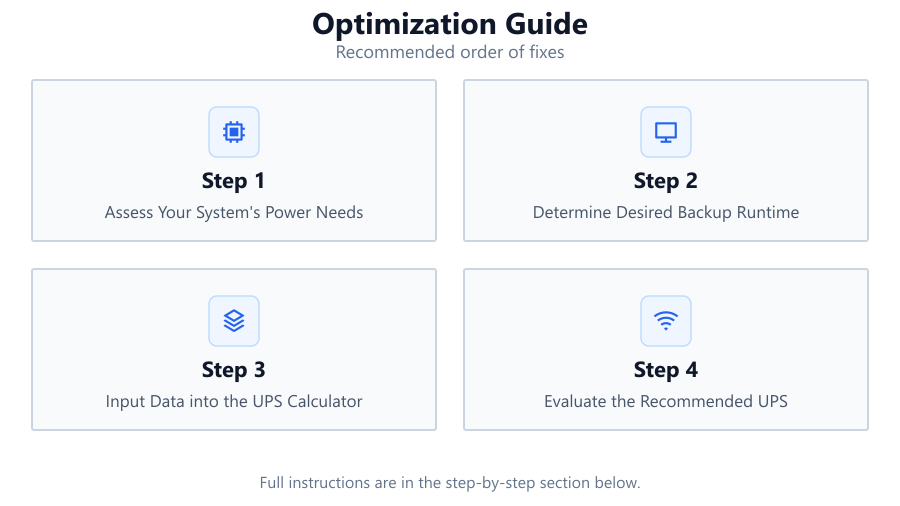
Assess Your System's Power Needs
List all devices you want backed up. Check each device's wattage, usually found on the power supply label or in the manufacturer's documentation. Add up the total wattage for an accurate load estimate.
Determine Desired Backup Runtime
Decide how long you want your UPS to keep your system running during an outage. Common runtimes are 5, 10, or 30 minutes, depending on your needs. Longer runtimes require larger UPS units.
Input Data into the UPS Calculator
Enter your total wattage and desired runtime into the UPS Calculator. Include all peripherals or network devices you want covered. The calculator will recommend an appropriate UPS size.
Evaluate the Recommended UPS
Review the calculator's suggestion. Check the output wattage, battery capacity, and estimated runtime. Make sure the recommended UPS fits your needs and leaves some margin for future upgrades.
Implement and Test Your UPS Solution
Purchase and install the recommended UPS. Connect all devices as planned. Test the system by simulating a power outage to ensure everything runs as expected for your chosen runtime.
Comparison
| UPS Size | Supported Load (Watts) | Estimated Runtime (Minutes) |
|---|---|---|
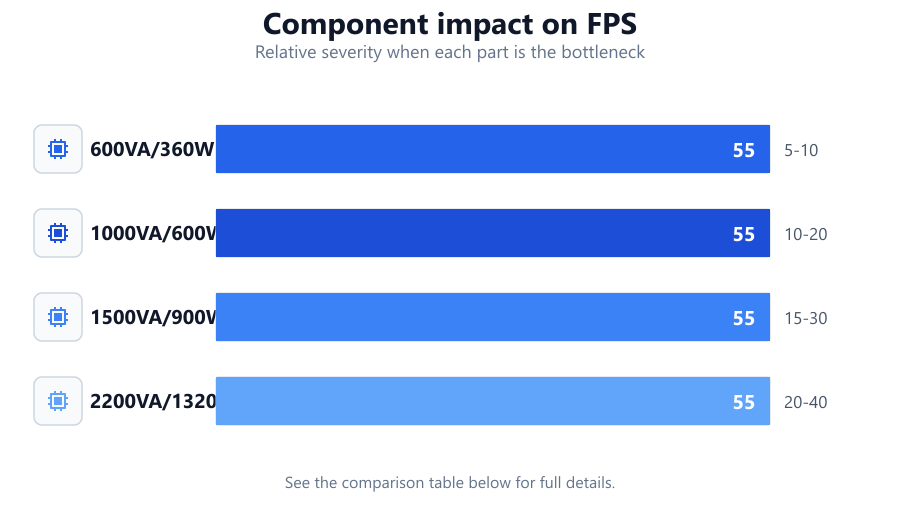
| 600VA/360W | Up to 300W | 5-10 |
| 1000VA/600W | Up to 500W | 10-20 |
| 1500VA/900W | Up to 750W | 15-30 |
| 2200VA/1320W | Up to 1200W | 20-40 |
Common mistakes
Mistake
Underestimating total system wattage
Fix: Add every device's wattage, including monitors and external drives. Use the UPS Calculator for accurate load assessment.
Mistake
Choosing a UPS with too little runtime
Fix: Decide how long you need to operate during an outage. Input this into the UPS Calculator to get the right recommendation.
Mistake
Ignoring future hardware upgrades
Fix: Select a UPS with extra capacity. The UPS Calculator helps you plan for growth by showing margin above your current needs.
Troubleshooting
UPS shuts off before expected runtime
Likely cause: System load is higher than the UPS's capacity.
What to do: Recalculate your total wattage. Use the UPS Calculator to ensure you are not overloading the UPS.
Frequent UPS alarms or beeping
Likely cause: Battery may be failing or the load exceeds safe limits.
What to do: Inspect the battery status. Reduce load or replace the battery as needed. Verify load with the UPS Calculator.
Connected devices lose power during short outages
Likely cause: Critical devices are not plugged into battery-backed outlets.
What to do: Ensure all essential devices are connected to the correct UPS outlets. Refer to the UPS Calculator results for optimal connection strategy.
Recommendations
- Always use the UPS Calculator to size your UPS based on real system data.
- Test your UPS setup monthly to confirm it delivers the expected runtime.
- Allow for at least 20 percent overhead in UPS capacity for future upgrades.
- Replace UPS batteries every three to five years for reliable backup power.
Frequently asked questions
Why is it important to optimize my UPS selection?
Optimization ensures your UPS provides sufficient backup time and protection without overspending on excess capacity. It also prevents data loss and hardware damage during outages.
How do I know the correct UPS size for my PC?
Use the UPS Calculator. Enter your total system power draw, desired runtime, and extra devices for an accurate recommendation.
Can the UPS Calculator account for future hardware upgrades?
Yes. Add estimated wattage for any planned upgrades when using the calculator. This ensures your UPS remains effective as your system evolves.
How often should I test my UPS system?
Test your UPS monthly by simulating a power outage. This confirms your setup works as intended and identifies any battery or load issues early.