
Guide
How to Choose the Right Hardware
Choosing the right hardware ensures your PC is reliable, efficient, and ready for anything. Learn how to select components that match your needs, budget, and future plans.
Updated 2026-07-05
Understanding Your Hardware Needs
Choosing the right hardware starts with a clear understanding of your usage patterns and goals. Are you building a gaming PC, a workstation for creative tasks, or a reliable home office setup? Each scenario has different requirements for performance, reliability, and power consumption.
Start by identifying the primary tasks you need your PC to perform. Gamers should prioritize a powerful graphics card and fast processor. Content creators may need more RAM and storage. For basic office tasks, a modest CPU and integrated graphics might be enough.
Budget is another crucial factor. Determine how much you are willing to spend, then allocate funds to the most impactful components. If you are unsure where to prioritize, focus first on the CPU and motherboard, as these form the foundation of your system.
Finally, consider future-proofing. Choose components that will last several years or allow for easy upgrades. This approach can save money long-term and make your system more adaptable as your needs evolve.
Key Factors in Hardware Selection
Performance is king, but compatibility and stability matter just as much. Start by ensuring your chosen CPU and motherboard use the same socket and chipset. Check RAM compatibility, both in speed and format (DDR4, DDR5), and ensure your power supply can handle your hardware's total wattage.
Storage choices impact both speed and capacity. SSDs provide fast boot times and application loading, while HDDs offer bulk storage at a lower cost. Many builders use both for optimal performance and value.
Power protection is often overlooked. A sudden blackout or surge can damage components or cause data loss. Using a reliable UPS (Uninterruptible Power Supply) is essential, especially for creative professionals and gamers. The UPS Calculator on SystemRequirements.net helps you find the right UPS size based on your system's power draw and desired runtime. Simply enter your components and peripherals to get a tailored recommendation.
Thermal management also plays a significant role. Invest in quality cooling solutions, whether air or liquid, to maintain stable performance and prolong hardware lifespan. Always check your case dimensions to ensure component fit and optimal airflow.
Step-by-step
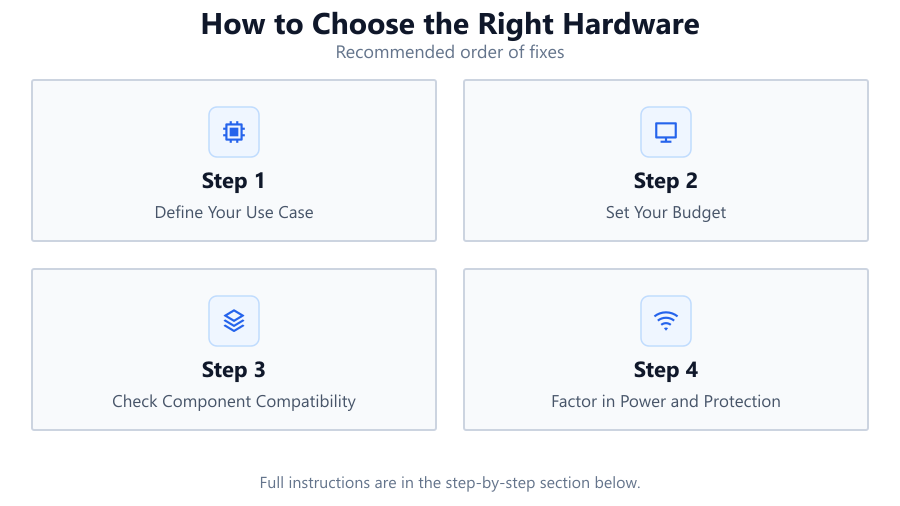
Define Your Use Case
List the primary tasks you want your PC to handle. Are you gaming, editing videos, streaming, or just browsing and working? Your answer determines where to focus your investment.
Set Your Budget
Decide how much you can spend on your build. Allocate the most funds to the CPU, GPU, and motherboard, but do not neglect power supply and cooling.
Check Component Compatibility
Verify that your CPU, motherboard, and RAM are compatible. Use manufacturer websites and compatibility checkers to avoid costly mistakes.
Factor in Power and Protection
Calculate your system's total power draw and select a PSU that provides at least 20 percent more wattage than required. For backup during outages, use the UPS Calculator to find the right UPS for your needs.
Plan for Upgrades and Expansion
Choose a motherboard with extra RAM slots and sufficient PCIe lanes. Make sure your case can accommodate future storage or cooling upgrades.
Comparison
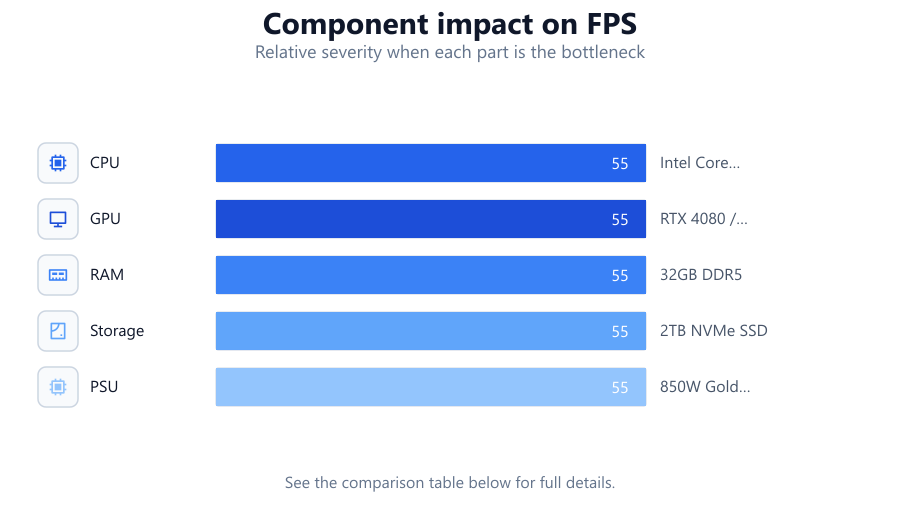
| Component | Entry Level | High Performance |
|---|---|---|
| CPU | Intel Core i3 / Ryzen 3 | Intel Core i9 / Ryzen 9 |
| GPU | GTX 1650 / RX 6500 XT | RTX 4080 / RX 7900 XTX |
| RAM | 8GB DDR4 | 32GB DDR5 |
| Storage | 256GB SSD | 2TB NVMe SSD |
| PSU | 450W Bronze | 850W Gold Modular |
Common mistakes
Mistake
Ignoring power requirements
Fix: Always calculate total system wattage and use the UPS Calculator to find a suitable UPS.
Mistake
Overlooking compatibility
Fix: Double-check CPU, motherboard, and RAM compatibility before purchasing.
Mistake
Choosing the cheapest components
Fix: Balance price and quality. Invest in a reliable PSU, motherboard, and cooling system.
Troubleshooting
System will not boot
Likely cause: Incompatible or faulty RAM, misconnected cables, or unsupported CPU.
What to do: Reseat RAM, check all connections, and verify CPU compatibility with the motherboard.
Frequent crashes or restarts
Likely cause: Insufficient power supply or overheating components.
What to do: Upgrade to a higher wattage PSU and improve cooling. Use the UPS Calculator to ensure power stability.
No display output
Likely cause: Incorrect GPU installation or BIOS settings.
What to do: Reseat the GPU, check power cables, and update BIOS if needed.
Recommendations
- Research each component and read reviews before buying.
- Use the UPS Calculator to ensure your system is protected from power outages.
- Prioritize compatibility and future upgradability in your component choices.
- Invest in a reputable power supply and UPS for long-term reliability.
- Keep your system clean and well-cooled to avoid thermal issues.
Frequently asked questions
What is the most important component when choosing hardware?
The CPU and motherboard are the foundation of your PC. Choose these first based on your performance needs and budget.
How do I know if my power supply is enough?
Add up the wattage of all components and choose a PSU with at least 20 percent extra capacity. Use the UPS Calculator to confirm your total power needs.
Do I need a UPS for my PC?
A UPS protects your PC from power outages and surges, preventing data loss and hardware damage. Use the UPS Calculator to find the right model for your setup.
How can I ensure my hardware will be upgradeable?
Select a motherboard with extra RAM slots and PCIe lanes, and a case that fits additional drives and larger GPUs.