
Guide
Common Buying Mistakes
Avoid the most common buying mistakes when choosing USB drives and accessories. Discover expert tips to ensure you get reliable speeds and the right features for your needs.
Updated 2026-07-05
Understanding Common Buying Mistakes for USB Devices
Choosing the right USB storage or accessory seems simple, but many buyers fall victim to common buying mistakes that lead to wasted money and disappointing performance. Whether you are purchasing a USB flash drive, an external SSD, or a USB hub, understanding how to avoid these pitfalls is crucial for making an informed decision.
One of the biggest issues is assuming all USB devices deliver the same speed. USB versions, device quality, and even cable length can drastically affect real-world transfer rates. Users often overlook the difference between marketing claims and actual performance, leading to unmet expectations.
Another frequent mistake involves compatibility. Not all USB devices work seamlessly with every computer or operating system. Compatibility issues can cause frustrating errors, failed transfers, or even data loss. Buyers should also pay close attention to build quality and warranty details, as not all devices are built to last.
By learning about these common buying mistakes and using tools like the USB Speed Calculator, you can confidently select USB devices that match your specific needs and budget.
How to Avoid Common Buying Mistakes When Choosing USB Devices
When shopping for USB storage or accessories, it is essential to dig deeper than the basic specs. Many users rely solely on storage capacity or advertised speed, missing out on critical details that impact daily usage. For instance, a USB drive that boasts high transfer speeds may not reach those numbers if your computer only supports an older USB version.
Always check for backward compatibility. For example, a USB 3.2 device will work in a USB 2.0 port, but speeds will drop to the lowest supported version. This is a common buying mistake that leads to disappointment, especially when transferring large files.
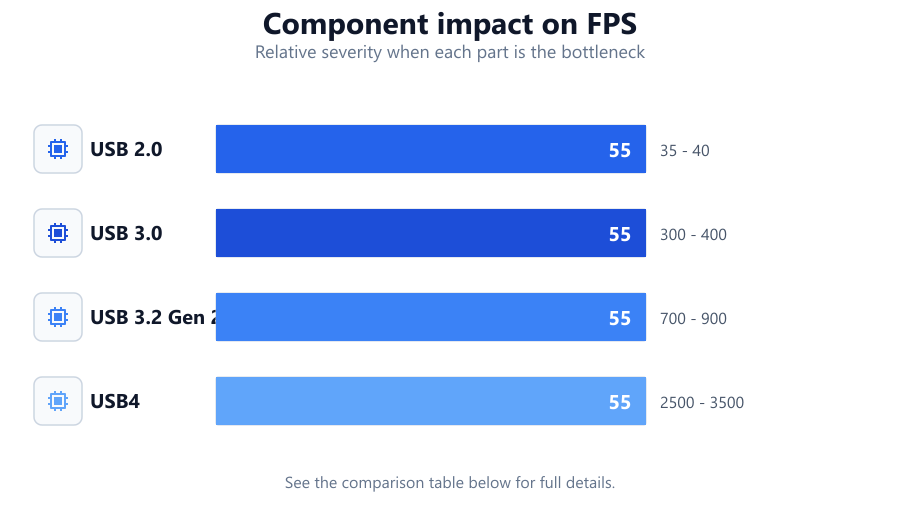
Another mistake is neglecting the role of protocol overhead and device limitations. Real-world transfer speeds are typically lower than advertised due to protocol overhead, drive controller quality, and even the file system used. The USB Speed Calculator can help you estimate actual transfer times, factoring in these variables.
Finally, be wary of generic or unbranded USB devices. While tempting due to lower prices, these products may suffer from poor reliability, slow speeds, and lack of support. Always research brand reputation, check warranty terms, and read user reviews before making a purchase.
Step-by-step
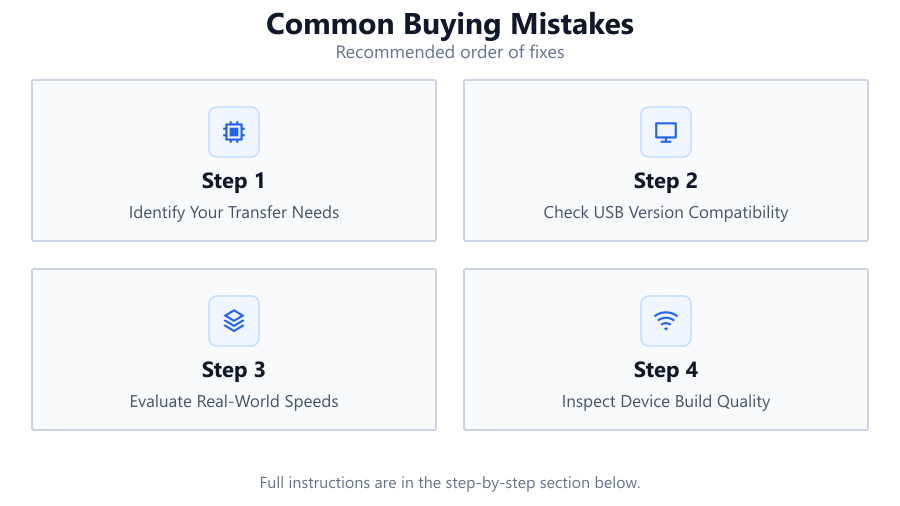
Identify Your Transfer Needs
Start by determining what types of files you will transfer and how large they are. This will help you choose the right capacity and speed. For example, transferring 4K videos requires much faster USB speeds than moving documents.
Check USB Version Compatibility
Verify which USB versions your computer and devices support. Buying a USB 3.2 drive is pointless if your PC only has USB 2.0 ports. Compatibility ensures you get the speeds you pay for.
Evaluate Real-World Speeds
Do not rely on marketing numbers alone. Use the USB Speed Calculator to estimate real transfer times based on your file size and USB version. This helps set realistic expectations.
Inspect Device Build Quality
Look for reputable brands with solid build quality. Cheap USB devices may fail early, leading to data loss or slow performance. Check for good warranty terms and read customer feedback.
Consider Future-Proofing
Choose USB devices that support newer standards if you plan to upgrade your hardware soon. This ensures your device remains useful as technology advances.
Comparison
| USB Version | Advertised Speed (Mbps) | Real-World Speed (Mbps) |
|---|---|---|
| USB 2.0 | 480 | 35 - 40 |
| USB 3.0 | 5000 | 300 - 400 |
| USB 3.2 Gen 2 | 10000 | 700 - 900 |
| USB4 | 40000 | 2500 - 3500 |
Common mistakes
Mistake
Assuming all USB drives have the same speed
Fix: Check the USB version and use the USB Speed Calculator to see real-world transfer rates.
Mistake
Ignoring compatibility with existing hardware
Fix: Verify your computer’s USB port versions and choose devices accordingly.
Mistake
Buying based on price alone
Fix: Research brand reputation, read reviews, and check warranty details before purchasing.
Mistake
Not considering device durability
Fix: Select USB devices with sturdy construction and proven reliability.
Troubleshooting
Slow file transfers
Likely cause: Device is connected to an older USB port or using a low-quality cable.
What to do: Ensure both the device and port support the same high-speed USB version and use high-quality cables.
Device not recognized by computer
Likely cause: Incompatible file system or outdated drivers.
What to do: Format the drive to a compatible file system and update your USB drivers.
Frequent disconnects during transfers
Likely cause: Poor quality USB device or faulty cable.
What to do: Replace with a reputable USB device and use a certified cable.
Transfer speeds not matching advertised rates
Likely cause: Protocol overhead, hardware limitations, or using a slower port.
What to do: Use the USB Speed Calculator to estimate real-world speeds and connect to the fastest available port.
Recommendations
- Always verify USB version compatibility before buying.
- Use the USB Speed Calculator to set realistic transfer speed expectations.
- Favor reputable brands with solid warranties.
- Check user reviews for real-world performance feedback.
- Avoid the cheapest options, as they often compromise on speed and reliability.
Frequently asked questions
Why are my USB transfer speeds slower than advertised?
Advertised speeds are theoretical maximums. Real-world speeds are lower due to protocol overhead, device quality, and port compatibility. Use the USB Speed Calculator to estimate actual speeds.
How do I know which USB version my computer supports?
Check your computer’s specifications or look for physical labels on the ports. Blue or teal ports usually indicate USB 3.0 or newer. You can also check in your operating system’s device manager.
Are generic USB drives a good value?
Generic USB drives may be cheaper, but they often have lower reliability, slower speeds, and poor support. It is safer to choose reputable brands with proven track records.
How can I estimate transfer time for large files?
Use the USB Speed Calculator. Enter your file size and select your USB version to get an accurate estimate based on real-world speeds.
Can I use a USB 3.2 device on a USB 2.0 port?
Yes, but the device will operate at USB 2.0 speeds. For best performance, use the fastest port available.