
Guide
Optimization Guide
Unlock the fastest possible USB file transfers with this actionable optimization guide. Discover proven strategies, avoid common pitfalls, and leverage the USB Speed Calculator tool for precise estimates.
Updated 2026-07-05
Understanding USB Transfer Optimization
When transferring files over USB, actual speeds rarely match the numbers on your device's packaging. Many users unknowingly settle for suboptimal performance due to hardware or software limitations. An effective optimization guide helps you identify and eliminate these bottlenecks, ensuring you get the fastest possible transfer times.
USB transfer speed depends on several factors: the USB version, the cable's quality, the port's capabilities, the storage devices involved, and even the file system. For example, a USB 3.2 flash drive connected to a USB 2.0 port will only achieve USB 2.0 speeds. Similarly, a fragmented hard drive or outdated drivers can slow things down considerably.
The USB Speed Calculator is an essential tool for anyone aiming to optimize their file transfer workflow. By inputting your file size and selecting the appropriate USB version, you get an accurate estimate of real-world transfer times, factoring in protocol overhead and device limitations. This allows you to spot inefficiencies in your setup and make informed upgrades.
Practical Steps to Optimize USB Transfers
To maximize your USB file transfer speeds, you need both the right hardware and a streamlined software environment. Start by checking your USB ports and cables: always use the highest version supported by your devices. Not all ports on a PC are equal, and some front-panel ports may connect internally at lower speeds.
Next, consider the devices at both ends of the transfer. Modern SSDs connected via USB 3.2 or USB4 will dramatically outperform older spinning hard drives. The file system and drive health also play roles: NTFS and exFAT are usually faster than FAT32 for large files, and regularly defragmenting HDDs helps maintain performance.
Do not overlook software factors. Outdated drivers, background tasks, or antivirus scanning can all throttle speeds. Keeping your system and USB drivers updated ensures compatibility with the latest protocols and bug fixes. Disabling unnecessary background applications during large transfers can also free up bandwidth.
With these steps, the USB Speed Calculator becomes even more powerful. Once you have optimized your setup, use the tool to verify your expected transfer times and pinpoint any remaining slowdowns.
Step-by-step
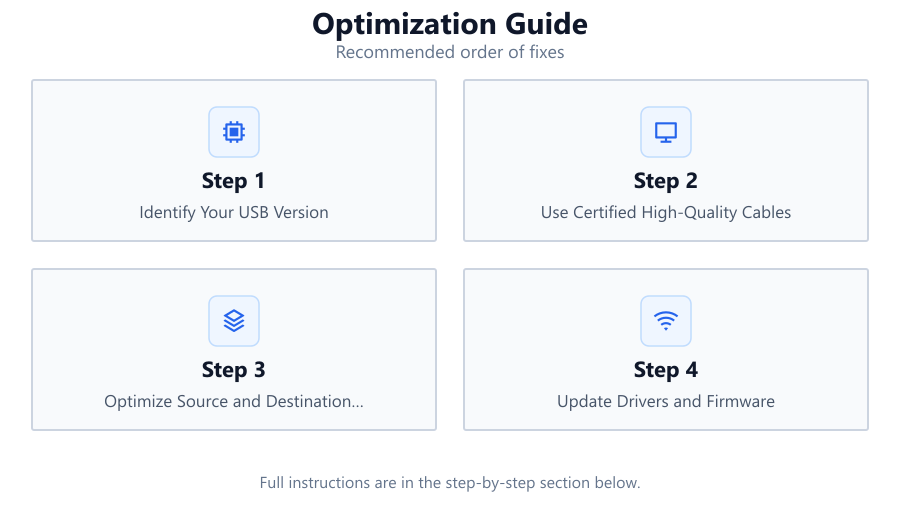
Identify Your USB Version
Check both your device and your PC's port to determine the maximum supported USB version. Use device manager or manufacturer specs for confirmation.
Use Certified High-Quality Cables
Always use cables rated for your USB version. Inferior or damaged cables can drastically reduce transfer speeds, even if your devices support faster standards.
Optimize Source and Destination Drives
Ensure your storage devices are healthy and use appropriate file systems. For hard drives, defragment regularly. For SSDs, enable TRIM and avoid filling them to capacity.
Update Drivers and Firmware
Check for the latest USB controller and chipset drivers on your motherboard or laptop manufacturer's website. Also update firmware for USB devices when available.
Minimize Background Activity
Close unnecessary applications and pause intensive background processes during large file transfers. Temporarily disable antivirus scanning if it is safe to do so.
Comparison
| USB Version | Theoretical Max Speed | Typical Real-World Speed |
|---|---|---|
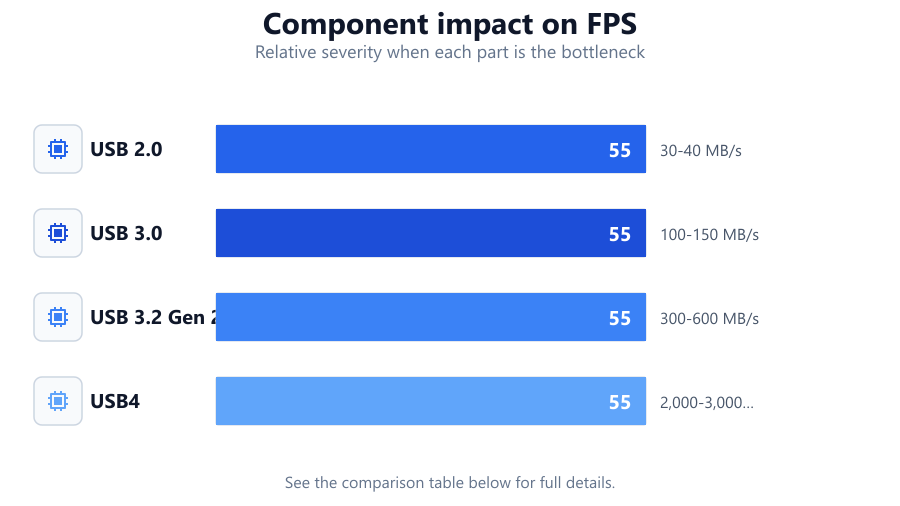
| USB 2.0 | 480 Mbps | 30-40 MB/s |
| USB 3.0 | 5 Gbps | 100-150 MB/s |
| USB 3.2 Gen 2 | 10 Gbps | 300-600 MB/s |
| USB4 | 40 Gbps | 2,000-3,000 MB/s |
Common mistakes
Mistake
Using the wrong USB port
Fix: Always plug into the highest version port available, typically marked with blue or labeled 'SS' for SuperSpeed.
Mistake
Assuming all cables are equal
Fix: Use cables certified for your USB version. Replace any that show physical wear or are unbranded.
Mistake
Ignoring device limitations
Fix: Check both the storage device and PC port specifications. Upgrade devices if they do not support faster USB standards.
Mistake
Neglecting driver updates
Fix: Regularly update USB and chipset drivers through your system or motherboard manufacturer.
Troubleshooting
Transfer speeds are much slower than expected
Likely cause: Connected to a slower USB port or using a legacy cable
What to do: Verify port and cable version. Switch to a port and cable matching your device's highest supported USB version.
Transfers start fast then slow down drastically
Likely cause: Destination drive is nearly full or fragmented
What to do: Free up space and defragment HDDs. For SSDs, ensure TRIM is enabled and leave 10-20 percent free.
Files fail to copy or get corrupted
Likely cause: Faulty cable, port, or file system errors
What to do: Replace cables, try a different port, and run error checking or reformat the drive if needed.
Recommendations
- Use the USB Speed Calculator to estimate transfer times and verify improvements after optimization.
- Invest in modern USB4 or USB 3.2 devices and certified cables for the best performance.
- Regularly maintain your storage devices with firmware updates, error checks, and cleaning up unnecessary files.
- Avoid using USB hubs for large transfers unless they are powered and support your required USB version.
- For critical backups, use direct motherboard ports instead of front-panel or docked connections.
Frequently asked questions
Why does my USB device not reach advertised speeds?
Real-world speeds are affected by protocol overhead, device limitations, cable quality, and other system factors. Use the USB Speed Calculator to see realistic transfer times.
How can I check which USB version my PC supports?
Inspect the port color and labeling, or use Device Manager in Windows to review controller specifications.
Does file size affect transfer speed?
Yes. Many small files transfer slower due to overhead compared to one large file of the same total size.
Can I use the USB Speed Calculator for any device?
Yes. The USB Speed Calculator works with any device as long as you know the USB version and file size. It helps you estimate realistic transfer times.