Copying a 10GB folder to a USB 2.0 flash drive
- USB 2.0 max speed
- 480 Mbps
- Effective speed
- (0.48 × 1000) / 8 × 0.6 = 36 MB/s
- Transfer time
- 10,000 MB / 36 MB/s ≈ 278 seconds (4 minutes 38 seconds)

FREE USB SPEED CALCULATOR
Need to know how long it will take to copy a file over USB? Enter your file size and choose your USB version—this calculator shows you real-world transfer speeds and estimated time to transfer. Get accurate answers for USB 2.0, USB 3.0, USB 3.2, and USB4, factoring in protocol overhead and device limits.
Select USB standard and file size, then calculate
If you’re wondering how fast your external SSD, flash drive, or backup hard drive will transfer files over USB, this tool gives you a concrete answer. The USB speed calculator converts nominal USB specs into actual megabytes per second, accounting for protocol overhead. Then it estimates how long your file transfer will take based on real-world speeds - no more guessing if your 100GB Steam library will finish copying before you go to bed. The calculator covers all major USB versions, including USB 2.0, USB 3.0, USB 3.2 Gen 1 and Gen 2, and USB4, so you can compare speeds across devices and cables.
Start by entering your file size in megabytes (MB), gigabytes (GB), or terabytes (TB). Select your USB version from the dropdown - USB 2.0, USB 3.0, USB 3.1, USB 3.2 Gen1 or Gen2, or USB4. Optionally, adjust the overhead factor if you know your device’s typical efficiency, otherwise leave it at the default (which matches most consumer hardware).
Click calculate. The tool outputs the effective transfer speed in megabytes per second and how long your transfer will take in hours, minutes, and seconds. If your device or drive is slower than the USB maximum, enter a custom speed in the advanced options to get a more accurate estimate.
Raw USB signaling rates are measured in gigabits per second (Gbps), but real transfer speed is always lower due to protocol overhead, encoding, and hardware limitations. This calculator uses the following formula:
Effective Speed (MB/s) = (Nominal USB Speed in Gbps × 1000) / 8 × Overhead Factor
Where:
To estimate transfer time:
Transfer Time (seconds) = File Size (MB) / Effective Speed (MB/s)
This approach matches what you actually see when copying files between, for example, a WD Red Plus external drive and a gaming PC’s USB-C port. Real speeds may be lower if your storage device or cable is a bottleneck.
The calculator shows two main results: the real-world transfer speed in megabytes per second, and the estimated time to transfer your file. Remember, the effective speed is almost always lower than the number on the USB box due to encoding overhead and hardware constraints.
For example, USB 3.0 advertises 5 Gbps, but most users see around 400 MB/s at best with a fast SSD. USB 2.0 tops out near 35-40 MB/s with a good flash drive. If your drive, cable, or port is slower than the standard, your results may be lower. Always check that your devices and cables match the USB version claimed, and consider drive type - mechanical HDDs rarely saturate USB 3.x bandwidth.
Transferring large video files: Creators often need to move 4K or 8K footage between PCs and portable drives. The USB speed calculator helps estimate whether USB 3.2 Gen2 or USB4 is worth the upgrade for your workflow.
Backing up photos and documents: External HDDs and SSDs are popular for backups. Knowing the transfer time helps plan overnight jobs and avoid interruptions.
Gaming library migrations: Moving hundreds of gigabytes of games from a desktop to a laptop or Steam Deck is time-consuming. This tool shows how much faster USB 3.x or USB4 can be compared to USB 2.0.
IT deployments: System admins imaging multiple machines or copying ISO files need to estimate how long each USB stick will take. The calculator gives a quick benchmark for different USB versions and drive types.
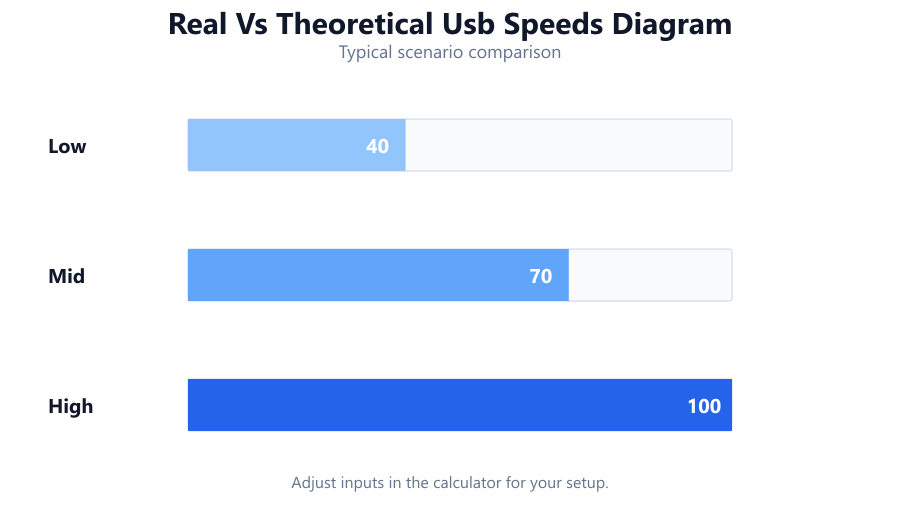
Not all USB ports and cables are created equal. A USB 3.2 Gen2 SSD connected via an old USB 2.0 cable will be bottlenecked to USB 2.0 speeds. Always use matching cables and ports for your device’s rated speed.
Drive speed matters as much as USB version. Many external HDDs max out at 120 MB/s, even on fast USB ports. SSDs like the Samsung T7 or WD Black P50 can saturate USB 3.2 Gen2 or USB4, but only if the host supports it.
Protocol overhead varies. The calculator uses typical values, but real-world speeds may differ based on file size (small files transfer slower), system load, and USB controller quality.
Beware marketing claims. Some devices advertise “USB 3.0” but use slow flash memory or firmware, resulting in lower speeds than expected. Always check user reviews and product specs.
The USB speed calculator demystifies file transfer times and helps you plan large copies or backups. By accounting for protocol overhead and device bottlenecks, it provides realistic estimates for every major USB standard - USB 2.0, USB 3.0, USB 3.2, and USB4. Use it to compare speeds, choose the right cable or port, and set expectations for real-world performance. For the most accurate results, match your cable, port, and drive speed, and remember that actual speeds can vary with file type and hardware quality.
USB 3.0 (also known as USB 3.2 Gen1) has a theoretical maximum speed of 5 Gbps, but real-world file transfer speeds typically range from 350 to 450 MB/s with a fast SSD. Factors like cable quality, drive speed, and protocol overhead reduce the effective speed. Mechanical hard drives will usually see lower transfer rates, often under 150 MB/s.
Protocol overhead refers to the percentage of USB bandwidth used for encoding, handshakes, and error correction rather than user data. This reduces the actual usable transfer rate. For instance, USB 3.x often operates at about 75% efficiency, while USB 2.0 is closer to 60%. Factoring in overhead gives a realistic estimate of your true file transfer speed.
First, determine the effective speed of your USB connection using the formula: (Nominal Speed in Gbps × 1000) / 8 × Overhead Factor. Then, divide your file size in megabytes (MB) by the effective speed in MB/s. This gives you the estimated transfer time in seconds. The USB speed calculator automates these steps.
The maximum speed is limited by the slowest component in the chain - either the USB port, the cable, or the storage device itself. Many USB 3.0 flash drives only achieve 100-200 MB/s even though the interface supports higher speeds. Always check the manufacturer’s listed speeds and read user reviews for real-world numbers.
USB4 can reach up to 40 Gbps, which is four times faster than USB 3.2 Gen2’s 10 Gbps. Factoring in overhead, USB4 real-world speeds can approach 4000 MB/s with a fast NVMe SSD and quality cable. However, both devices and cables must support USB4 to achieve these speeds.
Yes, as Thunderbolt 3 and 4 are compatible with USB4, you can enter their maximum theoretical speed (up to 40 Gbps) in the calculator. Just make sure to use the appropriate overhead factor (typically 0.8 for Thunderbolt/USB4) for realistic transfer time estimates.
Several factors can reduce your actual speed: an old or low-quality cable, a slow flash drive or HDD, using a USB hub, or plugging into a slower port. Also, copying many small files is always slower than transferring large files due to filesystem overhead. The calculator assumes optimal conditions, so real-world speeds may be lower.
On Windows, open Device Manager and expand the Universal Serial Bus controllers section. Ports labeled as 'USB 3.0', 'USB 3.1', or 'USB 3.2' indicate higher speeds. On Mac, use 'About This Mac' > 'System Report' > 'USB.' Physical ports with blue plastic or 'SS' markings usually indicate USB 3.x, but always check your motherboard manual for confirmation.
Yes. Longer cables - especially beyond 2 meters for USB 3.x or USB4 - can cause signal degradation, leading to lower speeds or unreliable transfers. Always use cables certified for your USB version and keep them as short as practical for best results.
USB 2.0 is functional for small files and basic backups, but its real-world speed tops out at around 35-40 MB/s. Copying large files like 4K videos or game libraries will take much longer compared to USB 3.x or USB4. For modern workflows, upgrading to a faster USB standard is strongly recommended.
USB 3.2 Gen 1 is essentially USB 3.0, with a maximum speed of 5 Gbps. USB 3.2 Gen 2 doubles that to 10 Gbps. In real-world terms, Gen 1 tops out around 400-450 MB/s, while Gen 2 can hit 900 MB/s or more with a fast SSD. Always match your cable and port to the drive’s capability.
Use the shortest, highest-quality cable rated for your USB version. Connect directly to a motherboard or laptop port, not through a hub. Make sure both the host and storage device support the same USB version. For best results, use an SSD or NVMe enclosure instead of a mechanical hard drive.
For large video files, USB 3.2 Gen2, USB4, or Thunderbolt are ideal. They offer effective speeds from 900 MB/s to 4000 MB/s, letting you transfer hundreds of gigabytes in minutes. Avoid USB 2.0 for this purpose, as it will be painfully slow.
Each file transfer involves filesystem overhead, and the operating system spends more time managing metadata with lots of small files. This reduces the effective throughput, often by 50% or more compared to a single large file. The calculator estimates best-case sequential transfer rates, so expect slower speeds with folders of thousands of small files.
Yes, as long as the device connects via USB. Enter the actual or maximum speed of your SD card reader (e.g., USB 3.0 at 5 Gbps) and the overhead factor. Remember that many SD cards are much slower than even USB 2.0, so use your card’s rated write speed for the most accurate results.
The slowest component determines your effective speed. If your drive can only write at 120 MB/s but your USB port supports 1000 MB/s, you’ll only get 120 MB/s. The calculator lets you enter a custom speed to reflect this bottleneck and provide a realistic estimate.
Free tools to analyze, compare, and optimize your PC gaming performance
Check if your PC meets the requirements for these popular games
Benchmark data from PassMark and publisher specs. Calculators run locally in your browser — we never upload your hardware info.