FREE BACKUP STORAGE CALCULATOR

Backup Storage Calculator

Figure out exactly how much storage space you need for your backups—no guessing, just clear numbers. Enter your data types and retention settings, and the calculator shows the total backup size required for your setup.

Enter Backup Data

How It Works

We sum your system image, photos, videos, and documents, then apply a typical 15% backup compression factor. Actual backup size varies by software and file types — videos compress less than documents and photos.

Estimated Backup Size

Enter your data sizes, then calculate

What Does This Calculator Do?

The backup storage calculator estimates the total disk space you'll need to back up your files, whether you're safeguarding a gaming PC, a media server, or office laptops. It covers everything from system images and documents to large video libraries and photo archives. By entering the amount of data in each category and selecting how many backup versions you want to keep, the calculator predicts your total storage requirement. This helps you avoid surprises when buying hard drives or configuring cloud backup plans. The tool is designed for users who want precise, technical answers - no marketing fluff, just the math behind your backup needs.

How to Use This Calculator

Start by listing out the data you plan to back up. Break it into categories like system images, documents, photos, videos, and other files. Estimate the size of each category, using file explorer stats or backup software reports. Enter these figures into the calculator fields. Next, choose how many backup versions you plan to keep for each type. For example, if you want three daily versions of your video folder, set the multiplier accordingly. The calculator instantly sums the storage needed, factoring in all your settings.

If you're not sure how much space your data uses, tools like WinDirStat or Finder's Get Info can help. For cloud users, check your provider's usage stats. The calculator works for both local and cloud backup scenarios.

How Are the Results Calculated?

The backup storage calculator uses a straightforward formula:

Total Storage Needed = (Size of Category 1 × Versions) + (Size of Category 2 × Versions) + ...

For each data category, multiply the amount of data (in gigabytes or terabytes) by the number of backup versions you want to keep. Then, add up the results for all categories. Example: if you have 100GB of photos and want to retain 3 versions, that's 100GB × 3 = 300GB. If you add 200GB of videos with 2 versions, that's 200GB × 2 = 400GB. Total backup storage required: 700GB.

The calculator does not account for compression, deduplication, or incremental backup schemes. For typical home or small office use, this formula gives a conservative estimate, ensuring you don't run out of space.

Understanding Your Results

When you input your backup data into the calculator, the result is the minimum storage space you need to reliably store all selected versions of your files. If the calculator shows 2 TB, that's the combined size of every full backup version you intend to keep - across all categories.

This number is a baseline. If your backup software uses compression or only stores changes (incremental backups), actual usage could be lower. However, for most users, especially those using tools like Windows File History, Mac Time Machine, or basic scheduled full backups, the calculator gives a safe upper bound. Always plan for at least 10 to 20 percent extra headroom to account for future data growth or change. If you use RAID or parity storage (like on a NAS with WD Red Plus or Seagate IronWolf drives), remember that redundancy will require more physical disk space than the calculator's output.

Worked Examples

Gaming PC backup

A user has a 1 TB SSD (Samsung 980 Pro) with 200GB of games, 100GB of documents, and 700GB free. They want weekly system images (1 version, 1TB) and daily document backups (7 versions, 100GB). Total: (1TB × 1) + (100GB × 7) = 1TB + 700GB = 1.7TB.
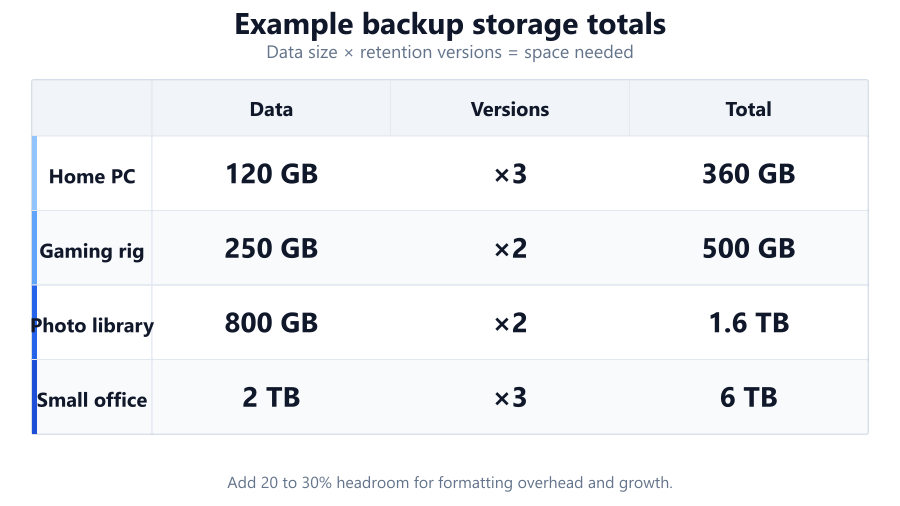
backup calculator example table

Photographer's archive

A photographer has 2TB of RAW photos and 500GB of edited images on a WD Red Plus NAS. They want to keep two full backup versions. Total: (2TB × 2) + (0.5TB × 2) = 4TB + 1TB = 5TB.

Small business documents

An office has 300GB of shared documents, with nightly backups for two weeks (14 versions). Total: 300GB × 14 = 4.2TB.

Home media server

A Plex server holds 4TB of movies and TV shows, with one full backup and monthly incremental backups (not included in this calculator). Input only full backups: 4TB × 1 = 4TB.

Video editor's workstation

A creator stores 1.5TB of project files on a Seagate IronWolf Pro, wants three backup versions. Total: 1.5TB × 3 = 4.5TB.

Common Use Cases

PC gamers: Backing up Steam libraries, game saves, and system images before upgrading to a new GPU like the RTX 4070 or CPU such as the Ryzen 7 7800X3D.

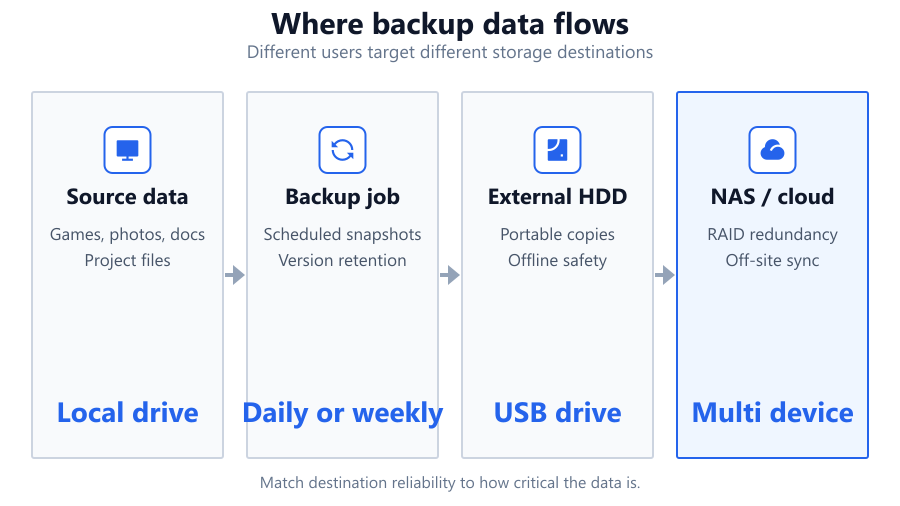
backup use cases diagram

Home users: Protecting family photos and videos, saved to an external WD My Book or Synology NAS, with multiple historical versions.

Content creators: Archiving large video projects and RAW images, with versioned backups to avoid accidental overwrites or corruption.

Small businesses: Keeping daily or weekly backups of office documents and spreadsheets, stored on a RAID array or cloud storage.

IT admins: Calculating storage requirements for employee laptops, ensuring enough space on backup appliances or cloud services for multiple snapshots.

Tips and Pitfalls

Consider extra headroom: Always add 10-20% to the calculator's result for future data growth. Drives fill up faster than you think, especially with high-res media.

backup storage pitfalls

Compression and deduplication: Some backup software compresses files or stores only changes. This tool does not account for those savings. If you use solutions like Veeam or Acronis, check their documentation for real usage stats.

Check drive overhead: Hard drives and SSDs report less usable space than advertised. A '4TB' drive typically offers about 3.6TB after formatting. Plan accordingly.

Watch version creep: Keeping too many old versions eats storage quickly. Review retention policies regularly.

External vs. internal backup: For external drives, use models with good reliability ratings (WD Elements, Seagate Backup Plus) and run SMART health checks. For NAS, use drives designed for 24/7 operation.

Summary

The backup storage calculator provides a fast, technical estimate of the total disk space you'll need for your backup plan. By entering your data volumes and version history, you can confidently choose the right size SSD, hard drive, or cloud plan. Always allow extra space for future growth and verify your backup strategy with periodic test restores. For most users, this tool removes the guesswork from backup sizing, letting you focus on data protection instead of storage math.

Frequently Asked Questions

How do I calculate backup storage requirements for my PC?

To calculate your backup storage needs, first determine the size of each data category you want to back up - documents, photos, videos, system images, etc. Decide how many versions or historical copies you want to keep for each. Multiply the size by the number of versions for each category, then add all results together. The backup storage calculator automates this, giving you a clear total in gigabytes or terabytes.

What is a backup storage calculator and how does it work?

A backup storage calculator is a tool that estimates how much disk space you’ll need for your backups. It works by letting you enter the data size for different file types and the number of backup copies (versions) you want to keep. It multiplies each category by its version count, then sums the totals, giving you a reliable storage requirement for planning your backup solution.

How much backup storage do I need for Windows 11?

For Windows 11, a bare minimum system image is around 25 - 40GB, but most users with installed programs, games, and documents will need much more. For example, if your C: drive uses 300GB and you want to keep three full backup images, you need at least 900GB plus space for documents and other files. The backup storage calculator provides a precise figure based on your actual data and version preferences.

How do I estimate backup space for photos and videos?

Photos and videos take up the most space in most home backups. Use your file explorer or media manager to check the total size of your photo and video folders. Enter these numbers into the backup storage calculator, set how many backup versions you want, and it will show the exact space needed. For 4K videos or RAW photo libraries, even one version can require several terabytes.

Is it better to overestimate or underestimate backup storage?

Always overestimate. File sizes grow over time, and new backups often include more data as you add files. Hard drives also show less usable space than advertised due to formatting. We recommend adding at least 10 - 20% above the calculator’s result to avoid running out of storage, especially for large photo or video collections.

Can a backup storage calculator account for incremental or differential backups?

This calculator assumes full-version backups. Incremental and differential backups save only changes since the last backup, so they typically require less total space. If your backup software supports these methods (like Veeam or Macrium Reflect), check its documentation or logs for real storage usage, as savings can vary widely depending on how much your data changes.

How does version history affect backup storage requirements?

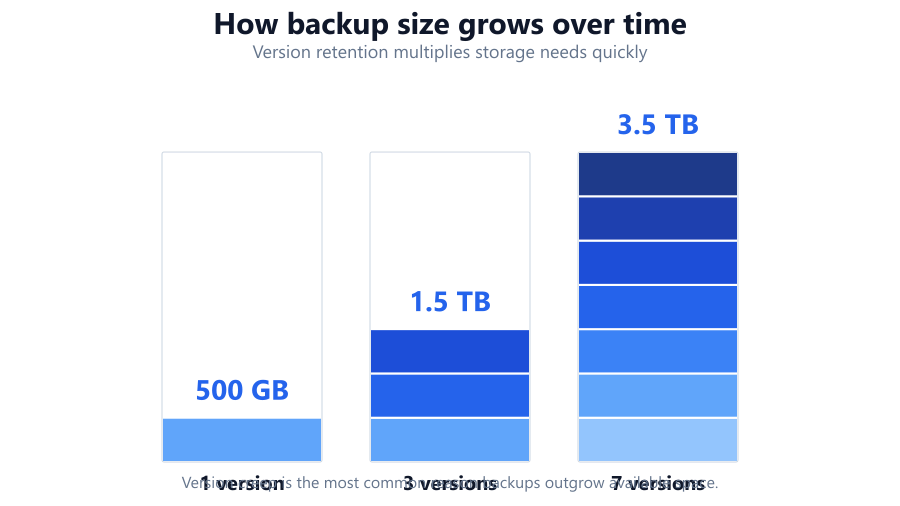
Version history multiplies your storage needs. Keeping more versions means you’re storing multiple copies of your files at different points in time. For example, if you back up a 500GB folder and keep five versions, you need 2.5TB. The backup storage calculator uses this simple math so you can adjust retention policies to fit your available space.

What’s the difference between raw backup size and usable disk space?

Raw backup size is the total data your backups require, but usable disk space is always less than the advertised capacity of a hard drive or SSD. For instance, a 4TB drive might only offer about 3.6TB after formatting. Always check the actual usable space on your destination drive and add extra headroom for overhead and future growth.

How do I choose the right backup drive size?

After using the backup storage calculator, select a drive that offers at least 10 - 20% more space than your result. For example, if you need 3TB, a 4TB drive is ideal. Consider drive reliability and intended workload: WD Red Plus and Seagate IronWolf are good for NAS, while WD Elements or Seagate Backup Plus suit desktop use. SSDs offer speed, but cost more per terabyte.

Can I use this calculator for cloud backup planning?

Yes, the calculator works for cloud backup planning. Enter your total data size and desired version history, then compare the output to your cloud provider’s plan limits or pricing. Some cloud services charge per gigabyte or tier, so knowing your real needs helps avoid surprise bills.

What happens if I run out of backup storage space?

If you run out of space, your backup software may start deleting older versions automatically, fail to complete new backups, or throw errors. This can leave you unprotected against data loss. Monitor your backup storage regularly, and use the calculator to reassess your needs as your data grows.

How do I check the size of my folders for backup?

On Windows, right-click a folder and select 'Properties' to see its size. On macOS, use 'Get Info.' For more detailed breakdowns, tools like WinDirStat or TreeSize give a visual map of disk usage. Use these numbers as input for the backup storage calculator.

How does RAID or NAS affect backup storage calculations?

RAID and NAS provide redundancy and uptime, but also consume more raw storage for parity or mirrors. The backup storage calculator gives you the logical backup size, not the extra physical disks required for RAID 1, 5, or 6. Always account for RAID overhead when sizing your storage array.

Does backup compression reduce required storage?

Compression can cut storage needs by 10 - 60% depending on file types. Text and document backups compress well; photos and videos less so. The calculator does not assume compression. For best accuracy, check your backup software’s compression ratios or run a test backup to see actual savings.

What is the best backup strategy for a gaming PC?

For a gaming PC, back up your system image, documents, game saves, and unique content. Game installers can often be redownloaded, but local saves and configuration files are irreplaceable. Use the backup storage calculator to estimate space, then add some overhead. Store backups on a separate SSD or external hard drive for safety.

How often should I update my backup storage plan?

Review your backup storage plan at least every 6 - 12 months, or when you add major data (like new games, photos, or projects). Data grows over time, and what fit on a drive last year may not fit now. Run the backup storage calculator again to ensure your backup system keeps pace with your needs.

Benchmark data from PassMark and publisher specs. Calculators run locally in your browser — we never upload your hardware info.