Home Plex Media Server
A user has 4 x 8TB WD Red Plus drives and wants maximum protection. With RAID 5, usable capacity is (4-1) × 8TB = 24TB.

FREE NAS STORAGE CALCULATOR
Need to know how much usable storage your NAS will actually provide with a specific RAID configuration? This NAS storage calculator shows your real, formatted capacity based on drive count, size, and RAID type, so you can plan your build with no surprises.
Enter drives and RAID config, then calculate
This NAS storage calculator estimates the usable storage you’ll get from your hard drives after configuring your NAS with various RAID levels. Enter the number of drives, drive size, and select a RAID type - like RAID 5, RAID 6, or RAID 10 - and the calculator instantly shows your net capacity. It helps you avoid overestimating usable space, which is a common mistake when planning a NAS, especially for setups using Synology, QNAP, or unRAID. The calculator also works as a RAID capacity calculator, factoring in the drive loss to redundancy and parity, so you know exactly how much space is available for your data after RAID overhead.
Select the RAID type for your NAS setup - JBOD, RAID 0, RAID 1, RAID 5, RAID 6, or RAID 10. Enter the number of drives you plan to install. Input the size of each drive in terabytes (TB) or gigabytes (GB). The calculator automatically displays your usable storage, factoring in the RAID overhead and redundancy used for data protection.
If your drives are different sizes, use the smallest drive size for RAID 5, RAID 6, or RAID 10 calculations, since these RAID types only use the capacity of the smallest drive per slot. For Synology Hybrid RAID (SHR) setups, results will be similar to RAID 5 or RAID 6, depending on how many drives you use. Check your NAS manual for any manufacturer-specific quirks.
For advanced results, you can compare different drive sizes and RAID levels to see how much space is gained or lost. This is especially useful when planning upgrades or migrating to a new NAS enclosure.
The core logic behind the NAS storage calculator is based on how each RAID type allocates drives for redundancy and data protection.
RAID 0: All drives are striped. Usable capacity = number of drives × drive size. No redundancy.
RAID 1: Drives are mirrored. Usable capacity = size of one drive. All other drives are mirrors.
RAID 5: One drive’s worth of space is reserved for parity. Usable capacity = (number of drives - 1) × smallest drive size. Minimum 3 drives required.
RAID 6: Two drives reserved for parity. Usable capacity = (number of drives - 2) × smallest drive size. Minimum 4 drives required.
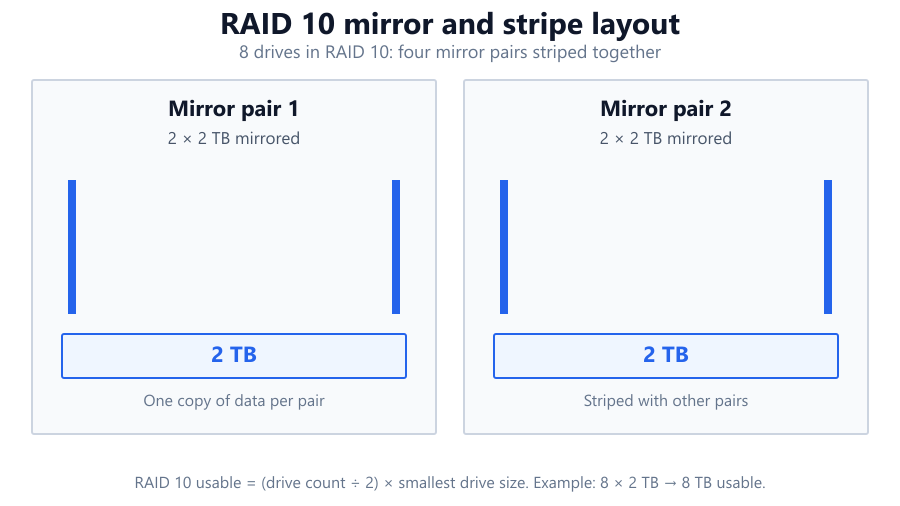
RAID 10: Drives are mirrored and striped. Usable capacity = (number of drives ÷ 2) × smallest drive size. Requires an even number of drives, minimum 4.
JBOD: Just a bunch of disks. Usable capacity = sum of all drives. No redundancy.
If you enter drives of different sizes, the calculator assumes only the smallest drive’s capacity is used per slot for RAID 5/6/10. This matches how most hardware and software RAID controllers work.
The calculator outputs your usable storage in terabytes or gigabytes, depending on the values entered. For example, if you input 6 x 6TB drives in RAID 6, you’ll see the net capacity is 24TB - not 36TB - because 2 drives are lost to parity.
If you use RAID 1 with 4 x 10TB drives, usable storage remains 10TB. RAID 10 with 8 x 8TB gives 32TB. The Synology storage calculator built into DSM gives similar numbers for standard RAID levels. Your actual available space will be slightly less after file system formatting and system overhead, but the calculator gives a close estimate for planning purposes.
Remember, redundancy protects against drive failure but does not count as extra usable storage. The calculator assumes healthy drives and no hot spares. If you dedicate drives as hot spares, subtract them from your total before running the calculation.
A user has 4 x 8TB WD Red Plus drives and wants maximum protection. With RAID 5, usable capacity is (4-1) × 8TB = 24TB.
A professional uses 6 x 4TB Seagate IronWolf drives in RAID 6 for double parity. Usable storage is (6-2) × 4TB = 16TB.
A photographer installs 2 x 18TB Toshiba N300 drives in RAID 1 for mirror redundancy. Usable capacity is 18TB.
A team deploys 8 x 2TB Samsung 870 EVO SSDs in RAID 10 for speed and redundancy. Usable capacity is (8 ÷ 2) × 2TB = 8TB.
A user puts 3 x 6TB and 1 x 4TB drive in RAID 5. Calculator uses smallest drive size, so usable capacity = (4-1) × 4TB = 12TB. The extra 2TB on each 6TB drive goes unused.
A budget setup with 3 x 2TB, 1 x 8TB, and 1 x 10TB (all different brands) in JBOD. Usable capacity is 2+2+2+8+10 = 24TB. No redundancy or protection.
Most home users want a balance of space and safety. RAID 5 or RAID 6 is popular, especially for Synology and QNAP NAS units.
Media storage benefits from RAID 5 or JBOD for maximum space. If uptime is critical, RAID 6 or RAID 10 is safer.
Offices often use RAID 6 for two-drive fault tolerance. This ensures shared files remain available even if one disk fails.
RAID 1 or RAID 10 is common for fast redundancy. Professionals with large archives often use 4-bay or 8-bay NAS units from Synology or QNAP.
RAID 10 provides high IOPS and redundancy for VM storage. SSDs like Samsung 870 EVO or Crucial MX500 are frequently used.
Users with leftover drives from old builds can use JBOD or RAID 5, but must accept the limitations on drive size and redundancy.
In RAID 5, 6, or 10, only the smallest drive size counts per slot. Mixing 4TB and 8TB drives in a RAID 5 means every drive is treated as 4TB. Unused space is wasted.
RAID protects against drive failure, not accidental deletion or ransomware. Always keep external backups.
RAID 5 needs at least 3 drives. RAID 6 needs 4. RAID 10 requires an even number, minimum 4. The calculator enforces these limits.
Drives set as hot spares do not add to usable capacity. Subtract them from your drive count before using the calculator.
Larger arrays take longer to rebuild after a failure. Using high-capacity drives (like 18TB+) increases this risk window. Consider RAID 6 or RAID 10 for extra safety in large arrays.
Some NAS units (like Synology with SHR) have unique storage pools. While similar to RAID 5/6, results may differ slightly. Always check your NAS vendor’s documentation for edge cases.
A NAS storage calculator is essential for planning any NAS build, from a home media server to a business file repository. By accurately estimating usable storage based on RAID level, drive count, and drive size, you avoid expensive surprises and wasted capacity. Always consider redundancy, drive compatibility, and backup strategies alongside raw storage numbers. For most users, RAID 5, RAID 6, and RAID 10 offer the best balance of usable space and data protection. Use this calculator before buying drives or enclosures, and double-check manufacturer specs for edge cases or hybrid RAID options.
For RAID 5, usable storage is (number of drives - 1) × smallest drive size. So with 4 x 6TB drives, usable storage is (4-1) × 6TB = 18TB. One drive’s worth of capacity is reserved for parity. If your drives are different sizes, only the smallest drive per slot is counted.
RAID 5 loses one drive’s worth of capacity to parity, while RAID 6 loses two. For example, with 6 x 4TB drives: RAID 5 gives (6-1) × 4TB = 20TB usable, while RAID 6 gives (6-2) × 4TB = 16TB usable. RAID 6 offers better protection since it can survive two simultaneous drive failures.
You can physically mix drive sizes in most NAS systems, but RAID 5, RAID 6, and RAID 10 only use the smallest drive’s capacity in each slot. If you have 2 x 4TB and 2 x 8TB, all drives are treated as 4TB for RAID calculations. The extra space on larger drives goes unused unless you use JBOD or certain hybrid RAID types like Synology SHR.
JBOD (Just a Bunch Of Disks) offers no redundancy. If any drive fails, data on that disk is lost. It maximizes usable space but is risky for important data. Always keep backups elsewhere if using JBOD for anything but temporary or non-critical storage.
Synology’s storage calculator uses similar logic for standard RAID types. For SHR (Synology Hybrid RAID), it’s comparable to RAID 5 or RAID 6 depending on drive count, but SHR can better utilize mismatched drives in some cases. This calculator gives you the standard RAID math; for SHR, results are similar unless you use many different drive sizes.
RAID 5 is the most common for home NAS, balancing storage efficiency and protection. RAID 6 is better for larger arrays (6+ drives) because it can handle two drive failures. RAID 1 or RAID 10 is best for fewer drives or if you need extra redundancy and performance, but sacrifices usable capacity.
RAID 10 mirrors and stripes drives. Usable storage is (number of drives ÷ 2) × smallest drive size. Requires an even number of drives - minimum 4. For 8 x 2TB, usable storage is (8 ÷ 2) × 2TB = 8TB.
No, RAID only protects against hardware failure, not against accidental deletion, ransomware, or corruption. Always maintain separate backups, offline or in the cloud, for true data protection.
Yes, actual usable space after formatting (with ext4, NTFS, Btrfs, etc.) will be slightly less than the calculated value. File systems and NAS OS overhead typically reduce usable space by 2-10%, depending on the system. The calculator provides a pre-format estimate.
A hot spare is a standby drive that automatically replaces a failed disk. It does not contribute to usable storage. Subtract any hot spares from your total drive count before using the NAS storage calculator.
Rebuild time depends on drive size, RAID level, and NAS performance. For 8TB drives in RAID 5 or 6, rebuilding can take 10-24 hours, sometimes longer. During a rebuild, performance drops and a second drive failure (in RAID 5) could cause data loss. RAID 6 or RAID 10 is safer for large arrays.
Many NAS systems (especially Synology and QNAP) support expanding RAID arrays by adding drives or swapping in larger ones, but it depends on the RAID level and hardware. Check your NAS documentation for supported migration and expansion options. Always back up before expanding an array.
Hard drive manufacturers use decimal TB (1TB = 1,000,000,000,000 bytes), but operating systems use binary TB (1TiB = 1,099,511,627,776 bytes). This causes a difference of about 7%. In addition, RAID overhead and file system formatting further reduce usable space. The calculator shows raw RAID math, not binary conversion.
RAID 0 and JBOD: minimum 1 drive. RAID 1: minimum 2 drives. RAID 5: minimum 3 drives. RAID 6: minimum 4 drives. RAID 10: minimum 4 drives (even number only). The calculator enforces these requirements for accurate results.
Enterprise and NAS-rated SSDs (like Samsung 870 EVO, WD Red SA500) can be used in RAID arrays for high performance. Avoid using consumer SSDs for heavy NAS workloads, as they may wear out faster. SSD RAID excels in environments needing high IOPS, like virtualization or databases.
This NAS storage calculator covers standard RAID levels: JBOD, 0, 1, 5, 6, and 10. RAID 50 and 60 are advanced nested RAID types used in enterprise storage; their math combines multiple RAID 5 or 6 arrays. For these or proprietary hybrid RAID (like Synology SHR2), consult your NAS documentation or the vendor’s calculator.
Free tools to analyze, compare, and optimize your PC gaming performance
Check if your PC meets the requirements for these popular games
Benchmark data from PassMark and publisher specs. Calculators run locally in your browser — we never upload your hardware info.