
FREE KEYBOARD TEST
Keyboard Latency Test: Measure Input Delay
Want to know how quickly your keypresses register on screen? The Keyboard Latency Test helps you measure your keyboard's input delay and response consistency right from your browser. It outputs detailed stats on latency, jitter, and shows a trend chart so you can see how your keyboard performs in real time.
What Does This Tool Do?
The Keyboard Latency Test is a browser-based tool that measures how long it takes for your keypress to result in a visual response on your screen. This measurement is known as key-to-rAF (requestAnimationFrame) latency, tracking the time from the moment you press a key down to when the browser can visually acknowledge that event. The tool provides metrics including average latency, minimum and maximum times, jitter (the amount of fluctuation between presses), and a consistency score. It also displays a latency trend chart to help you visualize how your keyboard's performance changes over repeated tests. While it cannot match the precision of lab hardware or dedicated desktop tools, it offers a practical way to understand input lag, spot issues, and compare devices using only your web browser.
How to Use This Tool
Using the Keyboard Latency Test is straightforward. Visit the tool page and make sure your browser tab is active. To start measuring, press and hold any key on your keyboard. The tool will begin recording the time between the keydown event and the corresponding visual feedback generated by the browser. For best results, repeat this process several times using different keys. You can switch between keyboards, or connect gaming and office keyboards like the Logitech G Pro or Dell KB216 to compare performance. The results update in real time, showing average, min, max, jitter, and a consistency metric. The trend chart provides a visual timeline of your latency across multiple keypresses. If you notice unusually high or inconsistent latency, try closing background apps, disconnecting wireless peripherals, or switching USB ports.
Understanding Your Results
Each test session yields several key metrics. Average latency tells you the typical delay between a keypress and the browser's response, measured in milliseconds. Minimum and maximum values reveal the range of observed delays. Jitter quantifies how much the latency varies from one press to the next, which can be critical for gaming or fast typing. The consistency score gives you an idea of how stable your keyboard's response is over time. The latency trend chart lets you visually spot spikes, drops, or patterns caused by system processes or hardware limitations. Lower average latency and low jitter are ideal for gaming keyboards like the Corsair K70 or Razer Huntsman. Office keyboards and wireless models may show higher latency or more fluctuation. Keep in mind, these results are influenced by your browser, operating system, USB polling rate, and monitor refresh rate. This tool provides an approximate value, not a definitive, lab-calibrated measurement.
Common Problems This Helps Diagnose
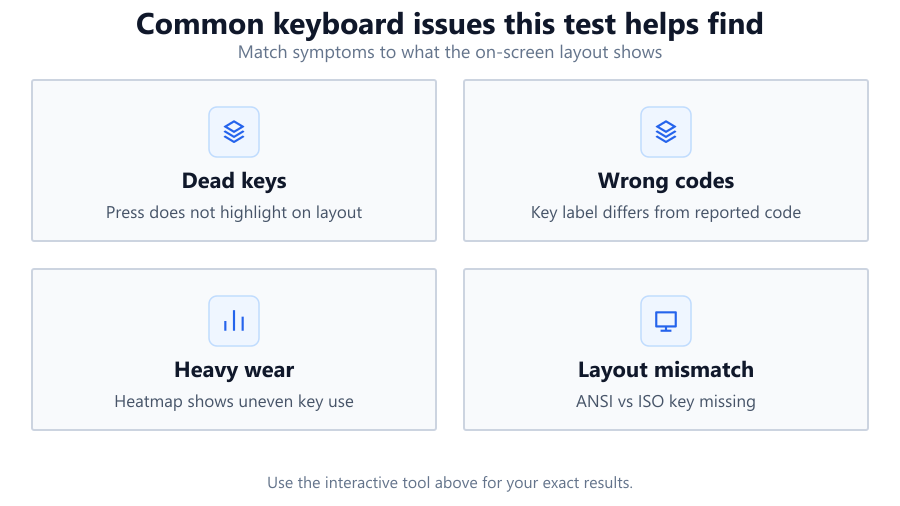
The Keyboard Latency Test can help identify several input-related issues. If you experience sluggish or delayed keystrokes in games or productivity apps, this tool can confirm whether your keyboard or system is contributing to the problem. High jitter or inconsistency may indicate USB bus congestion, outdated drivers, or interference from wireless devices. Spikes in latency can reveal background processes stealing CPU resources, such as antivirus scans or Windows updates. Mechanical keyboards like the SteelSeries Apex Pro should deliver consistent, low-latency results, while basic office or wireless models might show more fluctuation. If your gaming keyboard is performing worse than expected, try different USB ports or update your firmware. This tool can also help spot problems caused by low-power wireless adaptors, Bluetooth instability, or even faulty cables. It is not a substitute for dedicated input lag testers but gives practical feedback for troubleshooting everyday issues.
Examples and Scenarios
Scenario 1: Gaming Keyboard vs Office Keyboard You test a Corsair K70 (wired, mechanical) and see average latency of 6 ms, jitter of 0.5 ms, and high consistency. Switching to a Dell KB216 (wired, membrane), latency averages 11 ms with jitter around 2 ms. The K70 clearly performs better for fast-paced gaming.
Scenario 2: Wired vs Wireless A Logitech G Pro X Superlight Wireless keyboard shows average latency of 13 ms and occasional spikes to 25 ms due to wireless interference. When switched to wired mode, average latency drops to 7 ms with almost no spikes. The tool highlights the impact of wireless conditions on input delay.
Scenario 3: USB Port Trouble A Razer BlackWidow V4 plugged into a rear USB 2.0 port gives inconsistent results: average latency 10 ms, jitter 3 ms, and visible spikes in the trend chart. Moving it to a USB 3.0 port on the motherboard cuts latency to 6 ms and stabilizes the results. This reveals the effect of USB bandwidth and port location.
Scenario 4: System Load Impact While running a background video render, a user tests their Logitech G915 and sees latency swing between 8 ms and 30 ms, with jitter over 10 ms. Closing the render brings latency back down to a stable 8 ms. The tool exposes the effect of CPU load on real-time input response.
Scenario 5: Monitor Refresh Rate A user with a Dell S2721DGF monitor at 165 Hz sees lower minimum latency and more stable results than at 60 Hz, since higher refresh rates let the browser update the display faster. The tool shows how display settings influence perceived input lag.
Scenario 6: Bluetooth Keyboard Issues Testing an Apple Magic Keyboard over Bluetooth, the user sees erratic latency from 15 ms to 40 ms and high jitter, especially when other wireless devices are active. Switching to a wired keyboard or moving the Bluetooth dongle resolves the inconsistency.
Tips for Accurate Testing
To get the most reliable results, close other browser tabs and unnecessary programs before starting the test. Use a wired connection for both your keyboard and mouse, as wireless devices can introduce variable latency. Plug keyboards directly into the motherboard USB ports, not through hubs or front panel connectors. Set your monitor to its highest refresh rate, monitors like the ASUS VG259QM (280 Hz) will show faster response than 60 Hz displays. Disable any software overlays, power-saving modes, or background updaters. Run the test multiple times to check for consistency. Compare results across different browsers if possible: Chrome, Firefox, and Edge can yield slightly different timings due to their rendering engines. Remember, browser-based latency tests are limited by the browser's event handling and the operating system's scheduling, so treat the numbers as approximations.
Browser vs Desktop Software
Browser-based latency testing offers convenience, no installs, instant results, and works on most operating systems. But it comes with limitations. Browsers are subject to OS scheduling, VSync timing, and their own event queues. This means you cannot achieve scientific accuracy or measure sub-millisecond differences like hardware-based tools such as the LDAT or Osu!InputLatencyTest. Desktop software can access lower-level APIs, bypassing some browser delays, and may even tap into high-precision timers provided by your OS. On the other hand, browser tests are ideal for quick comparisons, troubleshooting, or validating keyboard swaps. If you need to diagnose extreme latency spikes, verify a keyboard's rated polling rate, or analyze ultra-low latency gaming gear like the Wooting 60HE, consider lab or software-based tools. For most users, the browser test provides actionable insight without extra hardware.
Summary
The Keyboard Latency Test is a practical tool for measuring input delay and consistency in your keyboard setup. It breaks down average latency, jitter, and trends, helping you spot hardware or system issues that impact gaming and productivity. While browser limitations mean you should treat results as approximations, the tool is invaluable for comparing devices, troubleshooting lag, and identifying when to switch USB ports or keyboards. Use it alongside other diagnostic methods for a complete picture. For most users, this browser-based test provides a fast, accessible way to improve their typing or gaming experience.
Frequently Asked Questions
What is keyboard latency and why does it matter?
Keyboard latency is the delay between pressing a key and seeing its effect on screen. It matters for gaming, fast typing, and any scenario where quick, accurate input is important. Lower latency improves responsiveness, reduces input lag in games, and makes for a smoother overall experience. High latency can feel sluggish and may cause missed or delayed actions, especially in competitive games or high-speed typing.
How accurate is the Keyboard Latency Test compared to lab equipment?
Browser-based tools like the Keyboard Latency Test offer useful approximations but cannot match the precision of lab equipment or dedicated desktop software. Browsers are affected by OS scheduling, VSync, and rendering delays, so you may see millisecond-level differences. While not lab-grade, the test is accurate enough for everyday comparisons and troubleshooting. For scientific measurement or sub-millisecond accuracy, use hardware tools like NVIDIA LDAT or dedicated latency meters.
Can this test measure the latency of gaming keyboards like Corsair K70 or Razer Huntsman?
Yes, you can use the Keyboard Latency Test to measure and compare the input delay of gaming keyboards like the Corsair K70, Razer Huntsman, SteelSeries Apex Pro, and others. It will show you average latency, jitter, and consistency so you can see if your keyboard is performing as expected. For most gaming keyboards, expect lower latency and more stable results than office or wireless keyboards.
Does the test work for wireless and Bluetooth keyboards?
The test works for any keyboard recognized by your operating system, including wireless and Bluetooth models. However, wireless connections often introduce higher latency and more variability due to signal interference or power management. Bluetooth keyboards may show occasional spikes or inconsistency, especially if multiple wireless devices are active nearby. For the most accurate results, use a wired keyboard when possible.
Why do I see different latency values in Chrome, Firefox, or Edge?
Different browsers handle input events, rendering, and scheduling in slightly different ways, which can affect latency measurements. Chrome, Firefox, and Edge each use their own rendering engines and may prioritize events differently based on system load or OS settings. If you need consistent results, try running the test on the same browser version and under similar system conditions.
What causes high jitter or inconsistent latency readings?
High jitter or inconsistent latency is usually caused by background processes, resource contention, or hardware limitations. Running software updates, antivirus scans, or video rendering can cause the CPU or USB bus to delay input processing. Wireless keyboards are especially prone to jitter if there's radio interference. Try closing unnecessary programs, using a wired keyboard, or switching USB ports to improve consistency.
Does monitor refresh rate affect keyboard latency measurements?
Yes, your monitor's refresh rate sets an upper limit on how quickly the browser can visually display a keypress event. Higher refresh rates (144 Hz, 165 Hz, or 240 Hz) allow for lower minimum latency and smoother response. If you test on a 60 Hz monitor, you may see slightly higher or more variable latency simply due to how often the display updates.
Can this test help diagnose faulty keyboards or broken keys?
While the Keyboard Latency Test can't detect physically broken keys, it can spot issues like high latency, missed keypresses, or erratic response times. If some keys show consistently higher latency or fail to register, it may indicate a hardware fault, dirty contacts, or problems with the keyboard's internal controller. For further diagnosis, try a different keyboard or connect to another computer.
Is there a way to improve my keyboard's latency?
To reduce keyboard latency, use a wired connection and plug directly into a motherboard USB port. Update your keyboard's firmware and motherboard USB drivers. Minimize background apps, especially those using heavy CPU or USB resources. Set your monitor to its highest refresh rate. For gaming, choose keyboards with high polling rates and fast switches, like the Wooting 60HE or Logitech G Pro X.
Why do wireless keyboards usually have higher latency?
Wireless keyboards use radio signals or Bluetooth to communicate with your PC, which adds transmission and processing delays. Battery-saving features can also introduce sleep or wake times. Environmental interference from Wi-Fi, Bluetooth headphones, or other devices can further increase latency or cause dropped packets. For the lowest latency, a wired keyboard is always preferable.
Does the operating system affect keyboard latency readings?
Yes, the OS schedules input events and manages USB polling rates, which can impact how quickly the browser receives and displays your keypress. Windows, macOS, and Linux each handle input differently, and system optimizations or background services can add delay. For consistent results, use the same OS and minimize background activity during testing.
Can the Keyboard Latency Test measure mouse or controller latency?
No, this tool is designed specifically for keyboard input. Mouse latency and controller input require different event handling, and accurate measurement often depends on specialized hardware or software. However, you can find separate browser-based tools or desktop apps for testing mouse and controller latency if needed.
How many keypresses should I test for best results?
For reliable data, test at least 20-30 keypresses across multiple keys. This helps average out any one-off spikes or background interruptions. You can also repeat the test with different keyboards or USB ports to identify patterns. More keypresses will give you a clearer trend and improve the accuracy of the average, min, max, and jitter statistics.
Does keyboard polling rate affect latency in this test?
Yes, higher polling rates (like 1000 Hz on gaming keyboards) can reduce input latency by sending key events to the PC more frequently. However, the actual improvement you see in the browser test may be limited by browser and OS delays. Still, high-polling keyboards like the SteelSeries Apex Pro or Razer Huntsman V2 often show lower average latency and better consistency.
Can antivirus or background software affect my latency test results?
Absolutely. Background applications like antivirus scans, software updaters, or video rendering can use CPU and disk resources, causing delays in event handling. These delays show up as higher latency or increased jitter in the test results. For the most accurate readings, close unnecessary programs and pause system updates while testing.
Should I use this tool if I need professional-level latency measurement?
If you require lab-precision or need to certify a keyboard's latency for competitive gaming or product development, browser-based tools are not sufficient. Use hardware input lag meters, high-speed cameras, or dedicated software with access to low-level APIs. The Keyboard Latency Test is best for practical diagnostics, device comparison, and general troubleshooting.
Related Tools
Free tools to analyze, compare, and optimize your PC gaming performance
Mouse Latency Test
Measure mouse input latency, click latency, jitter and response consistency directly in your browser.
Use Tool →Reaction Time Test
Test your reaction time with our free online reaction speed test. Track response time, improve reflexes and compare your
Use Tool →Keyboard Polling Rate Test
Measure keyboard polling rate, repeat rate in Hz and input responsiveness with live measurements.
Use Tool →Keyboard Tester
Test every key on your keyboard and verify key responsiveness directly in your browser. Live layout, heatmap, and progre
Use Tool →Popular Game System Requirements
Check if your PC meets the requirements for these popular games
Benchmark data from PassMark and publisher specs. Calculators run locally in your browser — we never upload your hardware info.