
FREE MOUSE TEST
Mouse Latency Test: Click Response Time
Need to measure your mouse's input latency or check if your clicks are registering fast enough for gaming? This tool shows you click-to-visual feedback latency, jitter, polling estimate, and response consistency, all from your browser. See real stats for your specific setup, including minimum, average, and maximum latency.
What Does This Tool Do?
This browser-based Mouse Latency Test lets you measure how long it takes for a mouse click to register visually on your screen. When you click, the tool uses requestAnimationFrame to capture the time between pressing your mouse button and seeing a flash or other visual feedback. It logs minimum, average, and maximum latency across multiple clicks, as well as jitter and a consistency score.
The tool also estimates your mouse polling rate using mousemove events, though browser limitations mean this number is approximate. A latency trend chart helps you spot any outliers or patterns during your session. Unlike specialized hardware testers or high-speed camera setups, this method relies entirely on your browser and OS, so results reflect your real-world PC environment, including your monitor, drivers, and background processes.
How to Use This Tool
Start by making sure your browser tab is active and all other applications are minimized. Click your mouse on the test area as instructed. Each click triggers a visual flash and logs the response time between your input and onscreen feedback. Perform at least 10-20 clicks for best results, mixing slow and fast presses if you want to see how your mouse and system handle varying speeds.
After testing, review the summary stats: minimum, average, and maximum latency, jitter (the variation in latency), and consistency score. The polling estimate gives you a rough idea of your mouse's report rate, though browser-based polling is less accurate than hardware tools. You can reset and retest as needed to compare different mice or settings.
Understanding Your Results
The main output is your click-to-display latency, shown in milliseconds. Lower numbers mean your mouse and system are responding quickly. Minimum latency shows your best-case scenario, while average and maximum reveal typical and worst-case responses. Jitter measures how much your latency varies from click to click. A lower jitter means more consistent performance, which is particularly important for competitive gamers.
The consistency score combines jitter and outlier data to give you a single number reflecting reliability. The polling estimate, though not lab-accurate, can help you spot if your mouse is running at its advertised Hz, like 1000Hz for a Logitech G Pro or 500Hz for an older office mouse. The latency trend chart lets you see if lag spikes correspond to background tasks or system hiccups.
Common Problems This Helps Diagnose
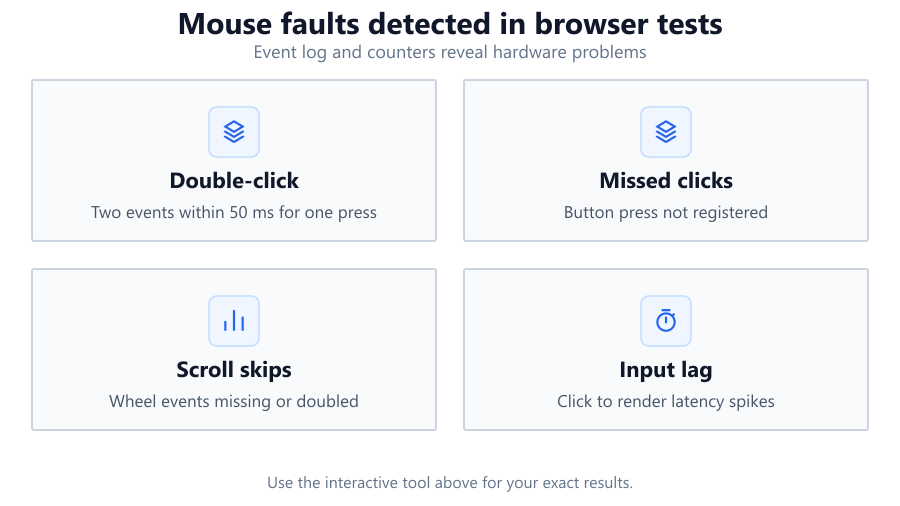
Gamers and power users often wonder why their shots feel delayed, or why aiming is inconsistent. This test helps reveal if high latency or jitter is the culprit. Consistently high latency could point to USB polling issues, background CPU load, or display lag. Large jitter may indicate driver conflicts, OS-level input smoothing, or wireless interference on Bluetooth mice.
If your average latency is much higher than expected, you might have V-Sync enabled, are running a high-refresh mouse on a low-refresh monitor, or are experiencing browser throttling. For competitive players using hardware like the Razer Viper 8KHz or Corsair K70, this tool can confirm if your setup is delivering the low-latency response you paid for. Office users can spot if a cheap wireless mouse is introducing lag that slows down everyday tasks.
Examples and Scenarios
Scenario 1: Gaming Mouse on a 240Hz Monitor You test a Logitech G Pro X Superlight on a Dell Alienware 240Hz display. Average latency is 15ms, minimum is 11ms, and max is 22ms. Jitter is low, and the polling estimate hovers near 1000Hz. Your setup is performing as expected for esports gaming.
Scenario 2: Office Mouse with Bluetooth Connection Testing a Microsoft Bluetooth Mouse on a basic 60Hz monitor, you see average latency at 35ms, with occasional spikes to 60ms. Jitter is high, and polling is around 120Hz. This confirms why the mouse feels sluggish during quick edits or presentations.
Scenario 3: Wireless Gaming Mouse with Low Battery A Razer Basilisk Ultimate is tested while running low on battery. Average latency jumps to 45ms, with jitter rising and several outliers above 70ms. After charging the mouse, latency drops back to normal. This identifies battery level as a source of lag.
Scenario 4: USB Polling Issue on High-End Mouse A Corsair Sabre RGB Pro is connected via USB 2.0 on an older desktop. Polling estimate is below 500Hz, and max latency spikes occasionally. Moving to a USB 3.0 port restores polling to 1000Hz and improves consistency, showing the impact of port limitations.
Scenario 5: Browser Impact on Latency You run the test in Chrome, Firefox, and Edge using the same Logitech G305. Chrome reports average latency at 18ms, Firefox at 23ms, and Edge at 20ms. This highlights how browser choice and background extensions can affect input timing.
Scenario 6: Background Load from Streaming Software Testing a SteelSeries Rival 3 while OBS Studio is recording, latency and jitter both increase. Closing OBS brings latency back down, revealing that heavy background processes can impact click responsiveness.
Tips for Accurate Testing
Keep your browser window maximized and foregrounded. Close any unnecessary programs, especially those that can use a lot of CPU or GPU, like video editors or streaming apps. Disable browser extensions that might interfere with input events. Test on a wired mouse for best baseline results, as wireless mice can introduce extra delay from signal processing or battery-saving features.
If possible, connect your mouse directly to a motherboard USB port, not through a hub or monitor passthrough. For high-refresh displays, make sure your OS and GPU drivers are set for the highest refresh rate. Avoid running the test on laptops with aggressive power-saving enabled, as this can throttle your CPU and GPU, skewing results. Always compare multiple runs to spot inconsistencies, and note that browser tests are subject to OS-level scheduling and may not match lab-grade hardware.
Browser vs Desktop Software
Browser-based latency tests like this offer convenience, but have inherent limits. Browsers use requestAnimationFrame, so your results depend on your display's refresh rate and how the OS schedules events. If your system is under heavy load, or if your browser is throttled by battery-saver modes, latency numbers may be inflated.
Polling estimates, based on mousemove event timing, are rough. True report rates are best measured with dedicated software like MouseTester or with hardware tools such as high-speed cameras and latency meters. Desktop tools can access lower-level input APIs, sometimes revealing issues not visible in browser tests. Use browser tools for quick checks or comparisons across machines, but rely on specialized testers for competitive analysis or troubleshooting rare hardware issues.
Summary
The Mouse Latency Test is a fast way to measure your mouse's click-to-visual response, jitter, and consistency using only your browser. While not a substitute for lab equipment, it gives practical insights into how your current setup performs in real-world conditions. You can spot latency issues, compare devices, and confirm if your mouse is running at its advertised polling rate. Remember, browser limitations affect precision, but for most users this tool is enough to diagnose lag, jitter, or setup problems. For deeper analysis, combine browser results with dedicated software or hardware testing.
Frequently Asked Questions
How accurate is this mouse latency test compared to hardware tools?
Browser-based tests like this one provide a practical, real-world estimate of your mouse's input latency, but they are not as precise as hardware-based methods. The timing relies on your browser's requestAnimationFrame, which is tied to your display refresh rate and subject to OS scheduling. Background tasks, V-Sync, and browser throttling can all influence results. If you need lab-grade precision, high-speed cameras or dedicated latency meters are required. However, for most users, this tool gives a reliable picture of real-world performance.
What is a good mouse latency for gaming?
For competitive gaming, you want click-to-display latency as low as possible, ideally below 20ms. Esports mice like the Logitech G Pro X Superlight or Razer DeathAdder V3 Pro often deliver minimum latencies in the 10-15ms range on high-refresh monitors. Average gaming mice may hover between 20-30ms. If your latency is above 35ms or you see large jitter, check your mouse connection, polling rate, and system load. Lower latency and jitter mean smoother, more responsive aim and actions.
Why is my mouse latency higher than expected?
Several factors can increase mouse latency: using a wireless mouse, running on low battery, connecting through a slow USB port, or having OS-level settings like enhanced pointer precision enabled. High background CPU or GPU load, browser extensions, and running in a throttled browser window (like a minimized or background tab) can also add delay. Make sure your monitor is set to its highest refresh rate and that your mouse is connected directly to your PC, not through a hub. Try different browsers for comparison.
Does the test work with all browsers and operating systems?
The test runs on all modern browsers, Chrome, Firefox, Edge, and Safari, across Windows, macOS, and Linux. However, browser performance can vary. Chrome and Edge usually offer the lowest input latency, while Firefox and Safari may have slightly higher overhead. Some OS-level settings, like power-saving modes, can affect timing. For best results, keep your browser updated and use a desktop OS rather than a mobile device. Results may not be meaningful on tablets or phones due to touch input differences.
What does jitter mean in this test?
Jitter measures the variation in latency from click to click. Low jitter means your mouse and system deliver consistent timing, which is crucial for precise gameplay or design work. High jitter indicates that your latency is unpredictable, one click might register quickly, while the next lags behind. Causes of jitter can include wireless interference, background processes, inconsistent polling rates, or browser interruptions. A low jitter score is just as important as low average latency for smooth, reliable performance.
How can I reduce mouse latency on my PC?
To lower mouse latency, use a wired mouse or a high-quality wireless model with a strong connection (like a Logitech Lightspeed or Razer HyperSpeed mouse). Connect your mouse directly to a motherboard USB port. Set your monitor to its highest refresh rate (120Hz, 144Hz, or higher). Close unnecessary background programs, especially those using a lot of CPU or GPU. Disable unnecessary browser extensions. Keep your system and drivers up to date, and check that your mouse’s firmware is current. Turn off V-Sync if low latency is more critical than visual smoothness.
Can this test detect problems with my USB ports?
Yes, to some extent. If you connect your mouse through a slow USB 2.0 port or a hub, you might see higher latency and lower polling rates. Running the test on different ports and comparing results can help you spot underperforming connections. For example, if your polling estimate jumps from 500Hz to 1000Hz when switching from a front-panel port to a rear motherboard port, your original port may be limiting performance. Hardware testers provide more detail, but this tool can highlight major USB issues.
Why do my latency results spike occasionally?
Spikes in latency can be caused by background processes suddenly using CPU or memory, browser garbage collection, or OS scheduling quirks. Recording software, antivirus scans, and system updates running in the background can also lead to inconsistent results. Wireless mice may spike when signal strength drops or if the battery is low. If you notice frequent spikes, try closing background apps, using a wired mouse, or running the test in a different browser. Consistent spikes may suggest a hardware or driver issue.
Is polling rate the same as latency?
No, polling rate and latency are related but distinct. Polling rate (measured in Hz) is how often your mouse reports its position to your computer. Higher polling rates (like 1000Hz or 8000Hz) mean more frequent updates, which can reduce input lag. Latency is the actual time it takes for a click to be registered and visually confirmed on your screen. A high polling rate helps lower latency, but other factors, like OS scheduling, USB speed, and display refresh, also play significant roles.
Can this test replace hardware-based latency measurements?
For most users, browser-based latency tests are sufficient to detect major issues or compare devices. They reflect real-world use, including your OS and display. However, they cannot match the precision of hardware tools like high-speed cameras or latency meters, which measure at the microsecond level and isolate each component. For professional esports analysis or diagnosing rare hardware faults, specialized hardware is still necessary. Use this tool for quick checks, but know its limits.
Should V-Sync or G-Sync be enabled during testing?
V-Sync synchronizes your GPU's output with your monitor's refresh rate, which can add input delay. G-Sync and FreeSync are adaptive sync technologies that reduce tearing but may also influence latency slightly. For the lowest latency scores, you should disable V-Sync. G-Sync and FreeSync generally have less impact, but for absolute minimum latency, it can be useful to test both on and off. Always note your display settings during tests for consistency.
Why does my wireless mouse have more latency than my wired one?
Wireless mice can introduce extra latency due to signal encoding, transmission, and battery-saving features. Modern gaming models like the Logitech G Pro X Superlight or Razer Viper Ultimate use advanced wireless technologies to minimize this delay, sometimes matching wired performance. However, cheaper Bluetooth mice or older wireless models often have noticeably higher latency and jitter. Environmental interference from Wi-Fi, USB 3.0 devices, or microwaves can also affect wireless performance. If low latency is critical, a wired mouse is still the safest choice.
How do different browsers affect mouse latency results?
Different browsers have unique event handling and rendering pipelines. Chrome and Edge often produce the lowest latency scores, thanks to optimized input and rendering. Firefox and Safari may have slightly higher overhead, especially on lower-end systems. Extensions, ad blockers, and background tabs can also influence performance. It's a good idea to test in multiple browsers for comparison, especially if your results seem unusually high in one browser. Always keep your browser updated.
What real-world tasks benefit from low mouse latency?
Low mouse latency is crucial for competitive gaming, especially in fast-paced shooters like Valorant or CS:GO, where every millisecond counts. It also enhances responsiveness in graphic design, video editing, and CAD work, where precise cursor movement and quick clicks are essential. Even in everyday office tasks, a snappy mouse can make navigating spreadsheets or presentations feel smoother. Anyone who values responsiveness, from gamers to creative professionals, benefits from lower latency and jitter.
Can I test different mice or settings using this tool?
Absolutely. This tool is ideal for comparing how different mice perform on the same system, or how changes to your setup affect latency. Test a wired gaming mouse, then swap to a wireless or office model and compare results. You can also adjust settings like USB ports, polling rates, or OS pointer options to see their impact. Repeat tests to verify consistency and spot outliers. It's a practical way to optimize your hardware without extra equipment.
Does monitor refresh rate affect click latency in this test?
Yes. Since the test relies on requestAnimationFrame, which syncs to your display's refresh rate, higher monitor refresh rates (like 144Hz or 240Hz) allow for lower minimum latency. On a 60Hz monitor, the fastest possible visual response is about 16.7ms, while 144Hz drops this to about 6.9ms. If you want to see the lowest possible latency, use a high-refresh monitor and ensure your OS and GPU are set to the correct refresh rate. The tool reflects your actual display environment.
Related Tools
Free tools to analyze, compare, and optimize your PC gaming performance
Mouse Polling Rate Test
Measure your mouse polling rate in Hz, response consistency and real-time input performance using your browser.
Use Tool →Reaction Time Test
Test your reaction time with our free online reaction speed test. Track response time, improve reflexes and compare your
Use Tool →Keyboard Latency Test
Measure keyboard input latency, event timing, jitter and response consistency online.
Use Tool →Mouse Button Test
Test every mouse button online including left, right, middle, side buttons and scroll wheel. Detect faulty switches, dou
Use Tool →Popular Game System Requirements
Check if your PC meets the requirements for these popular games
Benchmark data from PassMark and publisher specs. Calculators run locally in your browser — we never upload your hardware info.