
FREE MOUSE TEST
Mouse Double Click Test: Detect Switch Chatter
Experiencing unexpected double-clicks or missed clicks with your mouse? Our free online tool helps you detect mouse double-click issues, switch chatter, and faulty clicks in real time. See per-click timing, click interval histograms, and fault probability, no software download needed.
What Does This Tool Do?
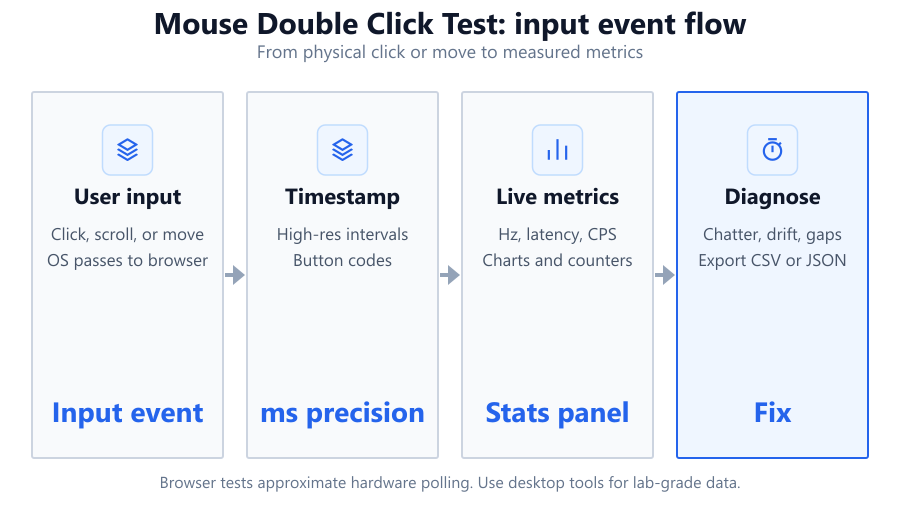
The Mouse Double Click Test is designed to identify if your mouse is suffering from unwanted double-clicks, switch chatter, or missed clicks. It records the timing between each mouse click, flags suspiciously quick double activations, and analyzes patterns that suggest hardware issues. If you notice your Logitech G Pro or Razer DeathAdder is registering phantom double-clicks, this tool can help confirm the problem before you start replacing hardware. With features like a per-button gap analysis, interval histograms, and a fault probability percentage, you get a clear look at how your mouse switches behave during normal use. The tool uses browser-based event timing, which is accurate enough for practical troubleshooting, but not a replacement for lab-grade diagnostics.
How to Use This Tool
Start by connecting the mouse you want to test. Visit the tool page in any modern web browser. You’ll see a mouse pad click target on the screen. Click rapidly, slowly, and at your typical use speed, using both left and right buttons. Each click is logged, with interval times displayed in real time. The click interval histogram fills in as you go, visualizing the timing between each click. The tool flags any click gaps under 80ms, which commonly indicate switch chatter or double-click faults. For best results, test on a stable surface and avoid wireless interference. If you use a Corsair K70 keyboard with built-in USB pass-through, plug the mouse directly into the PC for the most consistent results.
Understanding Your Results
After several test runs, review the click interval histogram and the per-button gap analysis. Clicks clustered below 80ms are a red flag, as these are far faster than humanly possible and typically indicate switch bounce or chatter. The tool calculates a fault probability percentage, giving you an at-a-glance sense of how likely your mouse is to have a hardware issue. For instance, if you see repeated double activations or a high fault probability, your mouse switches may be wearing out. The per-button view lets you compare left, right, and even middle button behavior, which is useful if only one side is problematic. Keep in mind that browser timing is subject to your system’s performance and OS event handling, so minor anomalies may not always indicate a real problem.
Common Problems This Helps Diagnose
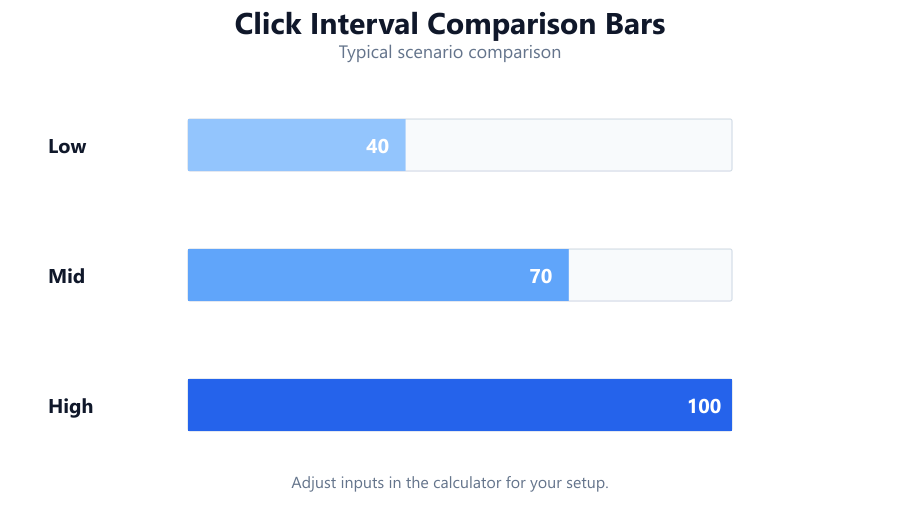
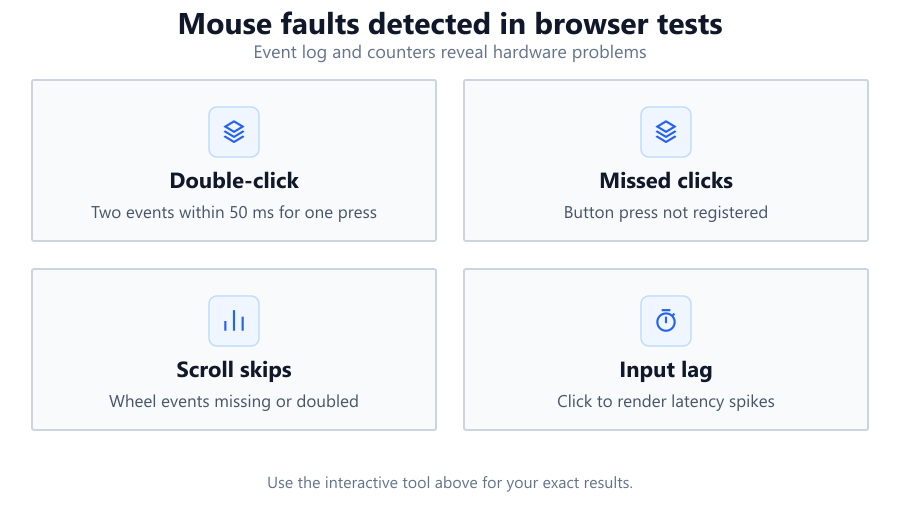
The tool is ideal for diagnosing classic mouse double-click issues, especially in older or heavily-used mice. Switch chatter is a common problem in popular models like the Logitech G502, Razer Basilisk, or budget mice from Redragon. It can also help spot issues with inconsistent click registration, useful for gaming mice where reaction time is critical. If you use a Dell monitor with a built-in USB hub and notice click inconsistency, this tool helps distinguish between hardware and USB connection issues. It’s also useful for troubleshooting after liquid spills or heavy drops that affect internal switch reliability. While the tool can’t fix hardware, it provides the data you need to decide if repair or replacement is needed.
Examples and Scenarios
Scenario 1: Logitech G Pro Wireless, Double-Clicking Left Button A user notices that single clicks are sometimes registered as doubles. Using the tool, they click 100 times at a moderate pace. The interval histogram shows multiple gaps below 80ms, and the fault probability is over 30 percent. This confirms classic switch chatter, likely from worn out Omron switches.
Scenario 2: Corsair Nightsword RGB, Right Button Intermittency During gameplay, the right mouse button sometimes fails to register. The tool’s per-button gap analysis shows irregularly long intervals for the right button, inconsistent with left and middle buttons. The issue is likely a worn or dirty switch, not a software problem.
Scenario 3: Cheap Office Mouse, Noisy Environment A user testing a $10 office mouse sees a few flagged intervals under 80ms, but the overall fault probability is low and only occurs with rapid clicking. This suggests occasional switch bounce, but not enough to justify replacement. Cleaning the mouse may help.
Scenario 4: Razer DeathAdder V2, After Spilling Coffee Following a spill, the left mouse button often skips or double-clicks. With the tool, the histogram shows erratic intervals, both below 80ms and much longer than average. This inconsistency points to internal contamination affecting the switches, confirming the need for repair or replacement.
Scenario 5: Dell Mouse via Monitor Hub A user plugs a Dell mouse into a monitor’s USB hub and notices inconsistent click detection. The test shows both normal and missed clicks, but moving the mouse directly to the PC resolves the problem. The issue is traced to the hub rather than the mouse itself.
Scenario 6: Gaming Mouse After Heavy Use After a year of intense FPS gaming, a user suspects their Glorious Model O is developing double-click issues. The tool’s histogram and analysis reveal a growing number of sub-80ms intervals, justifying a warranty claim or DIY switch replacement.
Tips for Accurate Testing
Use a wired connection when possible, as wireless mice can introduce extra latency or packet loss, especially in crowded radio environments. Avoid testing through USB hubs or keyboard pass-through ports; plug directly into the motherboard’s USB port. Test on a stable, flat surface to prevent accidental double actuations. Close background applications that might slow browser event handling, such as video editors or games. If your system is running power-saving features, disable them temporarily to avoid inconsistent timing. For the most accurate results, test with your standard mouse settings, avoid high polling rates if your browser or OS can’t keep up. Clean your mouse before testing, as dirt or debris can sometimes mimic switch problems. Remember, browser-based tests rely on your operating system’s event timing, so small anomalies may not reflect hardware faults.
Browser vs Desktop Software
This tool uses browser-based JavaScript to log mouse events and calculate intervals. While accurate for most troubleshooting needs, it’s limited by your browser’s timing resolution and the operating system’s event dispatch. For example, some browsers cap timing precision for security, and heavy CPU load can delay event processing. Desktop software like MouseTester or dedicated hardware analyzers offer higher precision and can sample at higher rates, but require downloads and are less convenient for a quick check. If you need lab-grade accuracy for professional esports or warranty claims, consider using these specialized tools. For most users, this browser test is sufficient to confirm whether your mouse is suffering from switch chatter or double-click faults. Always repeat tests in different browsers or on different PCs if you’re unsure about your results.
Summary
The Mouse Double Click Test is a fast, free way to identify switch chatter and faulty clicks in any mouse, from premium gaming models to budget office devices. It provides clear visualizations and actionable data, helping you decide if you need a repair, replacement, or just a good cleaning. While browser-based tools aren’t a substitute for hardware diagnostics, they’re accurate enough for everyday troubleshooting. Combine this test with proper cleaning, direct connections, and care for your device to extend your mouse’s life and performance.
Frequently Asked Questions
How do I know if my mouse is double-clicking by accident?
The most common sign is when a single press of the mouse button registers as two clicks. You might notice files opening unexpectedly or unwanted actions in games. Using this tool, if you see multiple click intervals below 80ms and a high fault probability, your mouse is likely double-clicking due to switch chatter. Try clicking both slowly and rapidly to catch inconsistencies. If only one button is affected, it’s usually a physical switch issue. For confirmation, test in different browsers or on another PC.
Is this online double-click test accurate enough for gaming mice?
Yes, for most practical purposes. The tool uses browser event timing, which is reliable for detecting major switch chatter or double-click faults in gaming mice like the Logitech G Pro or Razer Viper. However, browser timing is less precise than dedicated hardware analyzers. If you need millisecond-level accuracy for esports or warranty claims, consider using desktop software or hardware-based testers. For general troubleshooting and peace of mind, this tool is accurate and convenient.
Can switch chatter be fixed, or do I need a new mouse?
Switch chatter is usually a hardware issue caused by worn-out or dirty switches. For some mice, cleaning around the button may help. If your mouse uses Omron switches, it’s sometimes possible to replace them with soldering skills. Premium mice like the Glorious Model O or Corsair M65 have replaceable switches, but most budget models do not. If cleaning doesn’t help and chatter persists in the test, replacement is usually the best option. Check your warranty before buying a new mouse.
Why does the tool flag clicks under 80ms?
Human users cannot reliably click the same button twice in under 80 milliseconds. When the tool detects two activations closer than this, it’s usually due to switch bounce or electrical chatter inside the mouse. This threshold is based on industry research and real-world testing. Seeing frequent sub-80ms intervals is a strong indicator of a faulty or worn switch. Occasional outliers may happen due to browser or OS timing, but multiple rapid intervals almost always point to hardware issues.
Does operating system or browser choice affect results?
Yes, the tool’s timing accuracy depends on your operating system and browser. Some browsers, like Chrome and Edge, handle mouse events more precisely than others. Older systems or those under heavy load may introduce lag in event processing. Power-saving settings or background processes can also affect timing. For the best results, use a modern browser on a fast PC, close unnecessary apps, and test in multiple browsers if you suspect inconsistencies. Desktop software offers greater accuracy for critical diagnostics.
My mouse works fine in this test, but still acts up in games. Why?
If the tool shows no double-click issues but you experience problems in games, the cause may be software-related. Check your mouse drivers, in-game settings, and system latency. Some games interpret rapid double-clicks differently or have custom polling rates. USB power management features can also interfere with input. Try updating your mouse firmware, disabling USB selective suspend, and ensuring your mouse is plugged directly into the PC. If issues persist, test on another device or try a different mouse.
Can I test other buttons besides left and right?
Yes, the tool records click events for left, right, and middle mouse buttons. Per-button gap analysis lets you see if only one button is faulty or if multiple switches are affected. This is useful for mice with extra programmable buttons, although browser support may vary. If you suspect issues with side buttons or scroll clicks, test them separately and watch for flagged intervals. Some specialized buttons may not be detected by browsers, so desktop software may be needed for full coverage.
Why does my wireless mouse show more inconsistent results?
Wireless mice, particularly budget models, can introduce extra latency or occasional packet loss due to radio interference or battery saving features. This can lead to irregular timing in browser-based tests, making it harder to distinguish between true switch chatter and wireless dropouts. For more consistent results, test with a wired connection or move your receiver closer to the mouse. High-end wireless models like the Logitech G Pro X Superlight use advanced protocols for lower latency, but even they can be affected by USB port quality or nearby devices.
How many clicks should I test for reliable results?
Aim for at least 100 clicks per button for a statistically meaningful result. Rapid, slow, and normal clicking patterns help reveal different issues. More clicks provide a clearer histogram and increase the accuracy of the fault probability percentage. If you only test a few times, you may miss intermittent chatter or double-clicks. Consistency across multiple test runs is a good sign your mouse is healthy. If uncertain, repeat the test after cleaning your mouse or restarting your system.
Is this tool safe to use on work or school computers?
Yes, the tool is browser-based and requires no downloads or installations. It does not access any personal files or system settings. All data is processed locally in your browser and is not transmitted to any server. This makes it safe for use on work, school, or shared computers where you may not have permission to install software. Just remember to close the tab when finished and avoid testing during important tasks, as rapid clicking can interfere with other applications.
Can dirty or sticky buttons cause double-click problems?
Absolutely. Dirt, dust, or spills can cause mouse switches to stick or bounce, resulting in double-clicks or missed clicks. Before assuming your mouse needs replacement, clean around the buttons with compressed air or isopropyl alcohol and a cotton swab. Pay special attention if the problem started after a spill or in dusty environments. If cleaning resolves the flagged intervals in this test, you’ve likely solved the issue. Persistent problems after cleaning usually indicate worn or damaged switches.
Will this test work on Mac, Linux, or Chromebooks?
Yes, the tool is designed to run in any modern web browser, including those on Mac, Linux, or Chromebooks. Timing precision may vary slightly across operating systems because of differences in how mouse events are handled. For most users, the results are reliable enough to diagnose major hardware issues on any platform. If you need higher accuracy or encounter issues with button detection, consider using desktop testing tools that are compatible with your OS.
What is 'per-button gap analysis' and why does it matter?
Per-button gap analysis shows the timing between clicks for each individual button. This helps you pinpoint if only the left, right, or middle button is affected by double-click issues. For example, if only your left button shows rapid intervals under 80ms, the issue is likely with that specific switch. This makes troubleshooting more efficient, especially with multi-button mice or gaming peripherals where just one button may be faulty. It also rules out software or driver issues affecting all buttons equally.
How do I interpret the fault probability percentage?
The fault probability percentage is an estimate of how likely your mouse is experiencing hardware issues based on the number and frequency of suspiciously rapid clicks. A low percentage means your mouse is working as expected. A high percentage, especially with many sub-80ms intervals, suggests switch chatter or double-click faults. This metric is not absolute, as browser timing and system load can affect results. Use it as a guideline alongside the histogram and your own experience with the mouse.
Should I use this tool before filing a warranty claim?
Yes, running this test provides evidence of double-click or switch issues that you can share with customer support. Many manufacturers, such as Logitech or Razer, require proof of malfunction before approving a warranty claim. Screenshots of the histogram, flagged intervals, and fault probability percentage can strengthen your case. Be sure to mention the number of clicks tested and the conditions of your test (wired vs wireless, direct connection, etc.). This helps speed up the support process.
Can this tool detect issues caused by USB hubs or extenders?
Yes, to some extent. If your mouse is connected through a USB hub or extender and you notice irregular or missed clicks in the tool, the problem may be with the connection rather than the mouse itself. To confirm, repeat the test with the mouse plugged directly into the PC. If the flagged intervals or missed clicks disappear, your hub or extender is likely introducing latency or power issues. For best results, always test with a direct connection.
Related Tools
Free tools to analyze, compare, and optimize your PC gaming performance
Mouse Button Test
Test every mouse button online including left, right, middle, side buttons and scroll wheel. Detect faulty switches, dou
Use Tool →Mouse Tester
Test every mouse button, scroll wheel, clicks per second and double-click performance in one online tool.
Use Tool →Keyboard Double Click Test
Detect unwanted double key presses and keyboard chatter with detailed per-key timing analysis.
Use Tool →Mouse Drift Test
Detect unwanted mouse drift, sensor movement and hardware issues while your mouse is stationary.
Use Tool →Popular Game System Requirements
Check if your PC meets the requirements for these popular games
Benchmark data from PassMark and publisher specs. Calculators run locally in your browser — we never upload your hardware info.