
FREE MOUSE TEST
Mouse Tester: Test Buttons, Scroll & Clicks Online
Need to check if your mouse buttons or scroll wheel are working right? This tool tracks every mouse button, click speed, scroll action, and double-click performance directly in your browser. Get instant feedback with live counters and a detailed event log, no downloads required.
Hold duration
Hold a button to measure duration
What Does This Tool Do?
The Mouse Tester is a browser-based utility that checks every mouse button, the scroll wheel, and various click behaviors in real time. Whether you are troubleshooting a faulty mouse, verifying double-click registration, or measuring your clicks per second, this tool provides a quick way to see what your hardware is doing. It highlights each button press on a virtual mouse pad and counts every event. With an event log and chatter detection, it helps pinpoint issues like unregistered clicks, accidental double-clicks, or sticky buttons.
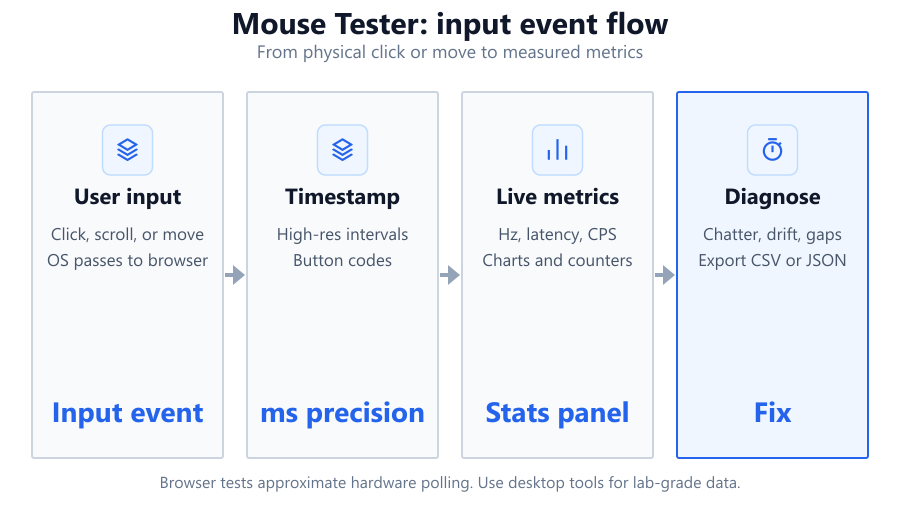
Unlike hardware-specific diagnostics, this tool runs entirely in your browser. It uses the same engine as mouse-button-test, meaning you get consistent behavior across devices and operating systems. Ideal for users who want a fast, no-installation checkup of their mouse's basics.
How to Use This Tool
Start by visiting the Mouse Tester page on SystemRequirements.net. Once loaded, you will see a virtual mouse pad graphic and counters for each button. To test a button, simply click it as you would in normal use, left, right, middle, side buttons, or even the scroll wheel. The corresponding section of the virtual mouse lights up and the event is logged instantly.
Try holding down a button to measure hold duration, or click rapidly to see your clicks per second. Scroll up and down to confirm the wheel is registering movement. The event log below the pad tracks each action, including time stamps and button names. You do not need to install any software or adjust system settings. All you need is a compatible web browser, such as Chrome, Firefox, or Edge.
Understanding Your Results
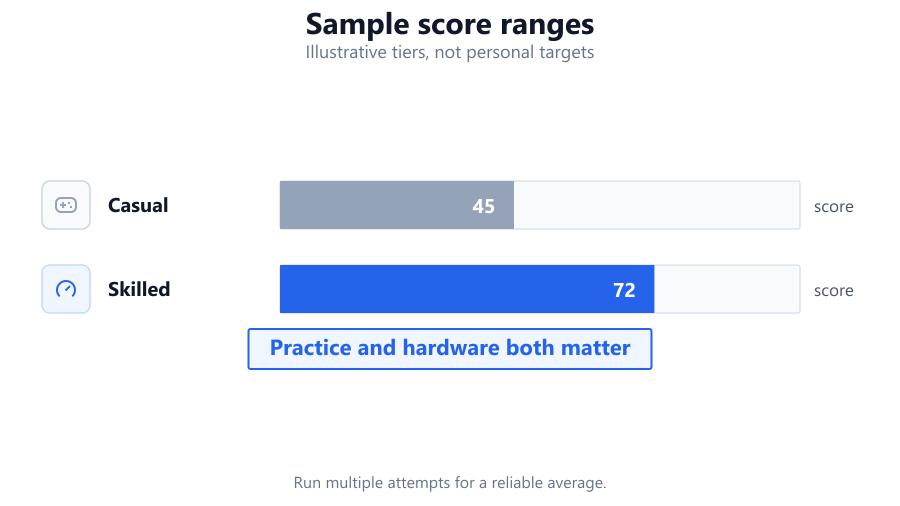
Each button has its own counter, which increases with every registered press or scroll. If you see the on-screen mouse pad light up, the tool has detected your input. The clicks per second (CPS) stat measures how rapidly you can click, useful for gamers or users who need fast response.
Hold stats show how long a button is pressed, helping identify sticky or reluctant switches. The chatter stat highlights quick, repeated clicks that may signal switch failure or debounce problems. The event log provides a timestamped record of every action, making it easy to spot missed clicks, double-clicks, or inconsistent behavior. Keep in mind, all measurements are approximate, as browser input polling depends on your system's speed and browser refresh rate.
Common Problems This Helps Diagnose
The Mouse Tester is excellent for identifying several real-world mouse issues. If your left mouse button sometimes fails to register, you will see missing events in the log. Double-clicking unexpectedly? The tool’s chatter and double-click stats will reveal rapid fire events that should not be there.
This tool can also flag unresponsive side buttons, malfunctioning scroll wheels, or inconsistent hold times, a sign of sticky or failing mechanical switches. For users with older mice, such as the Logitech MX518 or Microsoft Intellimouse, it can help confirm if age-related wear is affecting performance. If you suspect problems after a liquid spill or a cable snag, Mouse Tester quickly confirms which functions are impaired.
Examples and Scenarios
Scenario 1: Logitech G Pro Wireless Double-Click Issue You click the left mouse button once, but the event log shows two entries. The chatter stat spikes. This confirms the notorious double-click problem some users experience with the G Pro Wireless. Time for a warranty claim or switch replacement.
Scenario 2: Corsair Katar Side Button Not Registering You press the side button repeatedly. The virtual mouse pad does not light up, and the button counter stays at zero. This suggests a hardware failure or a possible driver/configuration issue. Try a different browser or system to rule out software causes.
Scenario 3: Razer Basilisk Scroll Wheel Skipping You scroll up and down, but the event log shows missing scrolls or sudden jumps. This points to a faulty scroll encoder or dirty contacts. Cleaning or replacement may be needed.
Scenario 4: Generic Office Mouse Sticky Right Button You hold the right button and see a long hold duration, but when you release, the event log delays the release event. The counter lags. This is a classic symptom of a sticky or worn switch, common in budget mice from Dell or HP.
Scenario 5: Measuring Click Speed for Gaming You want to test CPS for Minecraft or FPS games. Rapidly clicking the left button, the tool reports your clicks per second average. If the number matches expectations and no clicks are missed, your mouse is gaming-ready.
Scenario 6: Diagnosing after a Spill on Logitech M185 After a coffee spill, you test all buttons. The log shows intermittent left clicks and unreliable scroll detection. You confirm water damage is affecting the mouse, and replacement is needed.
Tips for Accurate Testing
Close other browser tabs and background programs to maximize input polling reliability. Use a wired connection if possible, as some wireless mice introduce latency or dropouts. Test each button several times, including slow presses and rapid clicks.
Try different browsers: Chrome, Firefox, and Edge may handle input events with slight differences. Disable gaming software overlays like Razer Synapse or Logitech G Hub during testing, as they may intercept or modify input. If you have access to another PC, repeat the test there to rule out OS-level issues or driver problems. For scroll wheel testing, roll smoothly and slowly to verify every detent is detected. Remember, browser-based tools cannot access ultra-high polling rates or advanced sensor data, use dedicated software for in-depth analysis.
Browser vs Desktop Software
Browser-based mouse testers are convenient and safe. No installation is needed, and you can test any mouse on any operating system, including Windows, macOS, or Linux. However, browsers limit access to hardware-level data. Input is polled at the browser’s refresh rate, usually much lower than your mouse’s native polling (125 Hz to 1000 Hz). This means clicks per second, hold durations, and scroll events are approximate, not lab-accurate.
Desktop tools from manufacturers like Logitech G Hub, Razer Synapse, or Corsair iCUE provide deeper diagnostics, including polling rates, debounce times, and switch actuation graphs. Use these if you need exact performance numbers or want to reprogram mouse functions. For everyday checks or quick troubleshooting, browser tools are fast and secure. Always check your mouse on another system or with dedicated software if you suspect a serious defect.
Summary
The Mouse Tester is a practical way to check every mouse button, scroll wheel, and click pattern without installing any software. It highlights real-time button presses, logs every event, and measures basic stats like clicks per second and hold durations. While browser-based results are not as precise as lab tools, they are ideal for quick diagnostics, confirming hardware faults, or making warranty decisions.
Whether you use a Logitech G Pro, Razer DeathAdder, Corsair Katar, or a generic office mouse, this tool helps pinpoint issues fast. For power users or competitive gamers, pair browser testing with manufacturer software for deeper insights. For most, the Mouse Tester is the fastest way to know if your mouse is working as it should.
Frequently Asked Questions
How do I test if my mouse buttons are working?
Go to the Mouse Tester page and click each button on your mouse. The virtual mouse pad will light up, and the corresponding counter will increase. The event log records each press and release with a timestamp. If a button does not register, it may be a hardware problem or a software conflict. Try different browsers or computers to confirm. For more detailed diagnostics, check with your mouse manufacturer’s software.
How can I check double-click issues on a Logitech mouse?
Use the Mouse Tester and click the affected button slowly and then rapidly. If the event log records two clicks when you press once, you have a double-click issue, often caused by switch wear. The chatter stat may also spike. This is common with some Logitech models like the G Pro Wireless. If confirmed, check warranty options or consider a switch replacement. Manufacturer utilities may also help, but browser tools are enough for confirmation.
Does this tool test mouse polling rate?
No. The Mouse Tester cannot measure polling rate accurately because browsers are limited by their own event polling speed, usually tied to display refresh rates. If you need to check polling rate or debounce time, use dedicated desktop tools like MouseTester or manufacturer software such as Logitech G Hub or Razer Synapse. The online tool is best for checking button function, scroll wheel, and click patterns.
How do I test my mouse scroll wheel online?
On the Mouse Tester page, scroll up and down using your mouse wheel. The tool logs each scroll event and updates the scroll counter. If you notice missing scroll events, sudden jumps, or inconsistent behavior, your scroll wheel may be dirty, worn, or faulty. Test in different browsers to rule out software glitches. For deeper troubleshooting, try manufacturer-specific diagnostic tools.
Can browser-based mouse testers detect hardware faults?
Browser-based tools are great for detecting obvious hardware faults like unresponsive buttons, double-click issues, or dead scroll wheels. The event log and live counters make it easy to spot missed clicks or erratic behavior. However, they cannot measure hardware-level stats like debounce timing or polling rates. For complex problems, use manufacturer software or try the mouse on another PC.
Why does my mouse sometimes miss clicks in the browser tester?
Missed clicks can happen for several reasons: hardware faults, browser limitations, or system lag. Browsers poll input events less frequently than your mouse’s native rate, so very quick taps may not always register. High system load or background programs can also cause input lag. Try closing other apps, switching browsers, or using a wired mouse. If the problem persists across systems, the mouse hardware may be failing.
Can I use this tool to test gaming mice like the Razer DeathAdder or Logitech G502?
Yes. The Mouse Tester works with most gaming mice, including popular models like the Razer DeathAdder, Logitech G502, and Corsair Sabre. It detects all standard buttons, scroll wheel, and even some extra buttons. However, unique features like adjustable DPI or RGB cannot be tested. For advanced performance metrics, use the manufacturer’s software alongside the browser tool.
How accurate is the clicks per second (CPS) measurement?
Clicks per second (CPS) measurements are approximate in browser tools. The accuracy depends on your browser’s ability to poll input events, which is usually limited by the display refresh rate and system performance. For most users, CPS is close enough to confirm normal operation and compare basic speed, but it is not suitable for lab-grade benchmarking. For precise CPS, use dedicated desktop software.
Will this tool work on macOS or Linux?
Yes. Mouse Tester is browser-based, so it works on any operating system that supports modern browsers, including Windows, macOS, and Linux. There may be slight differences in how input events are handled, but core functions, button detection, scroll, click counting, are supported everywhere. For rare cases where a button does not register, test in another OS or browser to rule out compatibility issues.
How do I test side buttons on my mouse?
Click each side button while watching the virtual mouse pad and button counters. Each press should trigger a visible highlight and increase the button’s count. If nothing happens, the side button may not be supported by your browser, or the mouse hardware could be faulty. Re-test in different browsers and on another computer to confirm. Some gaming mice require drivers or special software for side button functionality.
What is mouse chatter and how does this tool detect it?
Mouse chatter refers to unintended rapid-fire clicks, usually caused by worn or dirty switches. The Mouse Tester tracks chatter by logging repeated clicks in very short intervals. If you press once but see multiple events in the log or the chatter stat increases, your mouse may have this issue. Chatter is common in older mice or models known for switch problems, like some Logitech or Razer devices.
Should I use this or manufacturer software for mouse diagnostics?
Use both if possible. The browser-based Mouse Tester is quick and safe for basic checks, button function, double-clicks, scroll detection. Manufacturer software like Logitech G Hub or Razer Synapse offers deeper diagnostics, firmware updates, and advanced settings. If you suspect a hardware defect, first confirm with the browser tool, then use the manufacturer’s utility for detailed analysis or reconfiguration.
Can this tool detect issues after a liquid spill or drop?
Yes, it can help. Test every button and the scroll wheel to see if events are missed or delayed. If the log shows inconsistent behavior or certain buttons do not register, there is likely physical damage from the spill or impact. The tool cannot diagnose electrical shorts or internal corrosion but can quickly flag visible failures. For severe cases, replacement is often the best option.
Does changing mouse DPI affect this test?
No. The Mouse Tester does not measure pointer speed or DPI. DPI settings affect cursor movement, not button or scroll events. The tool focuses on input detection, whether a button or scroll action is registered, not how fast the pointer moves. For DPI-related tests, use your mouse manufacturer’s software or dedicated DPI analyzers.
Why do some extra buttons not show up in the test?
Browser-based mouse testers only detect standard mouse buttons (left, right, middle, and some side buttons). Extra buttons, such as DPI switches or profile toggles on mice like the Corsair M65 or Logitech G502, may not produce browser-recognized events. These buttons often require special drivers or software to function. For full compatibility, check with the manufacturer’s diagnostic tools.
How can I improve accuracy when testing my mouse?
For the best results, close other programs and browser tabs to reduce input lag. Use a wired mouse if available, as wireless models may introduce latency or signal drops. Test each button multiple times, both slowly and quickly. If possible, try different browsers and operating systems to rule out software issues. Browser-based results are close enough for most troubleshooting, but always use manufacturer utilities for critical or competitive needs.
Related Tools
Free tools to analyze, compare, and optimize your PC gaming performance
Mouse Button Test
Test every mouse button online including left, right, middle, side buttons and scroll wheel. Detect faulty switches, dou
Use Tool →Mouse Double Click Test
Detect mouse double-click issues, switch chatter and faulty clicks using our free online mouse testing tool.
Use Tool →Mouse Scroll Test
Test your mouse scroll wheel speed, direction accuracy and responsiveness with live measurements.
Use Tool →Mouse Drift Test
Detect unwanted mouse drift, sensor movement and hardware issues while your mouse is stationary.
Use Tool →Popular Game System Requirements
Check if your PC meets the requirements for these popular games
Benchmark data from PassMark and publisher specs. Calculators run locally in your browser — we never upload your hardware info.