
FREE MOUSE TEST
Mouse Drift Test: Check Sensor Drift When Idle
Wondering if your mouse is drifting when it should sit still? The Mouse Drift Test helps you detect unwanted sensor movement, hardware glitches, or surface issues while your mouse is stationary. Get a drift pixel count, stability score, and a clear pass or fail in just five seconds.
What Does This Tool Do?
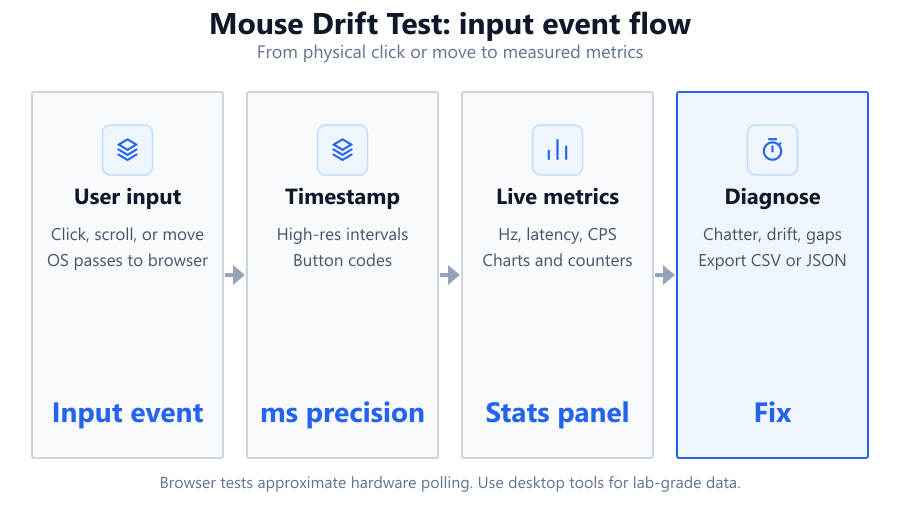
The Mouse Drift Test is designed to help you spot subtle sensor drift and hardware problems that can make your cursor move even when your mouse is not being touched. If you have ever noticed your pointer creeping across the screen for no reason, this tool provides a quick way to check for unwanted movement. By measuring how many pixels your cursor moves during a five-second period of stillness, the tool quantifies drift, giving you a stability score and an easy-to-read pass/fail result. The included drift-over-time chart helps track exactly when and how the movement occurs.
Unlike hardware-based diagnostics, this browser tool uses your system's mouse events to capture movement data, making it easy to use on almost any modern PC or laptop. The detection is based on how the browser receives input, so while it is accurate enough for troubleshooting, it is not as precise as professional lab tools. The optional pointer lock feature ensures the test works consistently, even if your pointer would otherwise hit the edge of your screen.
How to Use This Tool
To run the Mouse Drift Test, first make sure your mouse is on a flat, clean surface. Click the 'Start Test' button on the tool. The test will prompt you to keep your mouse completely still for five seconds. There is an option to enable pointer lock, which keeps the cursor centered and avoids issues if your pointer reaches the edge of the screen during testing.
Do not touch, bump, or move the mouse during the countdown. The tool tracks all movement events, measuring how many pixels the cursor drifts in total and how stable the sensor is. Once the five seconds are up, you will see your drift pixel count, a stability score, a drift-over-time chart, and a clear pass or fail status based on the preset threshold. If your mouse passes, your hardware is quite stable when idle. If it fails, you may have a sensor, surface, or interference issue.
Understanding Your Results
After the test, you get several key metrics. The main one is drift pixels: this number shows how many pixels your mouse moved during the five-second stillness period. Lower numbers mean better stability. The stability score gives you a quick summary, factoring in both the amount and consistency of any drift detected.
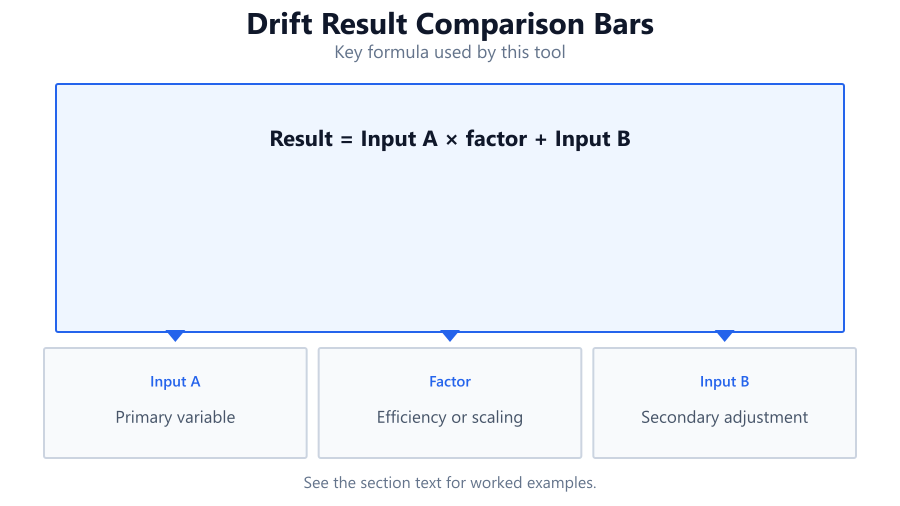
A drift-over-time chart visualizes every movement event, letting you see if the drift happened suddenly or gradually. The tool applies a pass/fail threshold, so you know instantly if your mouse's idle stability is within acceptable limits. A pass means your mouse is unlikely to cause unwanted cursor movement during regular use. A fail suggests hardware or environmental issues. Keep in mind, browser-based tests can be affected by OS-level settings, mouse software, or background processes, so results are approximate and meant for quick diagnostics.
Common Problems This Helps Diagnose
The Mouse Drift Test is especially useful for identifying a range of issues that can cause your mouse pointer to move when it should not. Sensor drift is often due to hardware problems, such as a failing optical or laser sensor found in mice like the Logitech G Pro or Razer DeathAdder. Surface compatibility can be a factor: certain mousepads or reflective desks can confuse sensors on models like the Corsair Sabre Pro or SteelSeries Rival 3.
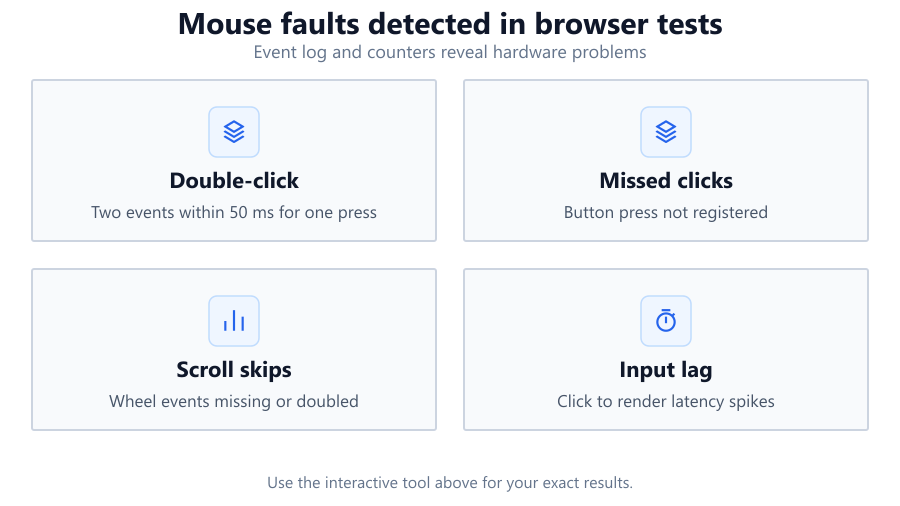
Wireless interference is another culprit, particularly with Bluetooth or 2.4 GHz wireless mice used near routers or wireless keyboards like the Corsair K70. Dirty sensor lenses, worn-out mouse feet, or even firmware bugs can also result in unwanted movement. For laptops, built-in touchpads or pointing sticks may introduce drift if not properly disabled. The test can also reveal issues caused by high polling rates, poor USB connections, or OS-level pointer acceleration settings.
Examples and Scenarios
Scenario 1: Logitech G Pro Wired on a Cloth Pad A user places their Logitech G Pro on a clean cloth pad and runs the test. The drift pixel count is zero, stability score is 100, and the chart is flat. The test passes, indicating excellent sensor stability and no hardware issues.
Scenario 2: Razer DeathAdder on a Glossy Desk A Razer DeathAdder user runs the test on a glass-topped desk without a mousepad. The drift pixel count spikes to 18, with a failing stability score. The drift-over-time chart shows constant, small jumps. Recommendation: use a proper mousepad to reduce sensor confusion and pass the test.
Scenario 3: Corsair Sabre Pro Wireless Near Wi-Fi Router A Corsair Sabre Pro Wireless starts drifting during the test, with a drift pixel count of 7 and a stability score below the pass mark. The user realizes the mouse is next to a Wi-Fi router. Moving the mouse away from the router and rerunning the test results in a pass, confirming wireless interference as the cause.
Scenario 4: Dell Laptop with Active Touchpad On a Dell Inspiron laptop, the mouse pointer drifts even with an external Logitech M720 mouse attached. The test fails. Disabling the built-in touchpad in Windows Settings stops the drift, and the test passes.
Scenario 5: Worn Mouse Feet on SteelSeries Rival 3 A SteelSeries Rival 3 user notices irregular drift patterns and fails the test. Closer inspection reveals worn mouse feet causing uneven contact. Replacing the feet with new ones restores stability, and the test passes on the next run.
Tips for Accurate Testing
For best results, clean your mouse sensor and use a quality mousepad designed for your mouse type. Avoid glossy, reflective, or uneven surfaces, as these can lead to false drift readings even on top-tier mice like the Logitech G Pro X Superlight. Make sure your USB connection is secure, especially for wired models.
Close unnecessary applications to minimize background CPU load, which can affect browser event timing. Disable any built-in touchpads or pointing sticks on laptops to prevent interference. If you use mouse software (Logitech G Hub, Razer Synapse), check for active profiles or macros that could affect pointer movement. Run the test multiple times, and average your results. If you get inconsistent results, try another browser, as Chrome, Edge, and Firefox may handle pointer events differently.
Browser vs Desktop Software
Browser-based mouse drift tests are the fastest way to get a general idea of your mouse's stability. They work directly in Chrome, Edge, Firefox, or Safari without installing anything. However, browser tests rely on the operating system's mouse event handling and polling rates, which means results are approximate.
Dedicated desktop software or hardware analyzers, like MouseTester or professional lab tools, can access raw sensor data at higher polling rates, offering greater precision for in-depth diagnostics. Operating system settings, such as Windows pointer acceleration or custom DPI scaling, may affect how movement is reported in browsers. If you need detailed analysis for esports or hardware validation, use standalone tools. For most users, this browser test is accurate enough to flag major drift or sensor issues.
Summary
The Mouse Drift Test offers a simple, effective way to check for unwanted mouse movement while idle. It is ideal for troubleshooting mysterious cursor drift, diagnosing sensor or surface issues, and ensuring your mouse is not holding back your gameplay or productivity. While not a substitute for lab-grade tools, it is an excellent first step for any user noticing unusual pointer behavior. Use it alongside proper mouse maintenance and high-quality surfaces for the best results.
Frequently Asked Questions
Why does my mouse cursor move on its own when I am not touching it?
Unwanted mouse movement, also called drift, can be caused by sensor hardware issues, an unsuitable surface (like glossy or reflective desks), wireless interference, dirty sensors, worn mouse feet, or even OS-level settings. The Mouse Drift Test helps you pinpoint if the problem is related to your mouse hardware or environment. If you see significant drift, try cleaning the sensor, switching to a proper mousepad, checking USB or wireless connections, and updating firmware. If the drift persists, your mouse may need servicing or replacement.
Can a browser-based test accurately measure mouse drift?
Browser-based drift tests are accurate enough for most troubleshooting, but they rely on how your operating system and browser report mouse movement. This means results are approximate, especially on high-refresh-rate monitors or with high-polling-rate mice. The test cannot access raw sensor data like dedicated desktop software, so minor drift might go undetected. However, if your mouse has a real hardware or surface problem, the browser test will usually catch it.
What is a good stability score in the Mouse Drift Test?
A high stability score (typically close to 100) means your mouse stayed nearly perfectly still during the five-second test. Most quality gaming mice, such as the Logitech G Pro or Razer Viper, should score between 95 and 100 on a clean mousepad. Lower scores (below 90) suggest sensor issues, surface incompatibility, or environmental interference. Use the pass/fail threshold as a guide, but aim for the highest stability score possible for your mouse and setup.
Why does my wireless mouse fail the drift test near my router?
Wireless mice, especially those using 2.4 GHz or Bluetooth, can be affected by interference from Wi-Fi routers, wireless keyboards, or other nearby devices. If you notice your mouse failing the drift test when close to a router, try moving either the mouse or the router farther apart. This often resolves the issue, since less interference means more stable sensor readings. If the problem persists, switch to a wired connection or try a different USB port.
Does the surface I use really affect mouse drift?
Yes, the surface under your mouse directly affects sensor performance. Optical and laser sensors can struggle with glossy, reflective, or transparent surfaces. Even a top-tier mouse like the Corsair Sabre Pro can show drift if used on glass or a shiny desk. For best results, use a mousepad designed for your mouse type, and avoid uneven or dirty surfaces. If you see high drift pixels, try changing your surface before replacing your mouse.
Should I disable my laptop's touchpad before testing my mouse?
It is a good idea to disable your laptop's built-in touchpad or pointing stick before running the drift test, especially if you notice unexplained cursor movement. Touchpads can sometimes register phantom touches or movement, which can interfere with accurate test results. Disable the touchpad in your operating system's settings or through your laptop's function keys, then rerun the test with only your external mouse active.
How do I interpret the drift-over-time chart?
The drift-over-time chart plots every movement event detected during the five-second test. A flat line means your mouse was stable, while spikes or jagged sections indicate moments of drift. If you see sudden jumps, check for bumps, vibrations, or wireless interference. Consistent, low-level drift may point to a sensor or surface problem. Use the chart to spot patterns and identify whether the issue is constant or intermittent.
Can high polling rate mice affect test accuracy?
High polling rate mice (1000 Hz or higher) like the Razer Viper 8K can report data faster than most browsers can process. This may lead to some movement events being dropped or averaged in browser-based tests, making the drift measurement less precise. While the test still detects major issues, for extremely fast or sensitive mice, use a dedicated desktop tool for the most accurate analysis.
Why does the test use a five-second stillness period?
The five-second duration balances speed with accuracy. It is long enough to capture sensor drift or interference, but short enough to minimize user error from accidental bumps or hand movement. Extended tests risk more environmental noise, while shorter tests might miss slow, gradual drift. For more detailed diagnostics, you can run the test multiple times and compare results.
Can operating system settings affect the Mouse Drift Test?
Yes, OS-level settings such as pointer acceleration, custom DPI, or accessibility features can change how movement is reported to the browser. Background processes or CPU load may also affect event timing. For the most accurate results, use default mouse settings and run the test with as few background applications as possible. If you suspect OS settings are interfering, try resetting them or running the test on another device.
What should I do if my mouse fails the drift test?
If your mouse fails the drift test, start by cleaning the sensor and checking the mouse feet for wear. Try using a different mousepad or surface. If using a wireless mouse, move away from sources of interference and replace the batteries. Update your mouse firmware and drivers. Test in a different USB port or on another computer. If the drift persists, your mouse may have a hardware fault and could need replacement.
Is this test suitable for professional esports players?
While the Mouse Drift Test is great for quick checks and general troubleshooting, it is not a substitute for professional-grade hardware analyzers or desktop diagnostic software. Esports players or those needing extremely precise data should use tools like MouseTester or specialized hardware analyzers, which can log raw input at higher polling rates and provide detailed movement graphs. For most users, though, this browser test is more than adequate to catch major issues.
Why does my drift pixel count vary between test runs?
Small variations in drift pixel count can happen due to environmental vibrations, minor hand movement, or background system activity. Differences between browsers, polling rates, and operating systems can also affect results. To get a more reliable assessment, run the test several times, average your results, and try to minimize potential sources of interference each time.
What real-world symptoms might drift cause during gaming or work?
Mouse drift can make aiming in games feel inconsistent, or cause your cursor to slowly creep across the screen during work. You might notice your selection box moving in Photoshop, or your crosshair drifting in shooters like CS:GO. Persistent drift can disrupt productivity and accuracy, so diagnosing and fixing it with a test like this is important for a smooth experience.
Can USB hubs or extension cables cause mouse drift?
Low-quality USB hubs or long extension cables can sometimes introduce power delivery or signal integrity issues, especially with high-performance mice like the Logitech G Pro X Superlight. These issues might manifest as intermittent drift or lag. If you suspect this is the case, try connecting your mouse directly to a motherboard USB port and rerun the drift test to see if stability improves.
Do monitor refresh rates affect browser-based drift testing?
Monitor refresh rates do not directly affect how the browser receives mouse movement events, but higher refresh rates (120 Hz, 144 Hz, or more) can increase the perceived sensitivity of small cursor movements. Browser tests sample pointer data based on event timing, not frame rate, but fast displays may make minor drift more noticeable. The test remains reliable for spotting real hardware or surface issues.
Related Tools
Free tools to analyze, compare, and optimize your PC gaming performance
Mouse Tester
Test every mouse button, scroll wheel, clicks per second and double-click performance in one online tool.
Use Tool →Mouse Drag Test
Test drag clicking performance, tracking accuracy and button hold stability with real-time analysis.
Use Tool →Mouse Speed Test
Measure mouse speed, acceleration, IPS and movement performance in real time with interactive charts.
Use Tool →Mouse Button Test
Test every mouse button online including left, right, middle, side buttons and scroll wheel. Detect faulty switches, dou
Use Tool →Popular Game System Requirements
Check if your PC meets the requirements for these popular games
Benchmark data from PassMark and publisher specs. Calculators run locally in your browser — we never upload your hardware info.