
FREE MOUSE TEST
Mouse Speed Test: Measure IPS & Pointer Speed
Looking to measure your mouse's speed, acceleration, and movement performance? This browser-based tool shows live pointer speed in pixels per second and IPS, acceleration, and a real-time motion trail. Instantly visualize your mouse's performance with interactive charts and peak and average speed estimates.
What Does This Tool Do?
The Mouse Speed Test measures your mouse's real-time speed, acceleration, and movement performance directly in your browser. You get live readings of your pointer's speed in pixels per second (px/s) and an estimate of inches per second (IPS), which is a common metric for mouse performance in gaming and productivity tasks. The tool also highlights peak and average speeds, shows acceleration, and draws a visual motion trail so you can see exactly how your mouse is moving.
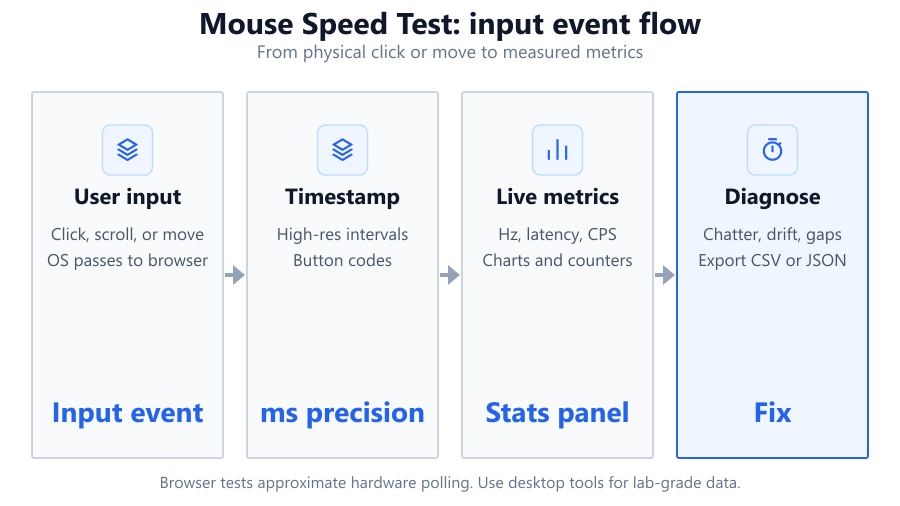
Unlike hardware-based testing or specialized software, this browser tool uses your system's mouse events to track data. While it delivers detailed and useful insights, precision depends on browser refresh rate and polling, so results are approximate. Still, it's an effective way to get a practical look at how your mouse performs in real-world scenarios, whether you're gaming, designing, or troubleshooting input lag.
How to Use This Tool
Start by opening the Mouse Speed Test page in a modern browser like Chrome, Firefox, or Edge. Ensure your mouse is connected and working properly. When you're ready, move your mouse cursor inside the test canvas area. The tool will begin tracking your pointer's movements immediately.
As you move your mouse, watch the live charts update in real time. You'll see your current speed in pixels per second, an IPS estimate, and a motion trail that visualizes your path. For best results, move the mouse at different speeds and directions to capture a range of data. Try rapid flicks, slow drags, and steady sweeps. The tool calculates both peak and average speeds, along with acceleration, so you can compare how your mouse performs under various conditions.
No downloads or installations are needed. Results appear instantly as you interact with the canvas. You can reset the test at any time to start a new session.
Understanding Your Results
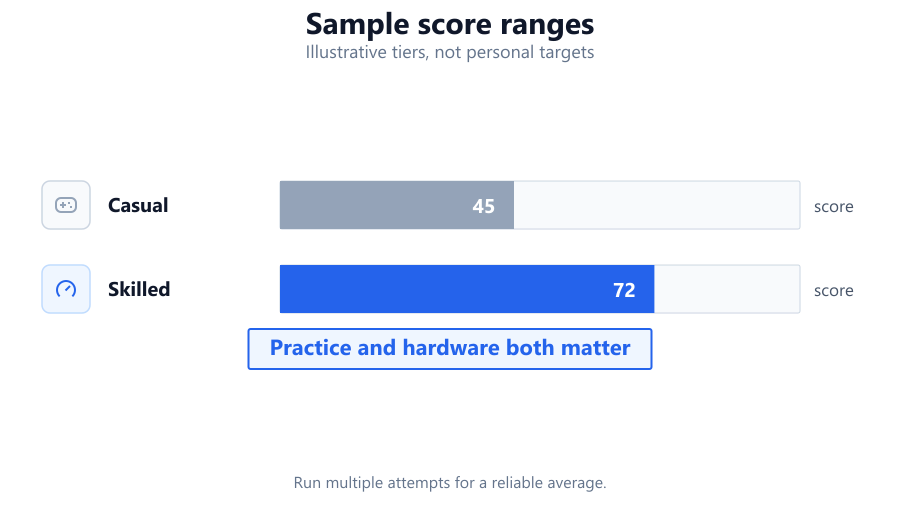
This tool reports several key metrics: live speed in px/s, an IPS estimate, peak and average values, and acceleration. Pixels per second (px/s) shows how fast your cursor is moving across your screen, influenced by your mouse's DPI setting and your hand movement. Inches per second (IPS) is an estimate based on your display and pointer settings, representing how quickly you can move the mouse before tracking errors occur. Acceleration measures changes in speed, which can affect in-game aiming or precision work.
The motion trail is a visual representation of your cursor's recent path. This helps you spot jitter, skipping, or inconsistent movement. Interactive charts let you review your speed and acceleration over time. If you see erratic spikes or drops, it could indicate issues with your mouse sensor, surface, or settings.
Remember, browser-based tools rely on system mouse events, which are limited by your operating system, browser FPS, and mouse polling rate. Results are useful for comparing performance, but not for laboratory-grade measurement.
Common Problems This Helps Diagnose
Many users turn to the Mouse Speed Test to troubleshoot mouse responsiveness, pointer lag, or inconsistent movement. If your cursor feels sluggish or jumps unpredictably, this tool can help pinpoint whether the issue lies with your mouse, surface, or system settings. For example, if your peak IPS is much lower than your mouse's rated spec (like with a Logitech G Pro or Razer DeathAdder), it could indicate a problem with your USB port, outdated drivers, or surface compatibility.
The acceleration chart is useful for detecting unwanted pointer acceleration, which can cause aiming errors in games. If you notice sudden jumps in speed without corresponding hand movement, you may need to adjust your OS settings (such as disabling pointer acceleration in Windows). The motion trail can reveal jitter or skipping, which is common with worn-out sensors, dirty mouse feet, or reflective surfaces like glass.
This tool is also helpful for identifying software conflicts. If performance varies between browsers or after changing background applications, you might have a resource conflict or a background process affecting mouse input.
Examples and Scenarios
Scenario 1: Diagnosing Inconsistent Pointer Speed on a Gaming Mouse A user with a Logitech G Pro finds that their pointer speed varies wildly during flick shots in CS:GO. Running the Mouse Speed Test, they observe peak IPS well below the mouse's rated 400 IPS. The live chart shows erratic spikes. After switching USB ports and cleaning the sensor, peak IPS stabilizes, confirming a hardware or connection issue.
Scenario 2: Comparing Wired vs Wireless Modes A Corsair Harpoon owner wants to see if wireless mode affects speed. Using this tool, they test both modes and find that average px/s and IPS are nearly identical, but occasional drops occur in wireless mode, likely due to interference. The motion trail confirms smoother lines when wired.
Scenario 3: Surface Testing on Different Mousepads A user tries their Razer Basilisk on a SteelSeries QcK cloth pad and a glossy desk. The tool shows higher and more consistent peak IPS on the cloth pad. On the glossy surface, the motion trail shows jitter and lower average speed, indicating the sensor struggles on reflective surfaces.
Scenario 4: Diagnosing Input Lag on a High Refresh Rate Monitor A gamer with a Dell S2721DGF 165 Hz monitor feels lag. The Mouse Speed Test shows delayed or choppy pointer movement. Lowering background processes and updating GPU drivers improves smoothness, confirming a software bottleneck rather than a hardware flaw.
Scenario 5: Testing Mouse Acceleration Settings A user toggles Windows Enhance Pointer Precision on and off. The acceleration chart shows clear differences: with acceleration on, the chart displays more pronounced spikes, while disabling it leads to a more linear speed profile. This helps the user decide which setting suits their workflow.
Scenario 6: Verifying DPI Switch Performance Someone with a Glorious Model O uses the DPI switch to toggle between 400, 800, and 1600 DPI. The tool shows higher px/s at higher DPIs for the same hand movement. This confirms that DPI settings are working as expected and helps the user choose their preferred sensitivity.
Tips for Accurate Testing
For the most reliable results, use a clean, flat mousepad like the Logitech G640 or SteelSeries QcK. Avoid glossy or reflective surfaces, which can interfere with optical sensors. Make sure your mouse feet are clean and undamaged.
Test at different speeds: slow, medium, and fast flicks. Try to keep your hand movement steady when measuring average speed. Use a high refresh rate monitor (like a Dell S2721DGF at 144 Hz or above) to maximize browser event accuracy. Close background apps and browser tabs to reduce system resource conflicts.
Disable OS-level pointer acceleration (Enhance Pointer Precision in Windows) if you want raw sensor data. Keep your mouse firmware and drivers up to date. If possible, test in multiple browsers, as some handle input events with different precision. Remember, browser-based tests depend on your system's polling rate and browser performance, so results are approximate, not absolute.
Browser vs Desktop Software
Browser-based tools like this Mouse Speed Test are convenient, requiring no installation and working across operating systems. They're ideal for quick checks, comparisons, or troubleshooting. However, they rely on browser mouse events and are limited by browser FPS, OS-level input handling, and the mouse's polling rate. This means results are not as precise as those from dedicated desktop tools or hardware analyzers.
Desktop software, such as Enotus Mouse Test or MouseTester, can access lower-level input data and often provide more accurate readings, including polling rate and jitter plots. Lab-grade hardware analyzers, like those used by professional reviewers, offer the most precision but are impractical for home use.
For most users, browser-based testing is sufficient to detect major issues, verify DPI or IPS, and troubleshoot lag or acceleration. For scientific measurement or competitive gaming analysis, dedicated desktop software is recommended.
Summary
The Mouse Speed Test provides an instant, browser-based way to measure your mouse's speed, acceleration, and movement quality. With live px/s and IPS estimates, peak and average speeds, acceleration tracking, and a visual motion trail, you get a comprehensive look at your mouse's performance. While results are approximate due to browser and OS limitations, this tool is valuable for troubleshooting, comparing devices, and tweaking settings.
Whether you're a gamer dialing in your Logitech G Pro, a designer fine-tuning pointer speed, or just curious about hardware performance, this tool makes it easy to visualize how your mouse behaves in real time. For more rigorous testing, consider supplementing with dedicated desktop software, but for most users, this browser test offers practical, actionable insights.
Frequently Asked Questions
How accurate is the Mouse Speed Test compared to dedicated software?
The Mouse Speed Test provides useful, practical measurements of pointer speed and acceleration, but its accuracy is limited by browser polling, your system's refresh rate, and input latency. Unlike dedicated desktop software, which can access lower-level hardware data, this tool depends on mouse events reported by the browser. For most users, results are close enough for troubleshooting and comparison, but not suitable for lab-grade analysis. If you need maximum precision, consider tools like MouseTester or hardware analyzers.
What is IPS and why does it matter for gaming mice?
IPS stands for Inches Per Second and measures the maximum speed at which a mouse sensor can reliably track movement. High IPS ratings (such as 400 IPS on the Logitech G Pro or Razer Viper) mean the mouse can handle quick flicks and fast movements without losing accuracy. For competitive gaming, a higher IPS helps ensure the sensor keeps up with rapid hand movements, reducing tracking errors or skipped inputs.
Why does my mouse show lower IPS than advertised?
Several factors can cause your actual IPS to be lower than your mouse's rated spec. Browser tests like this are limited by polling rate, system performance, and browser FPS. Surface quality, dirty sensors, and USB port issues can also impact tracking speed. If you consistently see low IPS, try updating drivers, switching surfaces, cleaning your mouse, or testing in different browsers. For precise measurements, use dedicated desktop software.
How do DPI settings affect the results?
DPI (dots per inch) determines how far your cursor moves for each inch of mouse movement. Higher DPI settings result in higher px/s readings for the same hand motion. The IPS estimate in this tool accounts for your DPI, so toggling between DPI levels (using a button on mice like the Glorious Model O or Corsair Sabre) will show different speed values. For consistent comparisons, keep your DPI setting the same during tests.
Does mouse acceleration affect gaming performance?
Yes, mouse acceleration can impact gaming performance, especially in FPS titles. Acceleration means that your cursor moves further depending on how fast you move the mouse, which can cause inconsistency in aiming. Many pro gamers disable OS-level acceleration (like Enhance Pointer Precision in Windows) for predictable, 1:1 movement. The Mouse Speed Test can help visualize acceleration as spikes in the acceleration chart.
Can I use this tool to test wireless mice latency?
You can use the Mouse Speed Test to spot input lag or inconsistent tracking with wireless mice, such as the Logitech G305 or Razer Basilisk X. While it does not directly measure latency in milliseconds, you may notice choppy motion trails, delayed speed updates, or lower peak IPS if there are wireless issues. For precise latency measurement, use dedicated latency testing tools or high-speed cameras.
Why is my motion trail jagged or skipping?
A jagged or skipping motion trail usually points to sensor tracking problems, surface issues, or system bottlenecks. Optical mice often struggle on reflective, glossy, or dirty surfaces. Try testing on a quality cloth mousepad like the SteelSeries QcK. Skipping can also be caused by low polling rates, wireless interference, or high system load. Clean your mouse sensor and feet, switch USB ports, and close background apps for smoother tracking.
What browsers work best with the Mouse Speed Test?
Modern browsers like Chrome, Firefox, and Edge provide the most accurate and responsive results. Some older browsers or niche options may limit input event frequency, resulting in less precise speed and acceleration measurements. Always use the latest browser version for best performance. If you notice discrepancies between browsers, it may be due to differences in event handling or system integration.
How does monitor refresh rate affect the results?
A higher refresh rate monitor (such as a Dell S2721DGF at 144 Hz or above) can improve the smoothness and responsiveness of browser-based mouse tests. This is because browsers often tie event updates to screen refresh cycles. On lower refresh rate displays (60 Hz or below), you may see choppier motion trails and less responsive charts. For best results, test on a high refresh rate display and keep V-Sync off if possible.
What should I do if my mouse feels slow or laggy?
If your mouse feels sluggish, use this tool to check your speed and acceleration charts. Low peak IPS or delayed movement can indicate USB port issues, outdated drivers, or background processes hogging resources. Try switching USB ports, updating drivers, and closing unnecessary apps. Also, check your mousepad and clean your sensor. If the problem persists across different PCs, it may be a hardware issue with your mouse.
Can this tool detect double-clicking or switch bounce?
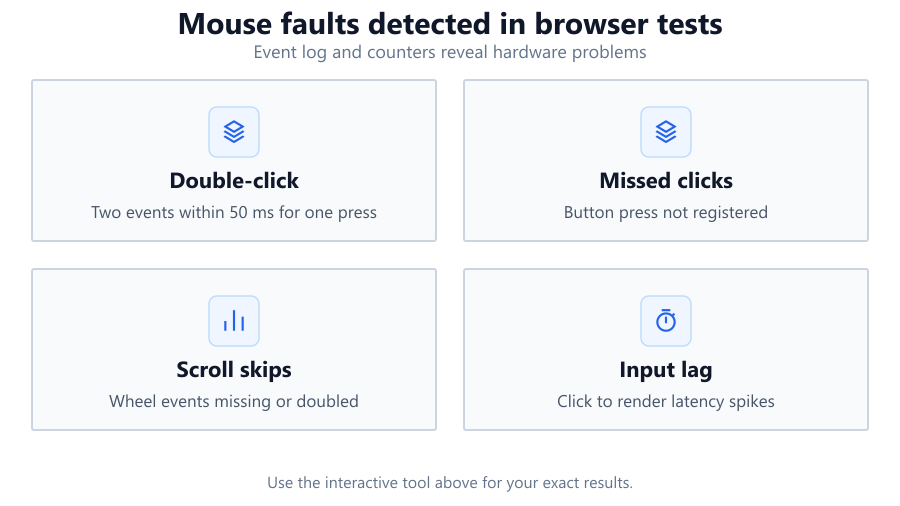
No, the Mouse Speed Test focuses on pointer speed, IPS, and motion trails. It does not track mouse button events or detect double-clicking issues, which are related to switch hardware. To test for double-click problems, use dedicated double-click tester tools or check your mouse manufacturer's software diagnostics. However, you can still use this tool to verify smooth pointer movement.
How do I disable pointer acceleration in Windows?
To disable pointer acceleration, open Windows Settings, go to Devices > Mouse > Additional mouse options. In the Mouse Properties dialog, click the Pointer Options tab and uncheck 'Enhance pointer precision.' This disables OS-level acceleration, giving you 1:1 movement. Many gamers prefer this setting for consistent aiming. After toggling, use the Mouse Speed Test to compare acceleration charts before and after the change.
Can I use this tool on Mac or Linux?
Yes, the Mouse Speed Test works on any operating system with a modern browser, including macOS and Linux. However, keep in mind that OS-level pointer handling and acceleration settings may differ. For example, macOS applies its own pointer acceleration curve by default, which can affect speed and acceleration readings. Results are still useful for comparison and troubleshooting across platforms.
Is it possible to test multiple mice for comparison?
Absolutely. You can plug in different mice, such as a Logitech G Pro, Razer DeathAdder, or a basic Dell mouse, and use the Mouse Speed Test to compare their speed, IPS, and motion trails. Make sure to set the same DPI and use the same surface for each test. This is a great way to spot differences in sensor quality, acceleration, or responsiveness between devices.
Does my USB polling rate affect test results?
Yes, your mouse's polling rate (measured in Hz) determines how often it reports position updates to the system. Higher polling rates (1000 Hz or above) allow for smoother and more accurate readings. The Mouse Speed Test is limited by both your mouse's polling rate and the browser's event handling. If your mouse supports it, set polling to 1000 Hz for best results, and avoid using USB hubs that may lower the effective rate.
What if my mouse is not detected by the test?
If the Mouse Speed Test is not registering movement, check that your mouse is properly connected and working in other applications. Try refreshing the browser page or switching browsers. Some wireless mice may need to be woken up by clicking a button. If the problem persists, check for driver or firmware updates, and test with a different USB port or another PC to rule out hardware issues.
Related Tools
Free tools to analyze, compare, and optimize your PC gaming performance
Mouse DPI Analyzer
Measure your mouse DPI by comparing physical movement with cursor distance. Verify your real DPI settings online.
Use Tool →Mouse Spin Test
Measure your mouse spinning speed in RPM, average rotations and spin direction using our free online tool.
Use Tool →Mouse Accuracy Test
Test cursor precision, path accuracy, click precision and steady hand control across multiple difficulty levels.
Use Tool →Mouse Polling Rate Test
Measure your mouse polling rate in Hz, response consistency and real-time input performance using your browser.
Use Tool →Popular Game System Requirements
Check if your PC meets the requirements for these popular games
Benchmark data from PassMark and publisher specs. Calculators run locally in your browser — we never upload your hardware info.