
FREE MOUSE TEST
Mouse Spin Test: RPM & Rotation Speed
Want to know how fast you can spin your mouse, or whether your sensor is keeping up with your movements? The Mouse Spin Test measures your mouse spinning speed in RPM, tracks average rotations, and shows spin direction using real-time browser data. Get instant feedback with RPM charts and a personal best tracker to gauge your performance.
Skill
Practice
Best
—
What Does This Tool Do?
The Mouse Spin Test is a browser-based utility designed to measure your mouse's spinning speed and tracking consistency. When you spin your mouse in a circular motion around a center target on your screen, the tool calculates your rotations per minute (RPM), the total number of full rotations, and determines if you're spinning clockwise (CW) or counterclockwise (CCW). It visually guides you with an on-screen overlay, making it easy to maintain a smooth, accurate spin. The tool also records your maximum RPM reached in each session and stores your personal best locally, so you can track improvement over time.
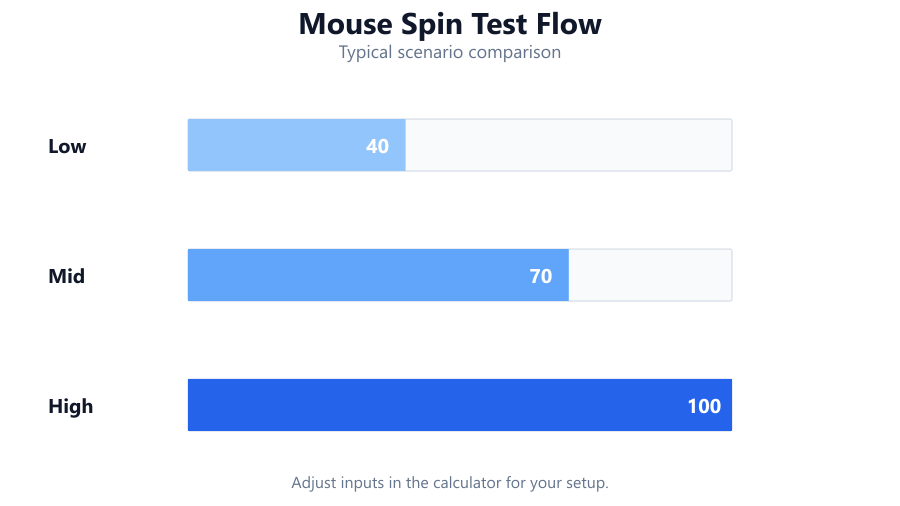
This test is especially useful for gamers, competitive eSports players, and anyone troubleshooting mouse performance. While it does not require software installation, it relies on browser-based mouse input events, so its accuracy depends on your browser, OS settings, and hardware polling rate. It is not a replacement for lab-grade diagnostic tools, but it is a fast, free, and convenient way to get an approximate sense of your mouse's response to rapid, circular movements.
How to Use This Tool
Getting started is straightforward. First, clear a space on your mousepad and make sure your mouse sensor is clean. Open the Mouse Spin Test page in your browser (Chrome, Edge, Firefox, or Safari recommended). Place your mouse pointer in the center of the on-screen target. When ready, begin spinning your mouse in a consistent circular motion around the center target, either clockwise or counterclockwise.
The on-screen overlay will help you keep a smooth path. As you spin, the tool will display your current RPM, total rotation count, and spin direction in real time. You can watch the RPM chart update as you go, and see your personal best for the session. For the most accurate results, try to keep your motion steady and avoid abrupt stops or changes in direction. When you're done, review your stats, including your maximum RPM and spin history.
No installation is required, but for best results, use a wired mouse like a Logitech G Pro or Razer DeathAdder, and a quality mousepad. Wireless mice may introduce latency. High-refresh monitors, like a Dell S2721DGF, can also help ensure smoother mouse input.
Understanding Your Results
The Mouse Spin Test outputs several key metrics. RPM, or rotations per minute, shows how fast you can spin your mouse in a full circle around the target. This value is calculated in real time based on your mouse input events. The maximum RPM is the highest speed you hit during your session. Rotation count tracks the total number of complete circles, and the tool also indicates your spin direction: clockwise (CW) or counterclockwise (CCW).
The RPM chart gives you a visual timeline of your speed, making it easy to spot spikes or drops. Your personal best RPM is stored in your browser's local storage, so you can revisit the page and see if you've improved. Keep in mind that browser-based RPM measurement is approximate. It depends on your browser's ability to track mouse movement, your system's polling rate, and the frame rate of the test itself. For most users, this level of accuracy is more than enough to reveal mouse tracking issues or to compare different hardware, but it is not a substitute for specialized lab equipment.
Factors like enhanced pointer precision (Windows mouse acceleration), low polling rates, or aggressive power-saving settings can affect results. For the most consistent readings, use a gaming mouse with a high polling rate (like 1000Hz), disable mouse acceleration, and ensure your browser is running smoothly.
Common Problems This Helps Diagnose
The Mouse Spin Test is a practical way to spot several common mouse-related issues. For example, if your RPM readings suddenly drop or stall during fast spins, your mouse sensor might be malfunctioning or failing to track rapid movements, a problem known as "spin-out." This is especially relevant for older or low-end sensors and becomes apparent with fast, circular motions.
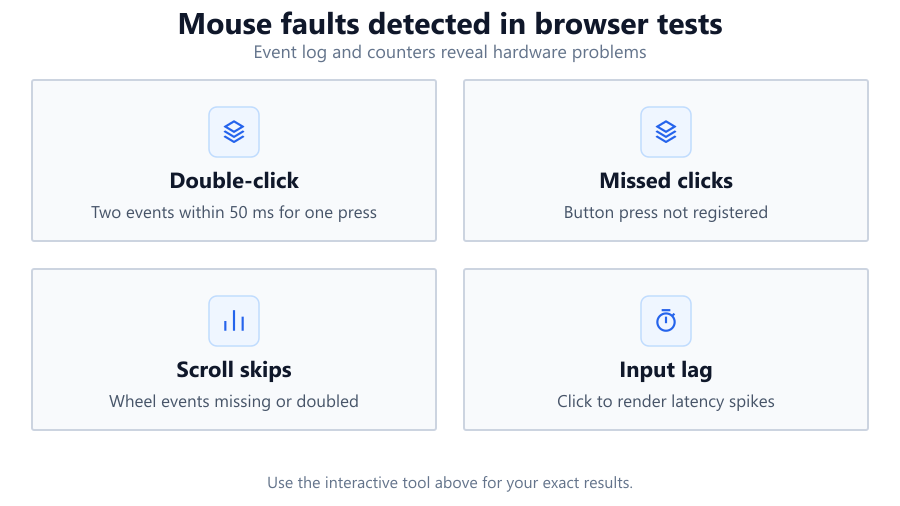
If you notice inconsistent rotation counts or erratic RPM fluctuations, your mouse's polling rate could be too low, or your browser may be throttling input events. Wireless mice like the Logitech G305 or entry-level models from HP or Dell can sometimes introduce lag or data loss, especially if the battery is low or signal interference is present.
Another issue is direction misdetection. If the tool frequently switches between CW and CCW without you changing direction, your OS or mouse driver might be introducing jitter, or your mouse pad surface could be interfering with sensor accuracy. Finally, if your personal best RPM remains suspiciously low despite fast spins, check your browser settings, system performance, and mouse firmware for potential bottlenecks.
Examples and Scenarios
Scenario 1: Diagnosing Spin-Out with a Budget Mouse You use a basic office mouse (Dell MS116) and notice that as you spin quickly, the RPM plateaus at 200, and rotation count stalls. The chart shows sudden drops, and the pointer sometimes jumps off the path. This suggests the sensor cannot keep up with rapid movement, a classic spin-out problem.
Scenario 2: Comparing Polling Rates on a Gaming Mouse You have a Logitech G Pro X Superlight. With the polling rate set to 500Hz, your max RPM is 400. After switching to 1000Hz in Logitech G HUB, your max RPM increases to 700, and the RPM chart smooths out. This shows the benefit of higher polling rates for rapid tracking.
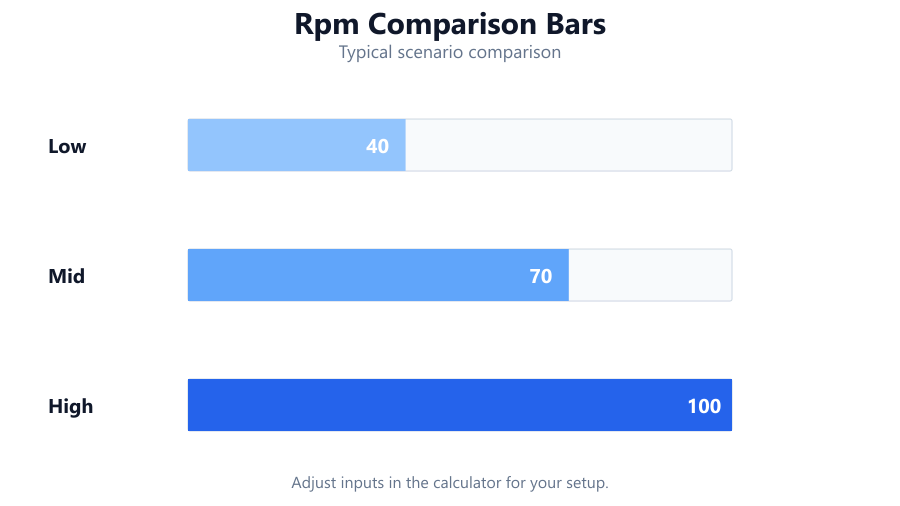
Scenario 3: Wireless Mouse Latency Using a Corsair Harpoon Wireless, your RPM readings lag behind your actual speed. The chart displays delayed peaks, and the rotation count is inconsistent. After switching to a wired Corsair M65, readings become steady and accurate, confirming that wireless latency was affecting results.
Scenario 4: Browser Performance Impact You open multiple tabs in Chrome while running the test on an older laptop with integrated graphics. The RPM chart shows stuttering, and your max RPM is lower than expected. After closing background tabs and running the test alone, your readings improve. This highlights browser overhead as a limiting factor.
Scenario 5: Diagnosing Enhanced Pointer Precision On a Windows 11 PC with enhanced pointer precision enabled, your RPM readings jump unpredictably, and the direction indicator flickers. After disabling this feature in the mouse settings, RPM values become stable and rotation counts are accurate. This demonstrates how OS-level settings can interfere with raw mouse input.
Tips for Accurate Testing
For reliable results, use a clean, high-quality mousepad and a gaming-grade mouse with a high polling rate. Wired mice, like a Logitech G502 HERO or Razer Viper 8KHz, minimize latency and data loss. Make sure your mouse sensor is free of dust or debris, as dirt can cause tracking issues during fast spins.
Disable any OS-level mouse acceleration or enhanced pointer precision before running the test. Set your mouse DPI to a moderate value, such as 800 or 1600, to avoid excessive pointer speed that can cause loss of tracking. Close unnecessary browser tabs and background apps to ensure your system can process input events smoothly.
Use the latest version of Chrome, Edge, or Firefox, as older browsers may handle mouse events less efficiently. If you use a high-refresh monitor, make sure your browser and GPU drivers are up to date. Finally, keep your spinning motion smooth and consistent. Abrupt stops or irregular paths can result in erratic RPM or false rotation counts.
Browser vs Desktop Software
Browser-based tools like the Mouse Spin Test are fast, free, and require no installation. They work on most operating systems and modern browsers and are ideal for quick checks and troubleshooting. However, their accuracy is limited by how browsers and operating systems handle mouse input. Event polling is subject to browser frame rates, background activity, and OS-level settings. For most users, browser tests are accurate enough to reveal major issues like spin-out, polling rate bottlenecks, or tracking inconsistencies.
Dedicated desktop software, such as MouseTester or Enotus Mouse Test, can access lower-level input data, offer higher polling rates, and provide more precise measurement. These tools are better for in-depth diagnostics or sensor benchmarking, especially if you need to compare raw data or test at frame-perfect timing. Use desktop software if you require lab-grade accuracy, are troubleshooting professional eSports gear, or need to analyze sensor performance under specific conditions. Use the browser test for fast, convenient checks, or when you do not want to install extra software.
Summary
The Mouse Spin Test offers a quick, accessible way to measure your mouse spinning speed in RPM, average rotations, and spin direction, all directly from your browser. It is ideal for gamers, hardware enthusiasts, and anyone wanting to check mouse performance without extra downloads. While its results are approximate due to browser and OS input handling, the tool highlights key issues like spin-out, polling rate limitations, and tracking anomalies. For the most accurate readings, use a high-quality wired gaming mouse, disable OS mouse acceleration, and keep your browser up to date. For detailed sensor analysis, consider dedicated desktop software. Use the Mouse Spin Test as your first step in diagnosing mouse performance or comparing hardware.
Frequently Asked Questions
How accurate is the Mouse Spin Test compared to dedicated mouse testing software?
The Mouse Spin Test provides an approximate measurement of your mouse's spinning speed and rotation count. It uses browser events like mousemove, which depend on your browser's frame rate, the operating system, and your mouse's polling rate. While this is accurate enough for general troubleshooting and comparisons, it does not match the precision of dedicated desktop tools that can access raw sensor data at higher polling intervals. If you need lab-grade accuracy for professional analysis, use tools like MouseTester or Enotus Mouse Test instead.
Why does my RPM reading seem lower than expected during fast spins?
Several factors can cause lower-than-expected RPM readings. Your browser may limit how frequently it processes mouse events, especially if your computer is under heavy load or running many background tasks. Wireless mice often introduce latency or drop data, and low polling rates (125Hz or 250Hz) can miss rapid movements. Also, OS settings like Windows Enhanced Pointer Precision can interfere with raw input, reducing the tool's ability to track high-speed spins. Use a wired gaming mouse, close background apps, and disable mouse acceleration for the best results.
Can this tool detect mouse spin-out or sensor failures?
Yes, the Mouse Spin Test can help reveal spin-out or sensor tracking failures. If your mouse sensor cannot keep up with rapid circular motion, you will see sudden drops or plateaus in the RPM chart, rotation counts that stall, or the pointer jumping off the circular path. These symptoms often indicate that your sensor is losing track of fast movement, which is common in budget or worn-out mice. If you see these issues, consider upgrading to a gaming-grade mouse with a modern optical sensor.
Does the tool work with any mouse, including wireless and Bluetooth models?
The Mouse Spin Test works with any mouse recognized by your operating system and browser, including wired, wireless, and Bluetooth models. However, wireless mice, especially entry-level or older models, may introduce noticeable latency or occasional data loss, which can affect RPM accuracy and rotation counts. For the most consistent results, use a wired mouse with a high polling rate. If you must use a wireless mouse, make sure it has fresh batteries and minimal interference from other wireless devices.
What browsers are supported, and which give the most accurate results?
The tool supports all major browsers, including Chrome, Edge, Firefox, and Safari. Chrome and Edge generally provide the most consistent mouse event tracking due to their optimized JavaScript engines and high refresh handling. Firefox is also reliable, though on some systems it may process mouse events slightly differently. Safari supports the test but may have lower frame rates on older Macs. For best results, use the latest version of Chrome or Edge on a modern PC or Mac.
How does OS-level mouse acceleration affect the test?
Operating system features like Windows Enhanced Pointer Precision (mouse acceleration) can affect the accuracy of the Mouse Spin Test. Acceleration changes the speed of your pointer based on how fast you move the mouse, which can distort the measurement of true physical movement and lead to fluctuating RPM or direction readings. For raw and consistent results, disable mouse acceleration in your OS settings before running the test. This ensures the tool measures actual physical motion, not software-adjusted pointer speed.
Can I use this tool to compare different mousepads or surfaces?
Yes, you can use the Mouse Spin Test to compare how different mousepads or surfaces affect your mouse's tracking and spinning speed. If you see higher RPM and smoother rotation counts on a quality mousepad (such as a SteelSeries QcK or Logitech G640) compared to a glossy table or worn-out pad, it suggests the sensor is tracking better. Consistent results across multiple surfaces can also help you identify if surface type is affecting your mouse performance.
Is there any risk of damaging my mouse by spinning it rapidly for this test?
There is virtually no risk of damaging a modern mouse by spinning it rapidly during this test, assuming you use reasonable force and a clean, flat surface. Modern gaming mice are designed to withstand fast flicks and spins. However, excessive force or repeated hard impacts can wear out mouse feet or introduce sensor misalignment, especially on rough surfaces. Use a quality mousepad and avoid aggressive or jerky movements to prolong your mouse's lifespan.
Why does the tool sometimes detect the wrong spin direction?
Incorrect spin direction detection usually happens due to jittery mouse input, low polling rates, or inconsistent circular motion. Browser event processing can occasionally misinterpret fast, irregular movements, especially if your mouse sensor struggles with acceleration or your OS is filtering input. Make sure to spin in a smooth, consistent path and use a mouse with a high polling rate for the most reliable direction detection. Cleaning your sensor and using a non-reflective mousepad can also help.
How does the tool store my personal best RPM, and is my data private?
The Mouse Spin Test saves your personal best RPM locally in your browser's local storage. This means your record stays on your device and is not uploaded to any server. Only you can see your personal best unless you clear your browser data or access the tool from a different device or browser profile. Your test history and statistics are private and cannot be accessed by others or the website operators.
Can this tool help identify issues with gaming mice like Logitech G Pro or Razer Viper?
Yes, the Mouse Spin Test is well-suited for evaluating gaming mice such as the Logitech G Pro, Razer Viper, or Glorious Model O. It can help you spot tracking consistency, polling rate bottlenecks, and potential spin-out. If you notice irregular RPM readings or frequent stalls at high speeds, it may indicate a hardware or firmware issue. However, for in-depth analysis or competitive play calibration, consider using dedicated software alongside this browser tool.
How can I interpret the RPM chart and what does a 'good' value look like?
The RPM chart shows your spinning speed over time. A smooth, high plateau indicates consistent, rapid spins, while sharp drops or erratic spikes suggest inconsistent motion or sensor issues. What counts as a 'good' RPM depends on your mouse and physical ability, but gaming mice typically track smoothly up to 600-800 RPM or higher. If you are unable to reach high RPMs or see frequent drops, your mouse sensor or surface may be limiting your performance.
What settings should I change for the most accurate Mouse Spin Test results?
For the best results, set your mouse polling rate to its maximum (usually 1000Hz for gaming mice), disable mouse acceleration or enhanced pointer precision in your OS, and set your DPI to a moderate level (800-1600 DPI). Use a wired connection if possible, and test on a clean, non-reflective mousepad. Close unnecessary browser tabs and background programs to reduce lag. These steps help your browser capture mouse input as accurately as possible.
Does monitor refresh rate affect the Mouse Spin Test?
Monitor refresh rate does not directly affect mouse input polling, but a higher refresh rate (such as 144Hz or 240Hz on monitors like the Dell S2721DGF) can make the on-screen overlay and RPM chart appear smoother and more responsive. However, the test's accuracy is mostly determined by your mouse polling rate and browser performance. Still, using a high-refresh monitor can make the experience feel more fluid, especially during fast spins.
When should I use desktop software instead of the Mouse Spin Test?
Use desktop software for deep diagnostics, sensor benchmarking, or professional-grade analysis. Programs like MouseTester or Enotus Mouse Test can access raw mouse input at higher polling rates and provide detailed data logs. If you need to compare hardware at a technical level, test for input lag, or analyze micro-movements, desktop tools are more precise. The Mouse Spin Test is best for quick checks, troubleshooting, or comparing different mice without installing extra software.
Can the test help with diagnosing mouse stuttering or lag?
Yes, if your mouse is stuttering or lagging, the RPM chart and real-time stats in the Mouse Spin Test can help visualize the problem. Irregular spikes, sudden drops, or inconsistent rotation counts during steady spins usually point to input lag, sensor issues, or wireless interference. Try switching USB ports, updating drivers, or testing with a different mouse to isolate the cause. The test makes it easy to spot performance issues that might be hard to see in normal use.
Related Tools
Free tools to analyze, compare, and optimize your PC gaming performance
Mouse Speed Test
Measure mouse speed, acceleration, IPS and movement performance in real time with interactive charts.
Use Tool →Mouse Drag Test
Test drag clicking performance, tracking accuracy and button hold stability with real-time analysis.
Use Tool →Mouse Accuracy Test
Test cursor precision, path accuracy, click precision and steady hand control across multiple difficulty levels.
Use Tool →CPS Test
Measure your clicks per second with customizable test durations, live tracking and detailed statistics.
Use Tool →Popular Game System Requirements
Check if your PC meets the requirements for these popular games
Benchmark data from PassMark and publisher specs. Calculators run locally in your browser — we never upload your hardware info.