
Guide
Common Buying Mistakes
Are you about to buy new PC hardware? Avoid common buying mistakes that can lead to wasted money, poor performance, or incompatible components. This guide breaks down the most frequent errors and how to sidestep them for a smooth upgrade.
Updated 2026-07-05
Understanding Common Buying Mistakes with PCIe Devices
Shopping for a new graphics card, SSD, or expansion card often feels overwhelming. There are dozens of technical specs to compare, and it's easy to overlook critical details. Many users focus on price or brand, but miss out on the most important factor: true compatibility and performance potential.
One of the most frequent issues is misunderstanding PCIe bandwidth. For example, buying a PCIe Gen 4 SSD but installing it in a Gen 3 slot will bottleneck performance. Similarly, some motherboards physically support large GPUs, but only offer lower lane counts or older PCIe generations, reducing your upgrade's value.
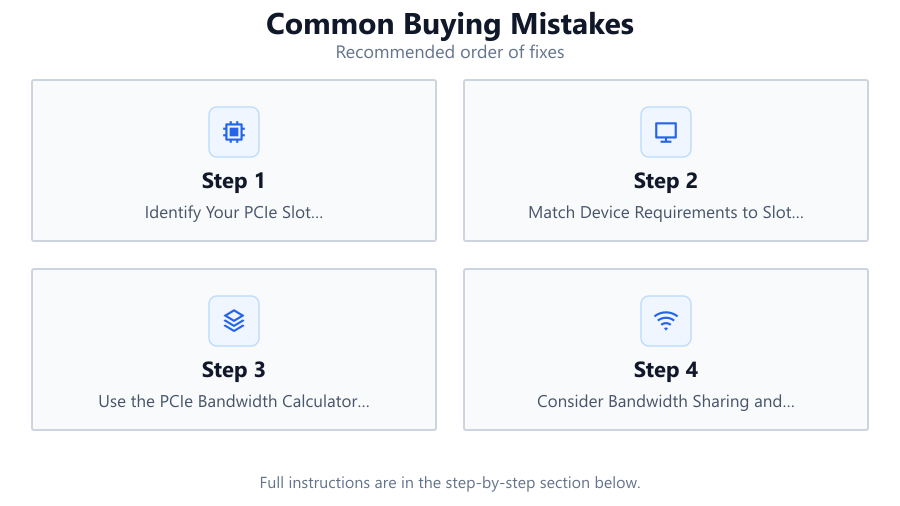
To avoid these pitfalls, you must match your hardware's specs with your motherboard's actual capabilities. Using the PCIe Bandwidth Calculator can clarify the maximum throughput of any slot, helping you make informed decisions before you buy. This tool instantly displays the real-world speeds you can expect, eliminating guesswork.
In-Depth: How Small Oversights Lead to Expensive Mistakes
Let’s explore the most common buying mistakes in detail. Many PC buyers assume that all PCIe slots are equal, but this is far from true. For instance, a PCIe x16 slot running at Gen 3 speeds is not equivalent to a Gen 4 slot, even if they look identical. If you install a high-end GPU in a slower slot, you could lose significant performance.
Another common error is failing to account for shared bandwidth. On many consumer motherboards, adding one fast PCIe device can reduce the available lanes for others. This can throttle your SSD or network card, especially during heavy workloads.
Finally, some users purchase expansion cards that physically fit but are electrically incompatible. Double-checking both the slot’s mechanical and electrical specs using tools like the PCIe Bandwidth Calculator is essential. This prevents costly returns and ensures all your components deliver their full potential.
Step-by-step
Identify Your PCIe Slot Specifications
Check your motherboard manual or manufacturer’s website to find out the PCIe generation and lane width for each slot. Don’t rely on visual inspection alone, as physical and electrical specs can differ.
Match Device Requirements to Slot Capabilities
Compare your expansion card’s required PCIe version and lanes with what your motherboard provides. For best performance, ensure your slot matches or exceeds your device’s needs.
Use the PCIe Bandwidth Calculator Before Buying
Input your motherboard’s PCIe generation and lane count into the PCIe Bandwidth Calculator. This will show you the maximum theoretical bandwidth, helping you avoid bottlenecks.
Consider Bandwidth Sharing and Slot Prioritization
Review your motherboard’s diagram to see which slots share bandwidth or are disabled when others are populated. Plan your device placement to maximize performance.
Double-Check Power and Physical Clearance
Verify that your case and power supply can handle the new device. Large GPUs and PCIe cards may block adjacent slots or require extra power connectors.
Comparison
| PCIe Generation | x4 Slot Bandwidth (GB/s) | x16 Slot Bandwidth (GB/s) |
|---|---|---|
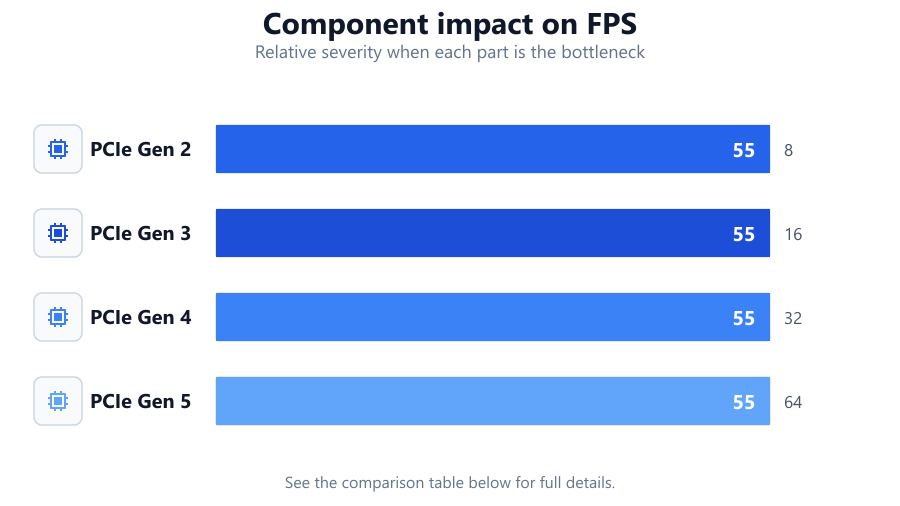
| PCIe Gen 2 | 2 | 8 |
| PCIe Gen 3 | 4 | 16 |
| PCIe Gen 4 | 8 | 32 |
| PCIe Gen 5 | 16 | 64 |
Common mistakes
Mistake
Buying a high-speed device for a low-speed slot
Fix: Always check your motherboard’s actual PCIe generation and lane count. Use the PCIe Bandwidth Calculator to verify slot speeds before purchasing.
Mistake
Ignoring bandwidth sharing between slots
Fix: Read your motherboard’s manual to understand which slots share lanes. Avoid using shared slots for bandwidth-intensive devices.
Mistake
Overlooking physical clearance and power requirements
Fix: Measure your case and check your power supply wattage and connectors. Ensure there is enough space for large cards and that you have the required power cables.
Troubleshooting
New GPU or SSD is running slower than expected
Likely cause: Device installed in a lower generation or lower lane PCIe slot
What to do: Move the device to a higher bandwidth slot. Use the PCIe Bandwidth Calculator to confirm maximum slot speeds.
System fails to boot after adding a new PCIe device
Likely cause: Motherboard does not support device electrically or is overloaded
What to do: Check compatibility and slot assignment. Remove other devices if necessary and consult your motherboard manual.
Other devices slow down after installing a new expansion card
Likely cause: Bandwidth sharing or lane splitting between slots
What to do: Rearrange your devices to prioritize high-bandwidth cards in primary slots. Consult the motherboard manual for optimal configuration.
Recommendations
- Always verify PCIe slot specs before buying new hardware.
- Use the PCIe Bandwidth Calculator to ensure your slot matches your device’s requirements.
- Plan your component layout to avoid bandwidth sharing and physical conflicts.
- Consult your motherboard manual for detailed slot and lane information.
- Double-check power and clearance requirements to prevent installation issues.
Frequently asked questions
How do I know if my PCIe slot is fast enough for my new device?
Refer to your motherboard manual for slot specs, then use the PCIe Bandwidth Calculator to check if your slot meets your device’s speed requirements.
Can using the wrong PCIe slot reduce my device’s performance?
Yes, installing a device in a lower-generation or lower-lane slot will bottleneck its performance. Always match the device with the best available slot.
What happens if multiple devices share PCIe bandwidth?
Shared bandwidth can reduce the performance of all devices involved. It’s best to install your fastest cards in dedicated slots with full lane access.
Why does my new PCIe card not fit or work in my motherboard?
Some slots are physically compatible but electrically different. Double-check both the mechanical and electrical specs before buying any expansion card.