
Guide
Optimization Guide
Maximize your PCIe slot performance with our expert optimization guide. Discover how to use the PCIe Bandwidth Calculator to fine-tune your hardware for peak throughput.
Updated 2026-07-05
Understanding PCIe Bandwidth Optimization
Optimizing PCIe bandwidth is essential for anyone building or upgrading a PC. PCI Express slots connect your graphics cards, SSDs, and expansion cards to the motherboard, and their bandwidth directly impacts data transfer speeds and overall system responsiveness.
If you are a gamer, creator, or professional, your hardware needs to run at its full capability to avoid bottlenecks. Knowing the real-world performance of your PCIe slots can help you make smarter upgrade decisions, allocate devices more efficiently, and ensure you are not leaving performance on the table.
The PCIe Bandwidth Calculator is a vital tool for this process. It lets you instantly calculate the maximum theoretical throughput for any combination of PCIe generation and lane width. This helps you match devices with the best slots, plan multi-GPU or multi-SSD setups, and identify potential limitations in your configuration.
Advanced Strategies for PCIe Bandwidth Optimization
Once you understand your system's capabilities, you can take several steps to optimize PCIe bandwidth. Start by mapping out your motherboard's slot layout and checking the official specifications for each slot's lane allocation. Many motherboards share bandwidth between slots, especially when multiple devices are installed, which can reduce available throughput.
Next, consider the generation of your devices and motherboard. PCIe Gen4 and Gen5 offer substantial improvements over Gen3, but only if every component in the chain supports the higher standard. Mixing generations can result in devices running at lower speeds.
Use the PCIe Bandwidth Calculator to model different scenarios. For example, compare the throughput of a Gen3 x16 slot with a Gen4 x8, or see how installing an extra NVMe SSD might affect GPU bandwidth. This proactive approach can prevent performance surprises and help you get the most from your hardware investment.
Step-by-step
Identify Your PCIe Slot Generations and Lane Counts
Check your motherboard documentation or use diagnostic tools to determine the PCIe generation and the number of lanes for each slot. This is the foundation for any optimization.
Map Device Placement to Maximize Bandwidth
Place high-bandwidth devices, such as GPUs and NVMe SSDs, in slots with the highest lane counts and latest PCIe generation. Avoid putting two demanding devices on slots that share bandwidth.
Use the PCIe Bandwidth Calculator for Accurate Planning
Input your slot and device configurations into the PCIe Bandwidth Calculator. Compare theoretical speeds, and plan upgrades or device rearrangements based on the results.
Update BIOS and Drivers for Full PCIe Support
Ensure your motherboard’s BIOS and chipset drivers are up to date. Updates often improve PCIe compatibility, enable new features, and fix bugs that can limit bandwidth.
Monitor Real-World Performance and Adjust as Needed
Use benchmarking tools to test actual device speeds. If results are below expectations, revisit slot placement or consult the PCIe Bandwidth Calculator for further adjustments.
Comparison
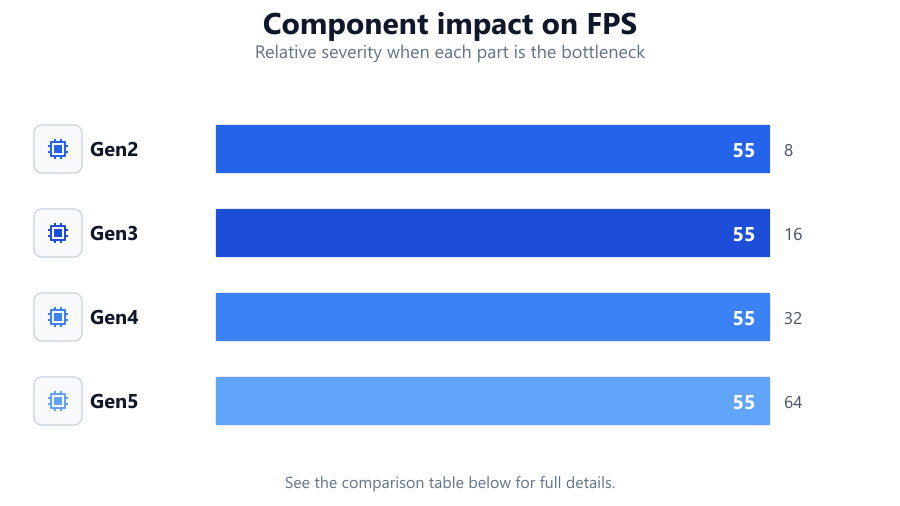
| PCIe Gen | x4 Slot Bandwidth (GB/s) | x16 Slot Bandwidth (GB/s) |
|---|---|---|
| Gen2 | 2 | 8 |
| Gen3 | 4 | 16 |
| Gen4 | 8 | 32 |
| Gen5 | 16 | 64 |
Common mistakes
Mistake
Installing a PCIe 4.0 device in a 3.0 slot
Fix: Always match device and slot generations for maximum speed. Check both device and motherboard specs before installation.
Mistake
Ignoring bandwidth sharing between slots
Fix: Consult your motherboard manual to see which slots share lanes, and avoid placing high-demand devices in shared slots.
Mistake
Overlooking BIOS settings that limit PCIe speed
Fix: Enter your BIOS and set PCIe slots to the highest supported generation. Look for settings like 'PCIe Slot Configuration' or 'PCIe Speed.'
Troubleshooting
GPU or SSD running at lower than expected speeds
Likely cause: Device is installed in a lower-generation or lower-lane slot
What to do: Move the device to a slot with more lanes or a higher PCIe generation. Use the PCIe Bandwidth Calculator to verify optimal placement.
System instability after adding new PCIe devices
Likely cause: Motherboard cannot supply enough bandwidth or power
What to do: Remove or relocate devices. Check slot sharing and power supply capacity.
PCIe slot not recognized in BIOS or Windows
Likely cause: Disabled slot in BIOS or outdated chipset drivers
What to do: Update BIOS and drivers, and verify the slot is enabled in BIOS settings.
Recommendations
- Use the PCIe Bandwidth Calculator before upgrading or adding devices to ensure optimal slot selection.
- Regularly update your motherboard BIOS and chipset drivers to unlock the latest PCIe performance enhancements.
- For best results, prioritize placing GPUs and NVMe SSDs in slots with the most lanes and latest PCIe generation.
- Always consult your motherboard’s manual to understand bandwidth sharing and avoid slot conflicts.
Frequently asked questions
What is PCIe bandwidth and why does it matter?
PCIe bandwidth determines how much data can pass between your device and the motherboard. Higher bandwidth means faster data transfers, which is essential for GPUs, SSDs, and other high-speed components.
How can I check my current PCIe slot speeds?
You can use tools like GPU-Z for graphics cards or CrystalDiskInfo for SSDs. For planning, the PCIe Bandwidth Calculator gives you theoretical speeds based on your configuration.
Does mixing PCIe generations affect performance?
Yes. Devices and slots will operate at the lowest common generation. For example, a Gen4 device in a Gen3 slot will run at Gen3 speeds.
Can I use multiple NVMe SSDs without affecting GPU performance?
It depends on your motherboard’s lane allocation. Use the PCIe Bandwidth Calculator to see if adding extra SSDs will reduce available lanes for your GPU.