
Guide
How to Choose the Right Hardware
Choosing the right hardware is crucial for building a reliable, high-performance PC. This guide walks you through every step, from understanding compatibility to using the PCIe Bandwidth Calculator for optimal part selection.
Updated 2026-07-05
Understanding Hardware Selection: The Foundation of a Reliable PC
Knowing how to choose the right hardware is the most important step in building or upgrading a computer. Selecting compatible components ensures your system runs smoothly, meets your performance goals, and avoids costly mistakes. Each part, from the CPU to storage, must work together without bottlenecks.
Before buying anything, you need to evaluate your computing needs. Are you gaming, editing videos, or just browsing the web? Your use case determines the level of hardware required. It is also critical to consider your budget at this stage, as it will influence your choices for CPUs, GPUs, memory, and storage.
Compatibility is the most common pitfall. Motherboards support specific CPUs and RAM types, and your case must fit all components. PCIe bandwidth is another key factor: it affects the speed of graphics cards, SSDs, and expansion cards. Using a tool like the PCIe Bandwidth Calculator helps you check if your planned build will deliver the performance you expect. This guide offers a step-by-step path to choosing the best parts so you can build a system that lasts.
In-Depth: Matching Components and Maximizing PCIe Bandwidth
The heart of any PC is the motherboard. Start by choosing a motherboard that fits your required CPU socket and RAM type. High-end CPUs may need a board with robust power delivery and multiple PCIe lanes. Check the chipset specifications for features like USB ports, storage options, and PCIe slot configurations.
Next, select a CPU that matches your performance needs. For gaming, a high clock speed and strong single-core performance matter most. For content creation, prioritize core count and multi-threading. Always verify that your chosen motherboard supports the CPU's power and thermal requirements.
Graphics cards are often the most demanding component in terms of PCIe bandwidth. Modern GPUs require PCIe Gen4 or Gen5 to operate at full speed. Use the PCIe Bandwidth Calculator to confirm your slot and lane configuration can handle your GPU and other PCIe devices. This ensures you avoid bottlenecks and get the most from your investment.
Memory and storage come next. Most modern systems need at least 16GB of RAM, with 32GB recommended for demanding workloads. SSDs connected via NVMe use PCIe lanes, so factor this into your lane allocation. Again, the PCIe Bandwidth Calculator can help you visualize and optimize your system’s data throughput.
Future-proofing is also important. Choose components with headroom for upgrades, extra RAM slots, and additional PCIe slots. This lets you adapt to new needs without a complete rebuild.
Step-by-step
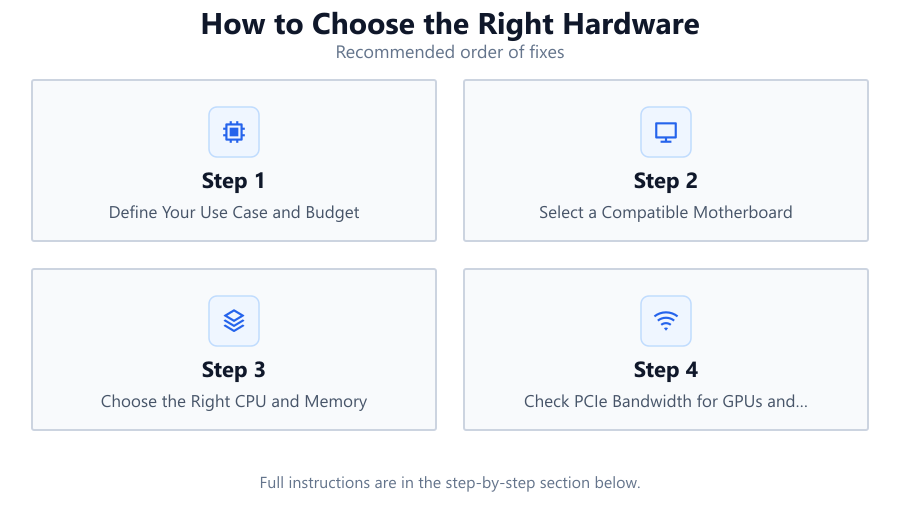
Define Your Use Case and Budget
Start by listing the main tasks your PC will perform. Set a realistic budget based on your needs. For gaming, prioritize the GPU and CPU. For content creation, focus on core count and memory.
Select a Compatible Motherboard
Choose a motherboard with the right CPU socket and chipset. Ensure it has enough PCIe slots and RAM slots for your planned configuration. Check the manufacturer's compatibility lists before buying.
Choose the Right CPU and Memory
Pick a CPU that matches your workload. Verify the RAM type and speed supported by your motherboard and CPU. Aim for at least 16GB of RAM for general use, and 32GB or more for demanding applications.
Check PCIe Bandwidth for GPUs and Storage
Use the PCIe Bandwidth Calculator to confirm your chosen motherboard provides enough PCIe lanes and bandwidth for your GPU, SSDs, and expansion cards. This prevents performance bottlenecks.
Plan for Expansion and Future-Proofing
Select a case with room for upgrades and a power supply with extra wattage. Choose a motherboard with extra PCIe and RAM slots so you can add new hardware later without replacing core components.
Comparison
| Component | Key Consideration | Common Pitfall |
|---|---|---|
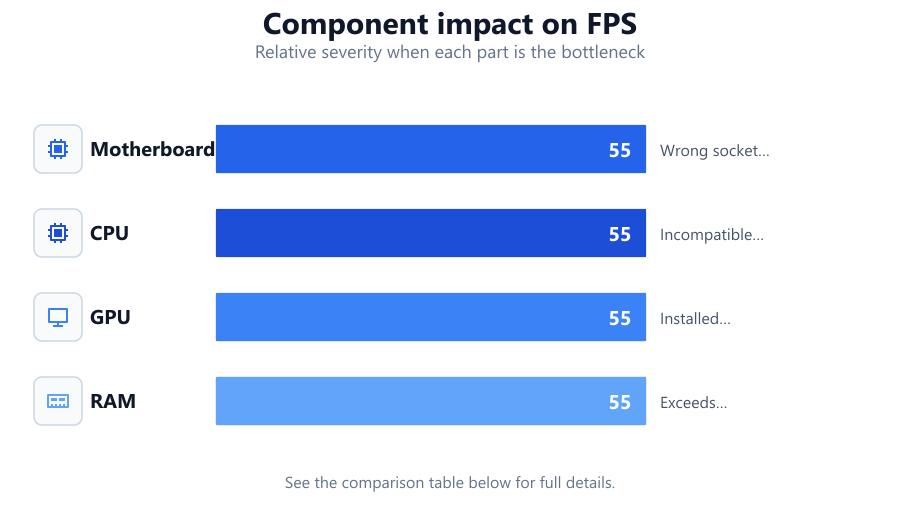
| Motherboard | CPU socket, PCIe slots, chipset features | Wrong socket or insufficient PCIe lanes |
| CPU | Core count, clock speed, compatibility | Incompatible with motherboard or underpowered |
| GPU | PCIe generation, bandwidth needs | Installed in wrong slot or limited by PCIe bandwidth |
| RAM | Type, speed, capacity | Exceeds motherboard's supported speed or capacity |
Common mistakes
Mistake
Choosing incompatible CPU and motherboard
Fix: Always verify CPU socket and chipset compatibility on the manufacturer’s website before purchasing.
Mistake
Ignoring PCIe bandwidth limitations
Fix: Use the PCIe Bandwidth Calculator to ensure your GPU and SSDs will run at full speed.
Mistake
Underestimating power supply needs
Fix: Calculate your total power draw and choose a PSU with at least 20 percent extra wattage for safety and future upgrades.
Mistake
Neglecting case and cooling requirements
Fix: Check component dimensions and cooling needs. Make sure your case fits all chosen hardware and has adequate airflow.
Troubleshooting
PC does not boot or posts error beeps
Likely cause: Incompatible or improperly seated CPU or RAM
What to do: Double-check CPU socket compatibility and ensure RAM is installed in the correct slots. Reseat all components.
GPU or SSD running at lower than expected speeds
Likely cause: Installed in a slot with lower PCIe bandwidth or wrong PCIe generation
What to do: Move the device to the primary PCIe slot and confirm lanes and generation with the PCIe Bandwidth Calculator.
Random crashes or instability under load
Likely cause: Insufficient power supply or overheating
What to do: Upgrade to a higher wattage PSU and improve case cooling. Ensure all power connectors are securely attached.
Cannot install additional RAM or expansion cards
Likely cause: Motherboard lacks free slots or exceeded supported capacity
What to do: Check motherboard specifications before upgrading. Plan your build with expansion in mind.
Recommendations
- Always start with a clear list of needs and a realistic budget.
- Use the PCIe Bandwidth Calculator to plan your GPU and storage configuration.
- Buy from reputable brands and check compatibility on official websites.
- Prioritize future-proofing by choosing a motherboard and case with room to grow.
- Document your chosen components and double-check all compatibility before purchasing.
Frequently asked questions
Why does PCIe bandwidth matter when choosing hardware?
PCIe bandwidth determines how fast data moves between your CPU, GPU, and storage devices. Insufficient bandwidth can bottleneck performance, especially with fast GPUs and NVMe SSDs.
How do I know if my components are compatible?
Check the manufacturer's compatibility lists for your motherboard, CPU, and RAM. Confirm PCIe slot and lane requirements for GPUs and SSDs using the PCIe Bandwidth Calculator.
What is the most important factor when building a PC?
Compatibility is key. All parts must work together to avoid wasted money and poor performance. Always verify sockets, slots, and bandwidth before buying.
Can I upgrade my hardware later?
If you plan ahead and choose a motherboard with extra slots and a spacious case, you can easily add new RAM, storage, or expansion cards in the future.