
FREE MOUSE TEST
Mouse Drag Test: Drag Click & Hold Stability
Need to check if your mouse can drag click reliably, or if your cursor stutters while dragging? This tool gives you real-time feedback on drag clicking performance, path accuracy, and button hold stability, using a visual trail and live stats. Results help spot tracking dropouts and jitter, but note that browser-based tests use approximate sampling based on your system and browser.
What Does This Tool Do?
The Mouse Drag Test checks how well your mouse handles drag clicking and click-hold scenarios. It tracks your mouse’s movement across a virtual pad, showing your drag path visually as a trail. As you hold and drag, the tool measures sample counts, estimates distance, and flags dropouts whenever polling intervals exceed 32ms. This is especially useful for gaming mice like the Logitech G Pro or Razer Viper, where consistent tracking and button hold stability are crucial.
The tool’s real-time analysis helps identify shaky tracking, missed samples, or unstable button contacts. While it doesn’t provide lab-grade accuracy, it’s a practical browser-based solution for detecting issues that can impact both gaming and productivity. You get instant feedback without needing to install desktop software.
How to Use This Tool
Start by closing other applications that might use your mouse heavily, such as games or design software, to reduce background interference. Visit the Mouse Drag Test page using a modern browser like Chrome, Firefox, or Edge. Place your mouse pointer inside the test area, press and hold your mouse button, and begin dragging in any direction.
As you drag, you will see your path marked on the virtual pad. The tool updates the sample count, estimates distance traveled based on pointer movement, and highlights any polling dropouts in real time. Try both slow and fast drags, short and long paths, and switch between left and right mouse buttons if your mouse supports both for drag clicking (for example, the Glorious Model O or SteelSeries Rival 3).
Release the button to complete the test. Review the on-screen feedback for dropouts, sample rates, and drag accuracy.
Understanding Your Results
Each test run gives you several key metrics. The sample count indicates how many movement updates the browser received during your drag. Higher counts mean smoother and more granular tracking. The distance estimate gives a rough measure of how far the pointer traveled. Dropout detection flags any noticeable gaps in data, helping you spot if your mouse or browser missed input events due to polling delays or hardware hiccups.
If you see a clean, continuous path with high sample counts and no dropouts, your mouse and system are handling drag clicks well. Jittery lines, flat spots, or multiple dropout warnings suggest possible issues. Remember, browser-based sampling is limited by your operating system, browser refresh rate, and desktop settings. Actual polling rates may vary, and the tool cannot detect every microsecond gap like dedicated hardware analyzers.
Use the results to compare different mice, USB ports, or system settings. It’s best for relative comparisons and for spotting obvious problems, rather than absolute measurements.
Common Problems This Helps Diagnose
The Mouse Drag Test can reveal several real-world issues:
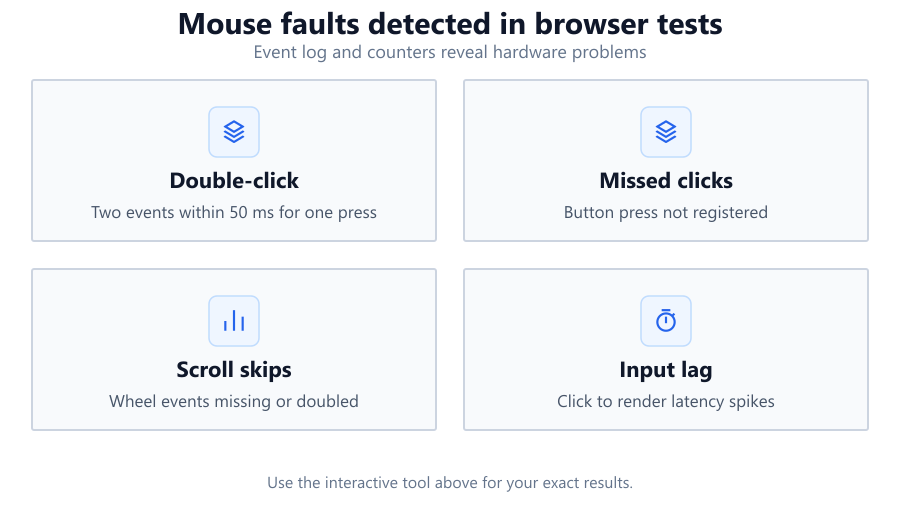
- Unstable drag clicking: Some mice, such as older office models or worn-out switches, may lose contact during rapid drag clicks, causing intermittent input. The tool highlights these with dropout warnings.
- Tracking jitter: If your drag path appears jagged or inconsistent, it may be due to sensor noise, poor mouse feet, or dirty mouse pads. Gaming mice like the Logitech G502 or Razer DeathAdder should show smooth trails. Cheap mice or devices with worn sensors tend to jitter.
- Missed inputs: If you notice frequent polling gaps over 32ms, your mouse may be struggling with USB polling, or your system might be overloaded. This is common when using overloaded USB hubs or when battery-saving features throttle wireless mice.
- Inconsistent button hold: Some switches (especially in budget mice) may not maintain a stable connection during long holds. This is visible as sudden breaks in the drag trail, even if you never released the button.
Examples and Scenarios
Scenario 1: Testing a Gaming Mouse (Logitech G Pro X Superlight) You start the test, drag quickly in a zig-zag pattern, and see a smooth, continuous trail with no dropouts. The sample count is high, and the estimated distance matches your physical movement. This shows strong tracking and reliable button hold, typical of high-end gaming mice.
Scenario 2: Diagnosing a Faulty Mouse Button (Aging Dell Basic Optical Mouse) Dragging slowly, you notice the trail occasionally stops, even while holding the button. Dropout warnings appear at the same moments. This suggests the mouse button’s switch is failing to maintain contact, a common issue with older office mice.
Scenario 3: USB Hub Bottleneck (Corsair K70 Keyboard USB Passthrough) Plugging your mouse into your keyboard’s USB passthrough, the test shows intermittent dropouts and uneven sample spacing. Moving the mouse back to a direct motherboard port reduces these issues. This indicates the hub or cable is introducing latency.
Scenario 4: Wireless Mouse on Low Battery (Logitech MX Master 3) You drag and see several dropouts, especially during fast movements. After charging the mouse, the dropouts disappear. This outcome highlights how low battery can throttle polling rates on wireless devices.
Scenario 5: High-Resolution Monitor Effects (Dell U2720Q 4K Monitor) On a 4K display, the estimated distance on the test is much higher for the same physical movement compared to a 1080p screen. This shows how pointer sensitivity and desktop scaling affect browser-based measurements. The path trail remains smooth, but exact distances are only rough estimates.
Scenario 6: Comparing Mouse Pads You use the same mouse on a hard plastic pad and a fabric pad. The drag path is smoother and sample counts slightly higher on the hard pad. This suggests surface friction and pad texture can influence tracking, especially for mice with older or basic sensors.
Tips for Accurate Testing
For best results, close background applications that could interrupt mouse polling, such as games, design tools, or video streaming. Use a wired mouse if possible, as wireless devices can occasionally drop samples due to interference or battery issues. Plug your mouse directly into a motherboard USB port instead of a hub or monitor passthrough to minimize latency.
Clean your mouse feet and pad before testing. Dirt or worn feet can cause jitter or uneven drag. Set your mouse’s DPI to a typical setting you use in games or daily work. If your mouse has software (like Razer Synapse or Logitech G HUB), ensure it’s set to the correct polling rate (ideally 500Hz or higher for gaming mice).
Run multiple tests, dragging in different directions and speeds. Compare left and right buttons. If you see inconsistent results, check for OS settings like pointer precision or mouse acceleration, as these can affect tracking in browsers. Remember, this tool’s measurements are approximate, so use them for comparisons and troubleshooting rather than absolute calibration.
Browser vs Desktop Software
Browser-based tests, like this Mouse Drag Test, are convenient and require no installation. They use JavaScript to capture mousemove events and button states. However, their accuracy is limited by your browser’s frame rate, the OS event queue, and USB polling. For example, Chrome might cap event rates at 125Hz or 240Hz depending on system load, even if your mouse is rated for 1000Hz. True polling intervals are often rounded or delayed.
Desktop tools, such as MouseTester or dedicated hardware analyzers, can access lower-level input data and sometimes measure down to microsecond precision. These are better for in-depth sensor analysis, latency measurement, and competitive benchmarking. Use browser tests for quick checks, troubleshooting, or comparing multiple mice on the same PC. When diagnosing persistent issues or verifying claims for professional gaming, hardware-based solutions are more reliable.
Summary
The Mouse Drag Test is a practical, browser-based way to check drag clicking performance, tracking accuracy, and button hold stability. It visualizes your drag path, counts samples, estimates distance, and flags polling dropouts in real time. While its results are not as precise as hardware or desktop-based analyzers, it’s ideal for quick checks and comparisons across different mice, surfaces, or system setups.
Use this tool to spot issues like unstable button holds, tracking jitter, missed samples, or USB bottlenecks. For competitive gaming or professional analysis, consider supplementing browser tests with dedicated software or hardware. Always factor in browser and OS limitations when interpreting results.
Whether you use a Logitech G Pro, Razer Viper, Corsair K70, or a basic office mouse, this tool helps ensure your equipment keeps up with your needs. Use it regularly after hardware changes, driver updates, or to diagnose new problems.
Frequently Asked Questions
How accurate is a browser-based mouse drag test?
A browser-based mouse drag test provides useful insights but is limited by the browser's event polling rate, your operating system, and USB polling intervals. While it can detect obvious issues like dropouts or jitter, it doesn't offer the microsecond-level precision of hardware analyzers or specialized desktop software. For most users, it's accurate enough to compare mice, check for major problems, or validate a new setup, but it's not suitable for scientific testing or eSports-level calibration.
Why do I see dropouts or gaps during drag tests?
Dropouts or gaps appear when the browser detects a polling interval over 32ms, which usually means the mouse, USB controller, or system missed an input event. This can be caused by overloaded USB hubs, wireless interference, low battery, or background applications hogging CPU time. Some older or budget mice also struggle to maintain consistent polling. If you see frequent dropouts, try connecting directly to the motherboard, closing background apps, or switching USB ports.
Can I use this tool to test drag clicking for Minecraft or FPS games?
Yes, this tool is effective for checking drag clicking performance relevant to games like Minecraft or FPS titles. It shows if your mouse can maintain consistent input during high-speed drags, which is crucial for techniques like bridging or rapid item placement. The test helps spot missed clicks, unstable hold, or jitter. For in-game performance, always test both in the browser and in the actual game, as some issues are only visible under real gaming conditions.
Does changing DPI or polling rate affect test results?
Yes, both DPI and polling rate settings impact how your mouse performs in the test. Higher DPI means more pointer movement for less physical distance, which affects the estimated distance metric. A higher polling rate (500Hz or 1000Hz) should provide more samples and smoother tracking, but browsers may not always capture the full rate due to OS and event handling limits. Test at your usual gaming or work settings for the most relevant results.
Why is my sample count lower on a 4K monitor compared to 1080p?
On a 4K monitor, each pixel of pointer movement represents a smaller physical movement compared to 1080p. If your mouse sensitivity or OS scaling isn’t adjusted, small drags may register fewer movement events across the same physical distance. This results in lower sample counts for short drags. To ensure consistent comparisons, keep your mouse settings and desktop scaling in mind when testing across different display resolutions.
What does 'dropout detected' mean in this test?
'Dropout detected' means the browser recorded a gap in mouse movement polling longer than 32 milliseconds. This could be due to missed USB packets, wireless lag, system latency, or a failing mouse switch. Dropouts can cause lost input, skipped actions, or unstable drag clicking in games and productivity apps. Persistent dropouts suggest hardware or connection issues that may need further troubleshooting.
Are browser-based drag tests affected by OS settings?
Yes, browser-based drag tests are influenced by operating system settings like pointer precision, acceleration, and input filtering. Features such as Windows 'Enhance Pointer Precision' or custom mouse drivers can alter how movement events are reported to the browser. For the most accurate and comparable results, turn off acceleration and test at your typical settings. Also, ensure your OS and browser are up to date.
How can I compare two mice with this tool?
To compare two mice, run the test multiple times with each device using the same settings, surface, and browser. Look for differences in sample count, path smoothness, dropout frequency, and distance estimates. High-quality mice like the Logitech G Pro or Razer DeathAdder usually show smoother trails with fewer dropouts. If one mouse consistently performs worse, it may have hardware or connection issues.
Why is there jitter or wobble in my drag path?
Jitter or wobble can be caused by sensor noise, dirty mouse feet, rough or uneven mouse pads, or a low-quality sensor. Some browser input handling can also exaggerate minor inconsistencies. If you see jitter on a high-end mouse, try cleaning the sensor and pad, or test on a different surface. On budget mice, mild jitter is often normal due to basic sensor technology and lack of smoothing.
Can a bad USB port or hub affect drag test results?
Absolutely. Using a USB hub, passthrough (such as on a Corsair K70 keyboard), or a damaged port can introduce latency, missed packets, or power delivery issues. This leads to dropouts or inconsistent polling in the test. For best results, connect your mouse directly to a motherboard USB port. Avoid charging devices or connecting multiple peripherals to the same hub during testing.
Does this test work with both wired and wireless mice?
Yes, the Mouse Drag Test supports both wired and wireless mice. However, wireless devices are more prone to dropouts due to battery level, signal interference, and power-saving features. If you notice more dropouts or unstable tracking with a wireless mouse, try recharging, reducing wireless interference, or switching to a different USB receiver port.
Why do I get different results in Chrome vs Firefox?
Browsers handle mouse input events differently. Chrome, Firefox, and Edge may have unique event throttling, prioritization, or background tab handling that affect input frequency and timing. Chrome often reports higher event rates, but performance can vary based on system load and browser version. For consistent comparisons, use the same browser and keep it updated.
Can this tool help diagnose double-click issues?
While the Mouse Drag Test focuses on drag clicking and hold stability, it can reveal if your mouse button is failing to maintain a stable hold. If your drag trail breaks suddenly without releasing the button, it may point to a switch issue that also causes double-clicks. For detailed double-click detection, consider a dedicated tool, but this test gives a useful first indication.
Should I use this tool after updating mouse firmware or drivers?
Yes, running the Mouse Drag Test after firmware or driver updates is a good practice. Updates can change polling rates, button debounce timing, or sensor behavior. Testing post-update ensures your mouse still performs as expected and helps catch new issues early, especially if you rely on consistent drag clicking for work or gaming.
How does this test compare to MouseTester or hardware analyzers?
MouseTester and hardware analyzers access raw input data, often measuring at higher precision and without browser or OS event delays. They can capture true polling rates, latency, and sensor irregularities. The Mouse Drag Test is easier to use and works in any browser, but its accuracy is limited by browser and OS constraints. Use browser tests for quick checks and hardware tools for in-depth analysis.
Can I use this tool on a Mac or Linux system?
Yes, the Mouse Drag Test works on any platform with a modern browser, including macOS and Linux. However, event handling and pointer behavior can differ between operating systems, which may affect sample counts and distance estimates. For best results, use the latest version of Chrome or Firefox, and disable OS-level pointer acceleration to get measurements closer to Windows setups.
Related Tools
Free tools to analyze, compare, and optimize your PC gaming performance
Mouse Drift Test
Detect unwanted mouse drift, sensor movement and hardware issues while your mouse is stationary.
Use Tool →Mouse Speed Test
Measure mouse speed, acceleration, IPS and movement performance in real time with interactive charts.
Use Tool →Mouse Spin Test
Measure your mouse spinning speed in RPM, average rotations and spin direction using our free online tool.
Use Tool →Mouse Accuracy Test
Test cursor precision, path accuracy, click precision and steady hand control across multiple difficulty levels.
Use Tool →Popular Game System Requirements
Check if your PC meets the requirements for these popular games
Benchmark data from PassMark and publisher specs. Calculators run locally in your browser — we never upload your hardware info.